
Upsells — Help & setup guide
Why upsells?
Getting a new visitor to your store costs money — ads, SEO, email, all of it. An upsell earns more from the shoppers you already paid to acquire. Instead of asking "how do I get more traffic?", Upsells asks "how much more can each order carry?"
The module raises your average order value in three ways: suggesting products that genuinely go together, nudging carts toward a reward threshold ("$12 away from free shipping"), and offering one last relevant add-on after the order is placed — when saying yes costs the shopper a single tap.
How TrustShop Upsells thinks
- Offers follow the buyer's journey
A shopper browsing is in a different mindset from a shopper who just paid. Each offer type is built for one moment, and shows on the page where that moment happens:
Buyer's moment | Offer type | Where it shows |
|---|---|---|
Exploring a product | Frequently bought together | Product page |
Building a cart | In-cart cross-sell | Cart page |
Building a cart | Cart goal & rewards | Cart page |
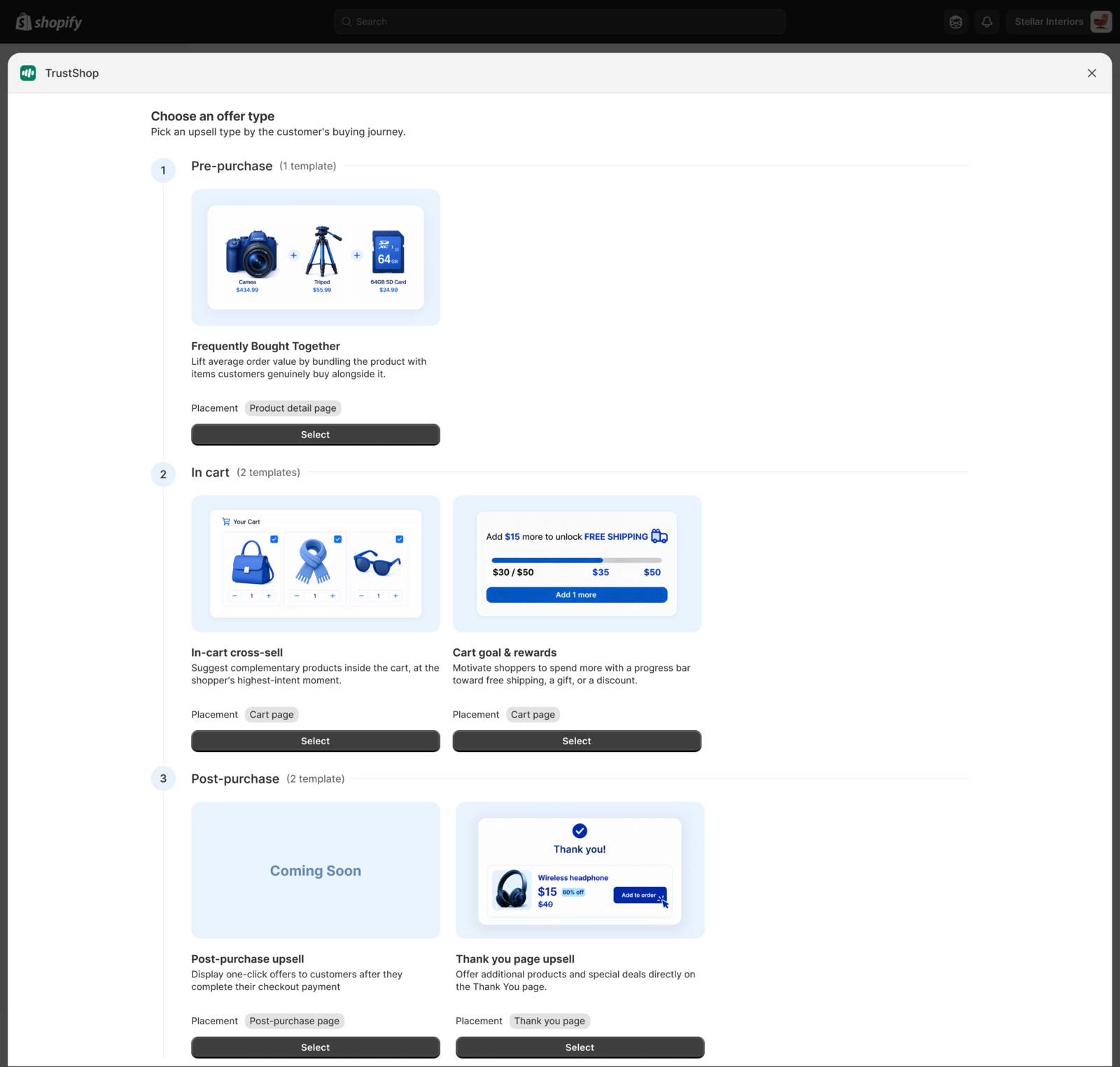
Just paid | One-click post-purchase | Between payment and the thank-you page |
Order complete | Thank you page upsell | Thank-you page |
You don't have to run all five. Start with the moment that matters most for your store — most merchants start with Frequently bought together.
- Reviews are built in
Upsells is part of TrustShop, so every offered product carries its star rating and review count automatically. A suggestion with 4.8 stars and 106 reviews isn't just a suggestion — it's social proof doing the selling for you. No setup needed; if a product has reviews in TrustShop, its offers show them.
- AI recommendations
During early access, you choose which products to offer using collections or hand-picked products. AI co-purchase recommendations — offers based on what your customers actually buy together, learned from your real order history — are in active development and will roll out soon. This is where TrustShop is headed: an offer only works when it matches what the shopper genuinely needs, and your own sales history is the best teacher of that.
Want to see exactly how it decides? We've written up the full process — the five checks every suggestion has to pass, the rules the AI is never allowed to break, and what to do on the rare occasion it misses:→ How AI co-purchase picks its suggestions
What your shoppers see
The quickest way to understand the module is to see it the way a shopper does. One widget per moment, from browsing to just-bought:
Frequently bought together — on the product page
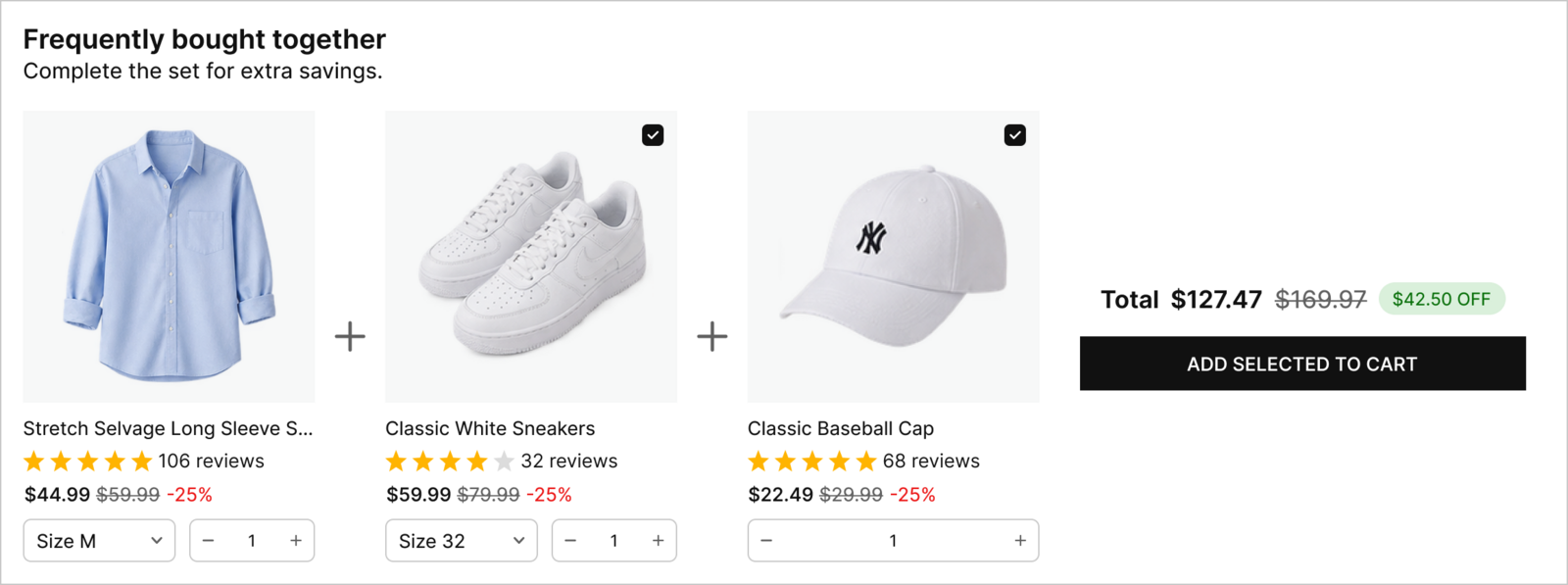
The product being viewed plus the items that complete it — each with its own star rating and review count pulled straight from TrustShop Reviews. One combined total, the saving called out, and a single button that adds the whole set.
In-cart cross-sell — on the cart page
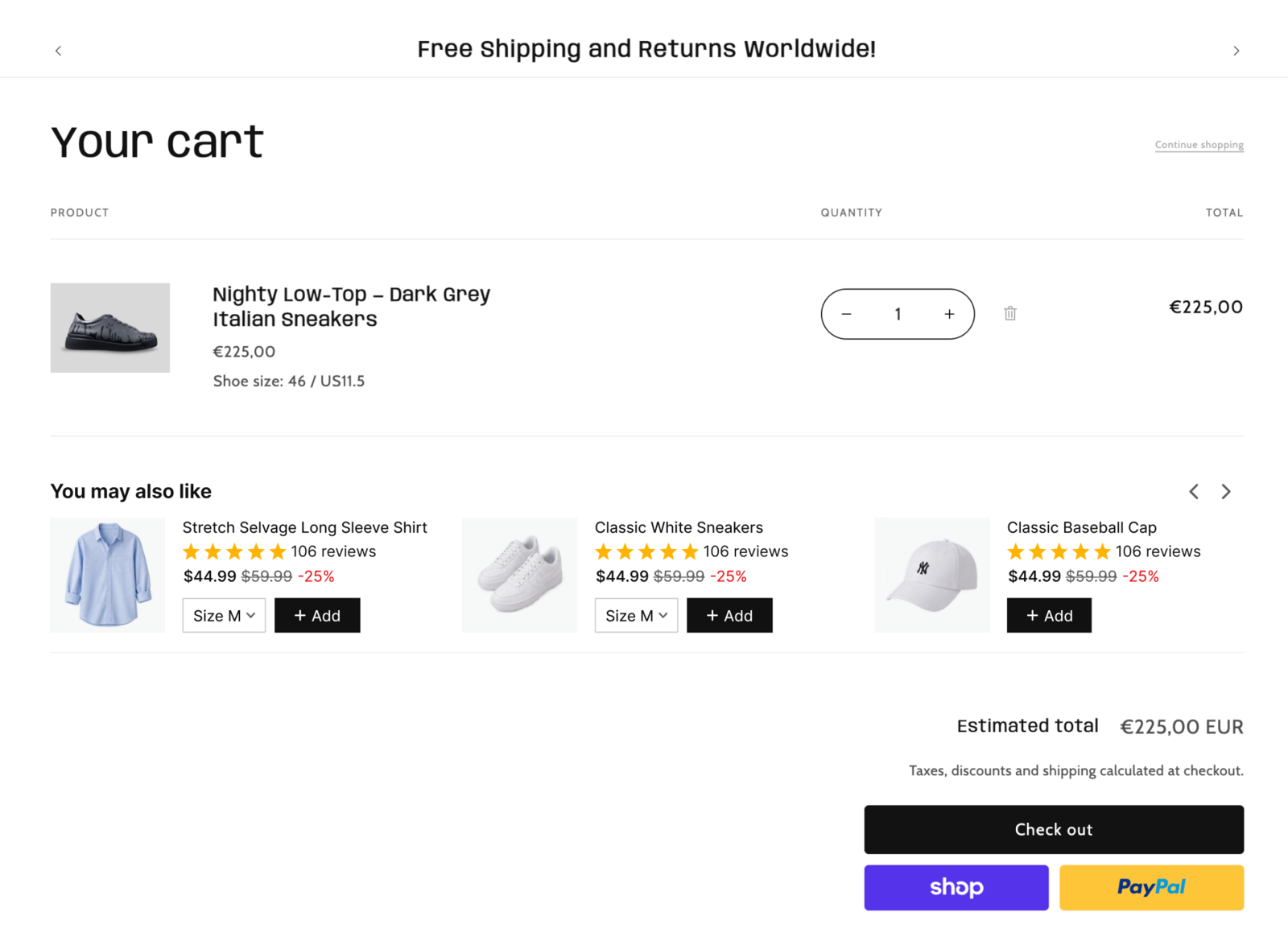
Small, easy add-ons that match what's already in the cart — the shopper is one tap from "sure, why not" at their highest-intent moment.
Cart goal & rewards — on the cart page
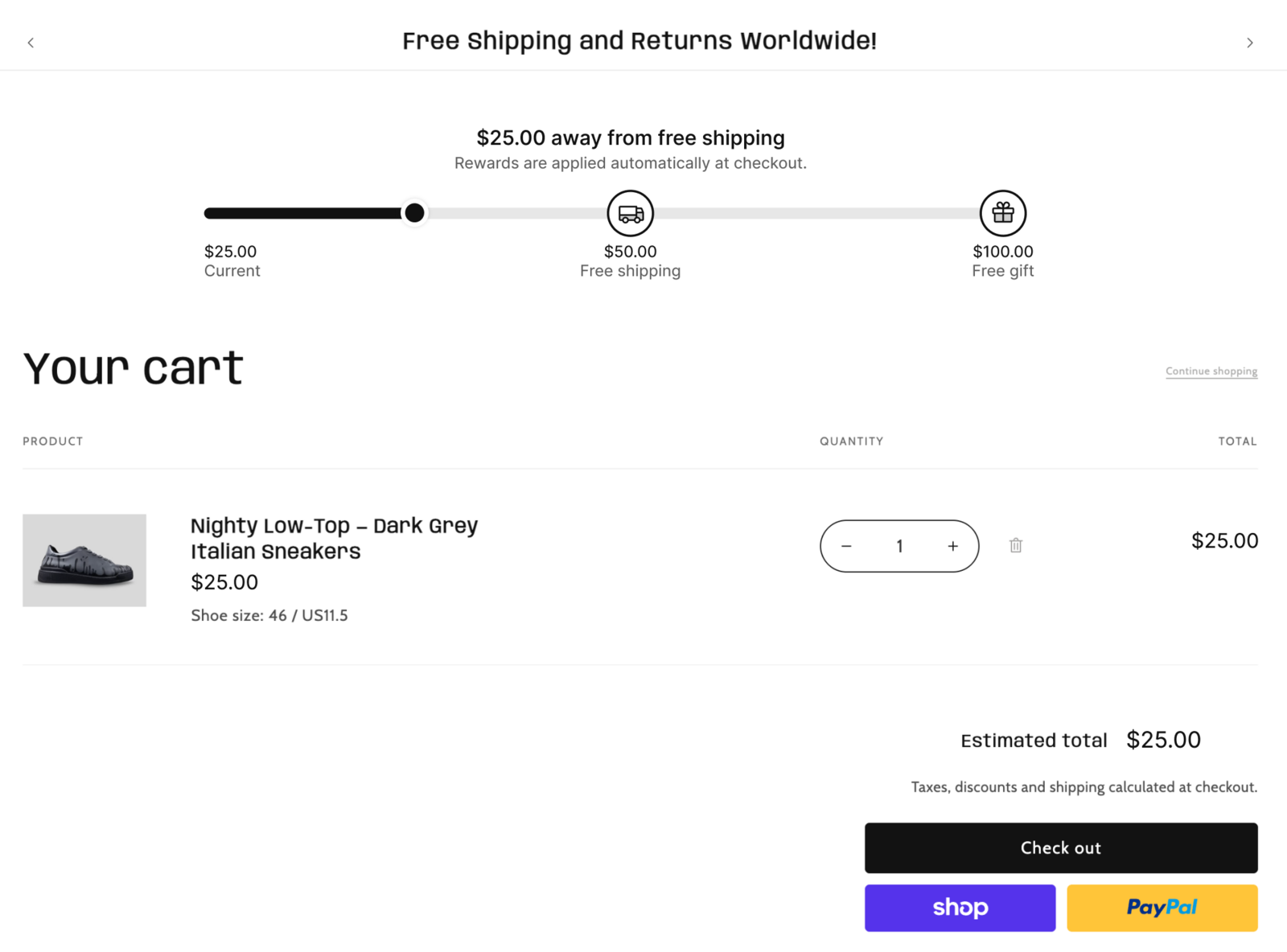
A progress bar that turns the cart into a game: how far to free shipping or a gift, updated live as items go in. Shoppers add one more item because they can see how close they are.
One-click post-purchase — right after payment
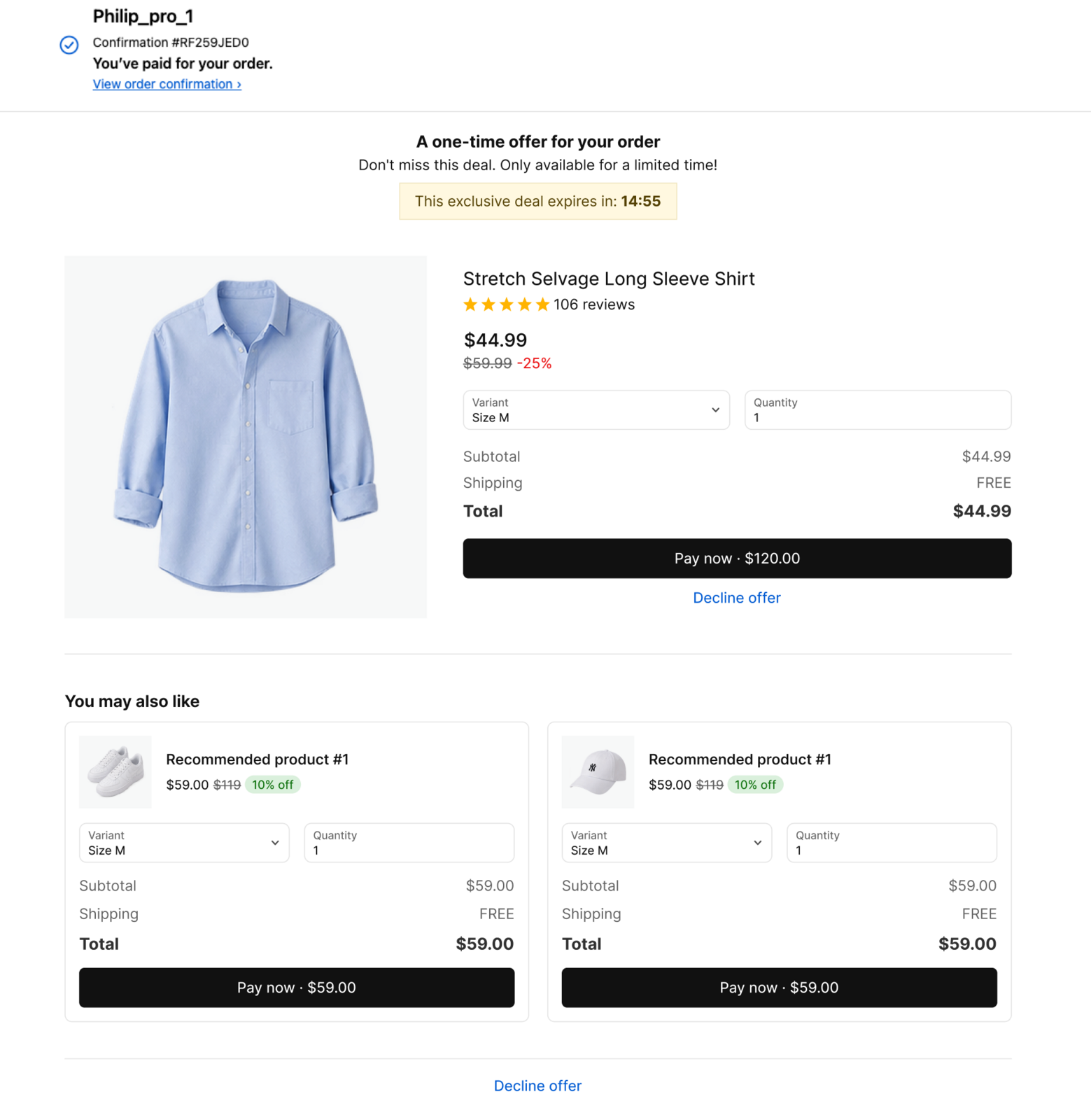 The moment after paying, one relevant add-on appears — accepted with a single tap, charged to the card just used, shipped with the order. No second checkout, no extra shipping.
Due to standard Shopify restrictions across all apps, post-purchase offers will not appear for:
- Wallets & BNPL: Apple Pay, Google Pay, Klarna, Afterpay.
- Specific payments: Cash on Delivery (COD) or orders paid entirely by Gift Card.
- Shipping: Digital products, local pickup, or local delivery (no standard shipping address).
- Order value: Orders under $0.50.
Thank you page upsell — on the order confirmation
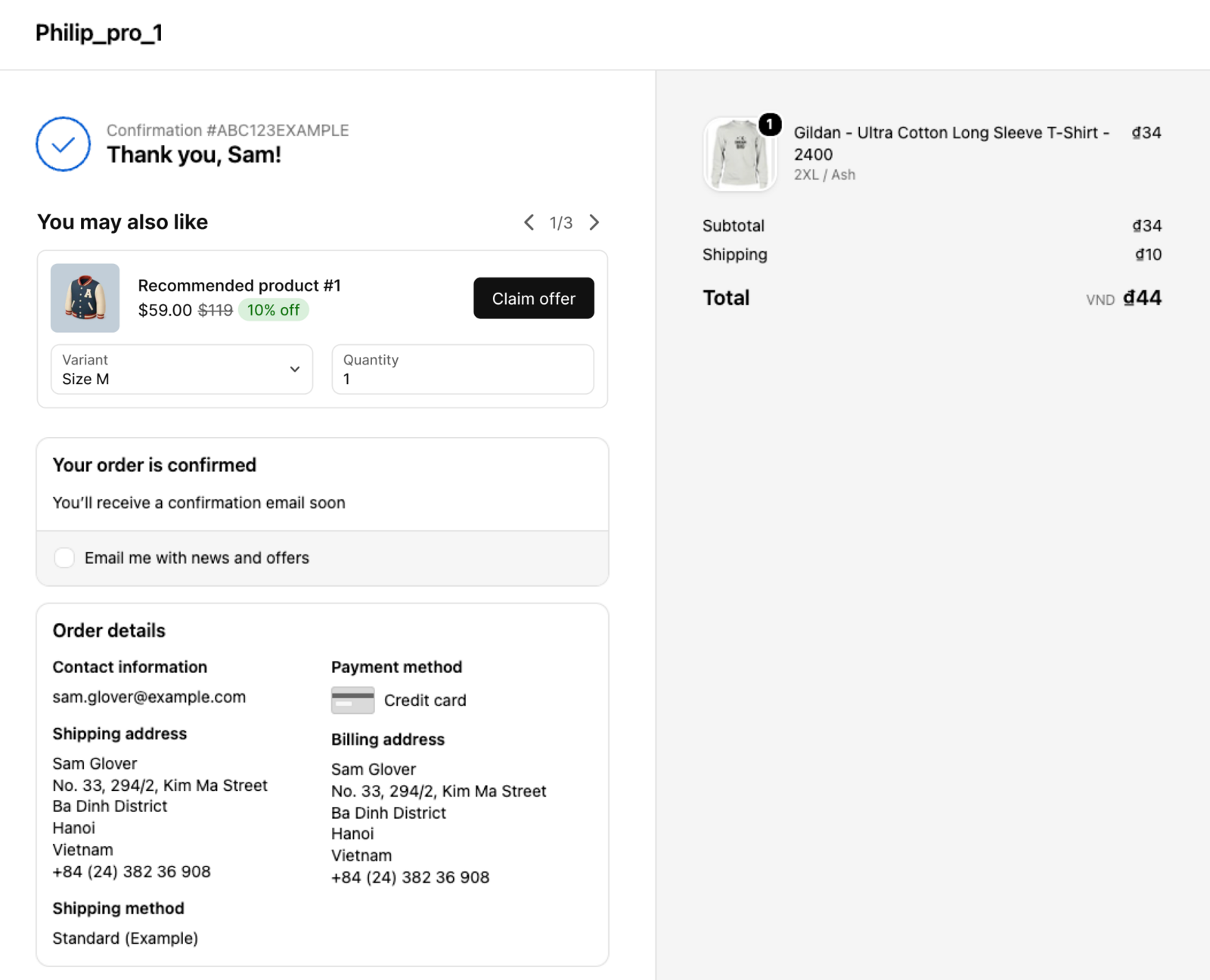
One last "goes well with what you just bought" on the confirmation page, priced to be an easy yes relative to the order just placed.
How it works — you only do two things
Every offer follows the same model, and the app's two main tabs map to it exactly:
1 · Create an offer rule (the Offers tab) — the brain. A rule decides when an offer appears, which products it suggests, and what discount it carries.
2 · Add the widget (the Widgets tab) — the body. The widget is the block shoppers actually see on the page.
Both halves are required. A widget with no rules sits empty and shows nothing; a rule with no widget has nowhere to appear. Once both exist, the offer is live.
Step 1 — create an offer rule
Open Upsells → Offers and click Create offer.
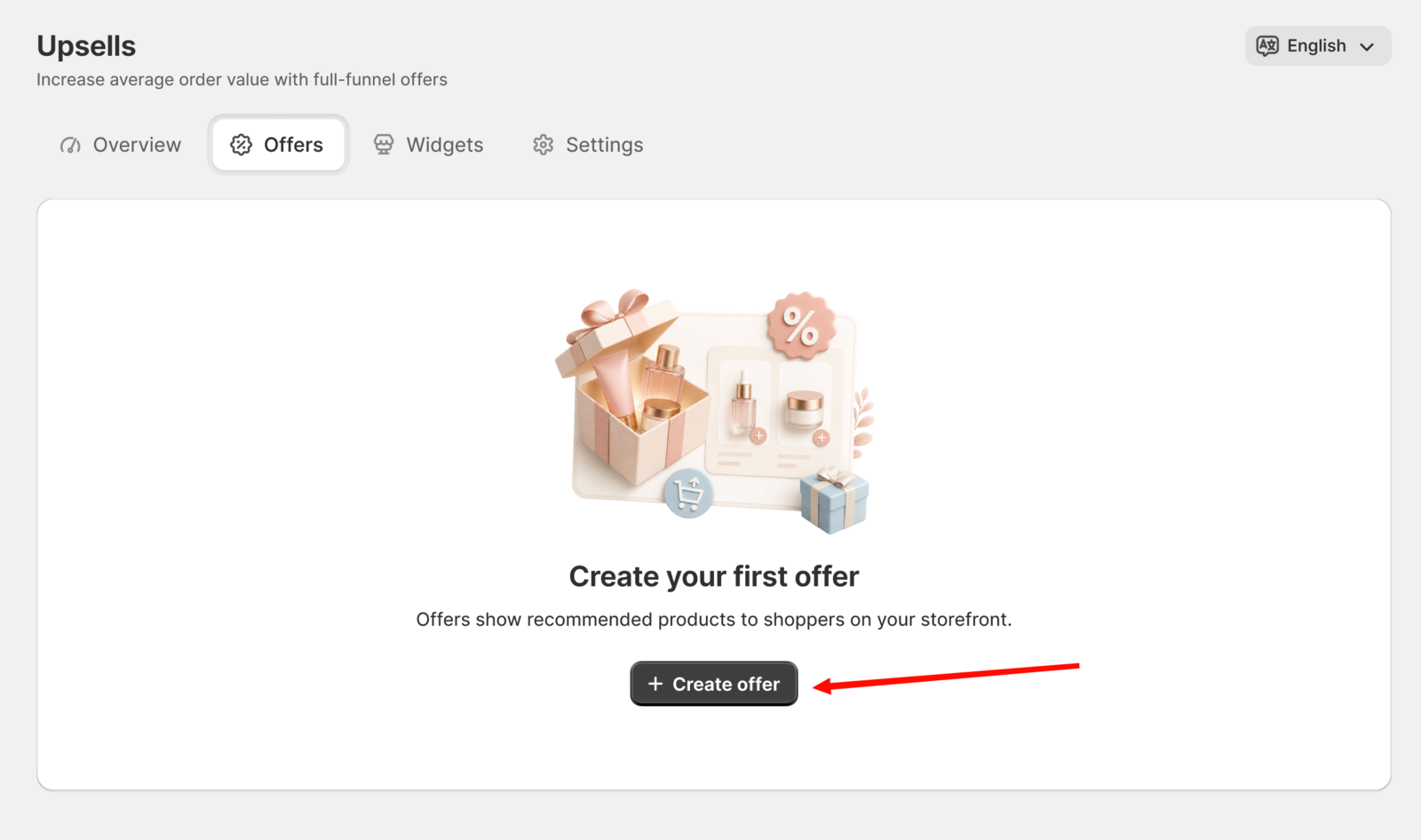
Pick an offer type. The picker is organised by the customer's buying journey — pre-purchase (still browsing), in cart, and post-purchase — so start from the moment you want to capture. Each card shows exactly where on your storefront it will appear.
Set the rule up — trigger, products to offer, discount — and save.
Once saved, the offer appears in the Offers tab, grouped by journey stage. From there you can manage everything in one place:
- Add more rules to the same offer type — for example, one Frequently-bought-together rule for your keyboard collection at 20% off, and another for laptops at 10%. Click + Add offer rule on the offer's card.
- Rules run top to bottom; the first one that matches is shown. Drag to reorder, pause any rule with its toggle, click a rule to edit it.
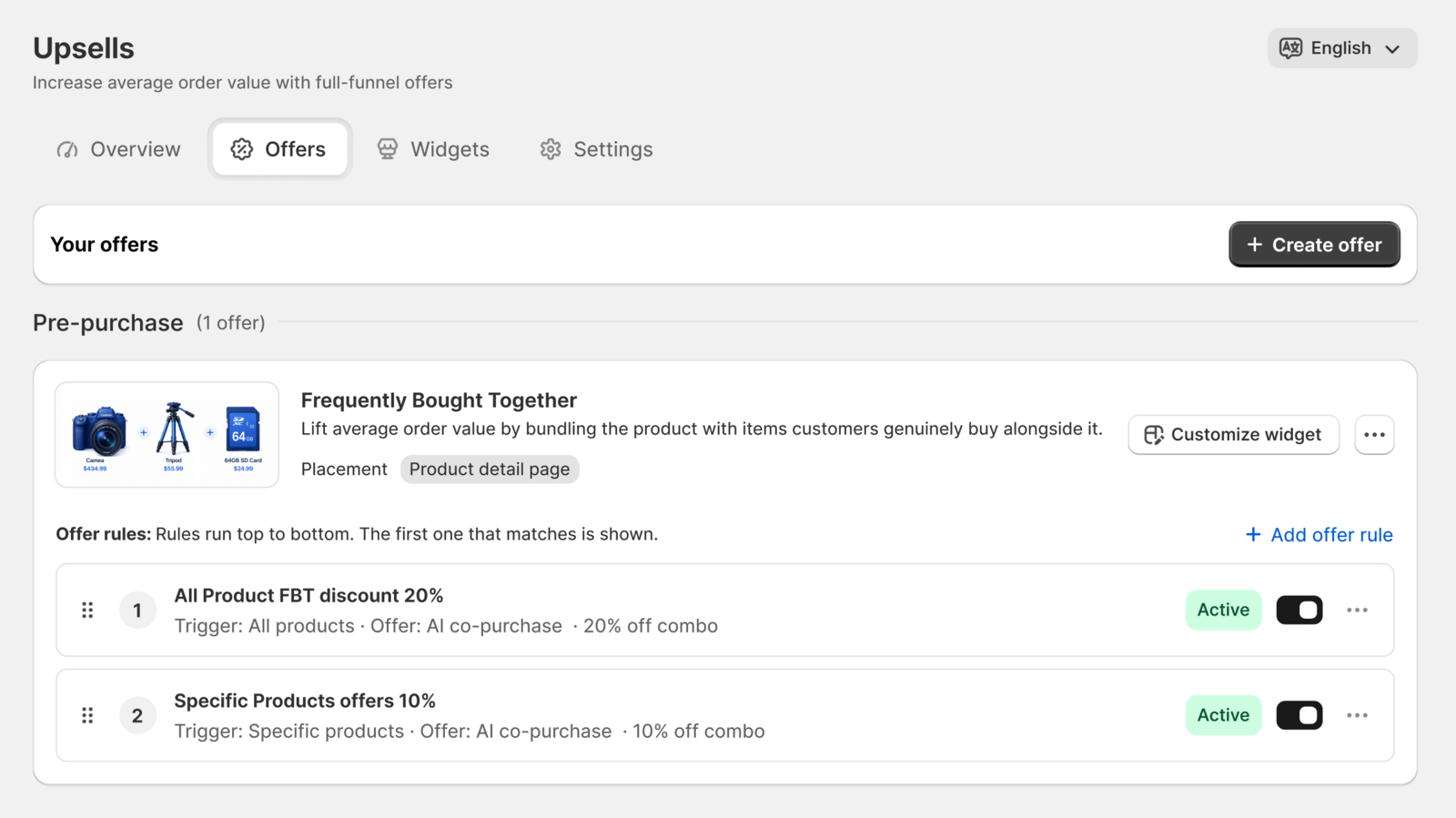
Order matters. Put your most specific rules at the top and one broad catch-all (trigger: All products) at the bottom as a fallback. If a broad rule sits above a narrower one, the narrow rule never runs — the app warns you when it spots this.
Step 2 — add the widget to your theme
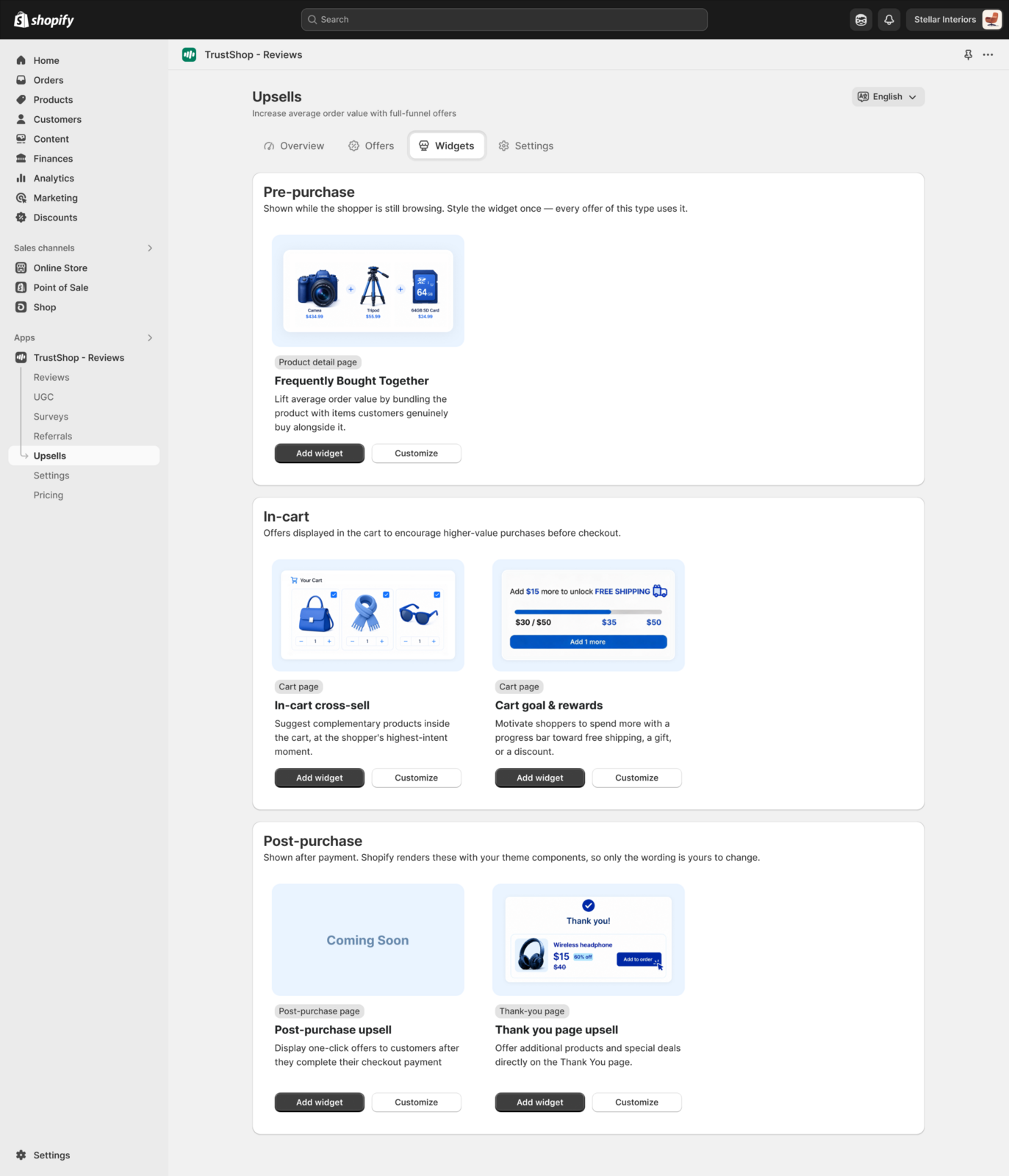
- Open Upsells → Widgets. Each widget matches one offer type and shows its fixed page — you style a widget once, and every rule of that type uses it.
- Find the widget for the offer you just created and click Add widget.
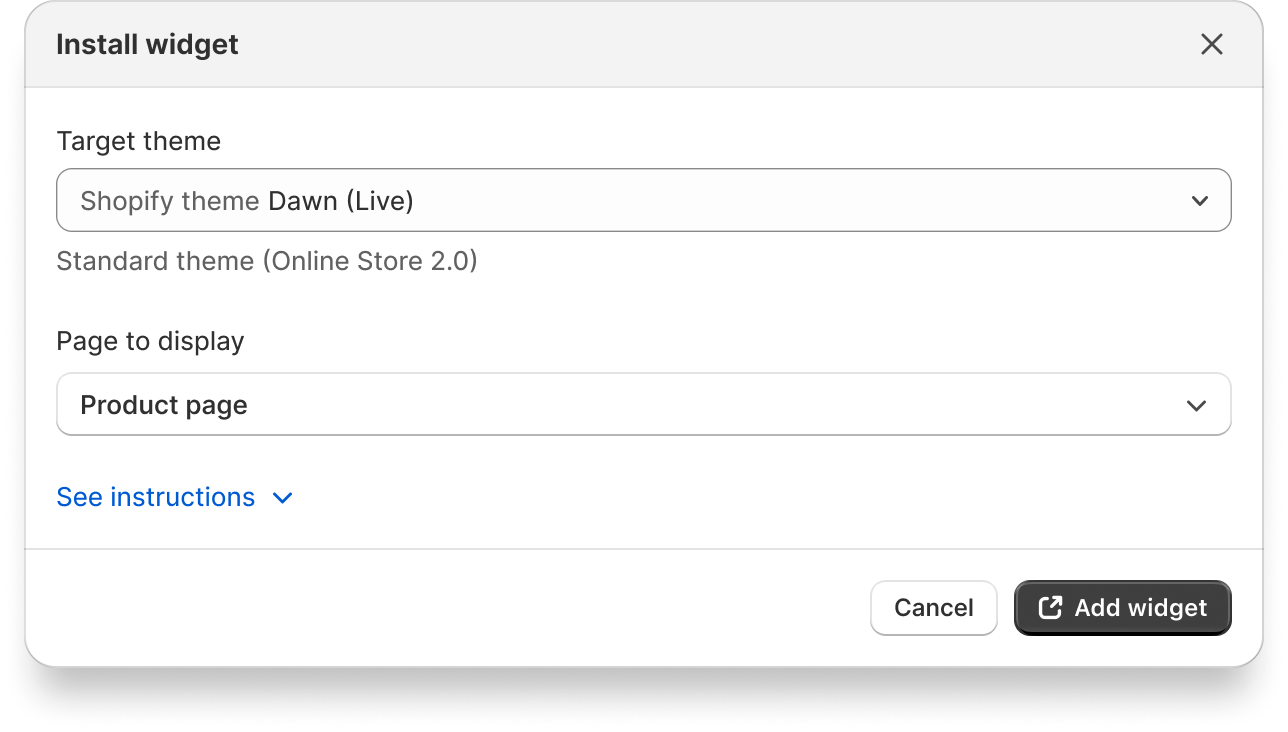
- Widgets are Shopify app blocks, so you're taken straight to the right editor with the block already added — for product-page and cart-page widgets, that's the theme editor. Drag the block to the exact spot you want, then click Save. Your offer is now live.
Select page to add widget
The thank-you page is the one exception. Shopify doesn't let apps pre-add blocks there, so you'll place that block yourself in the checkout editor — about 30 seconds. The exact steps are in the Thank-you section below.
For Thank-you page:
- Click "Add widget" — Shopify's checkout editor opens on your Thank-you page.
- Click "Add block" in the section where you want the widget
- Search "UpSell" and select "UpSell: Thank-you page" under TrustShop.
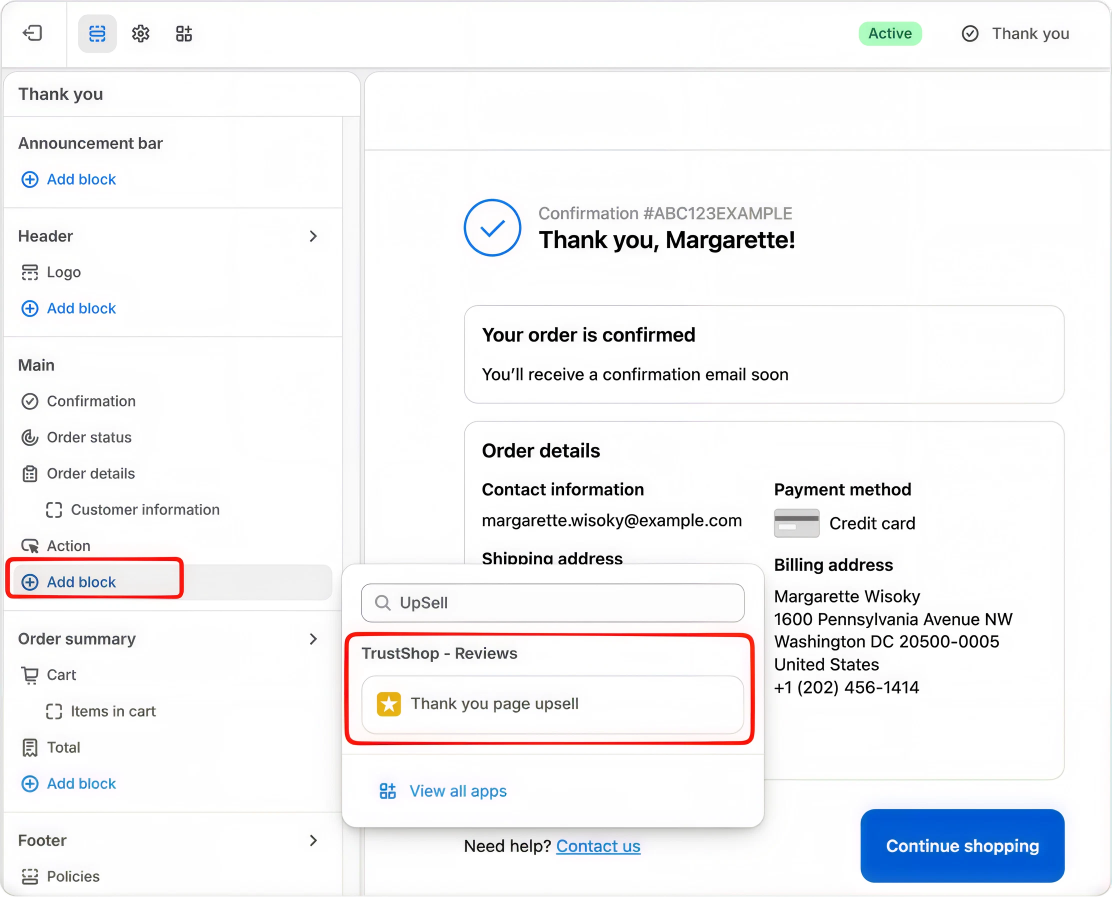
- Drag the block to the exact spot you want, then click "Save" to go live.
Troubleshooting — "Why isn't my offer showing?"
Work down this list; it covers nearly every case:
Check | Fix |
|---|---|
Test mode is on | Offers only show in the theme editor preview. Turn Test mode off in Settings to go live. |
The widget has no rules | A widget with zero rules shows nothing. Create at least one rule for that offer type. |
The widget isn't on the page | Rules alone have nowhere to appear. Use Add widget (or the thank-you page steps above) to place it. |
A rule above is catching everything | Rules are first-match. A broad rule at the top means narrower rules below it never run — drag the specific ones higher. |
All candidate products got filtered | Exclusion list, low-stock skip, already-in-cart skip, and the thank-you price limit each remove products. When nothing qualifies, the widget hides entirely rather than showing an empty box. |
The shopper has a discount code | If Pause offers when a discount code is applied is on, offers stay hidden while their code is active. |
Post-purchase never appears for some shoppers | Shopify rules for every app: wallets (Apple Pay, Google Pay), instalments (Klarna, Afterpay), gift-card-only or COD; no shipping address (digital, local pickup) or local delivery; orders under $0.50. |
Another app owns the post-purchase page | Only one app can show post-purchase offers. Check Settings → Checkout → Post-purchase page in your Shopify admin. |
Pricing
Upsells is free to use during early access while we build it out. We'll give you at least 15 days' notice before pricing starts.
Not finding what you are looking for? Chat with us or send us an email at [email protected].
Updated on: 06/10/2026