
About Review Popup Widget
Overview
The Review Popup Widget displays customer reviews as small pop-ups on the corner of your store pages. These pop-ups attract visitors’ attention, showcase social proof, and help build trust—encouraging shoppers to make a purchase.
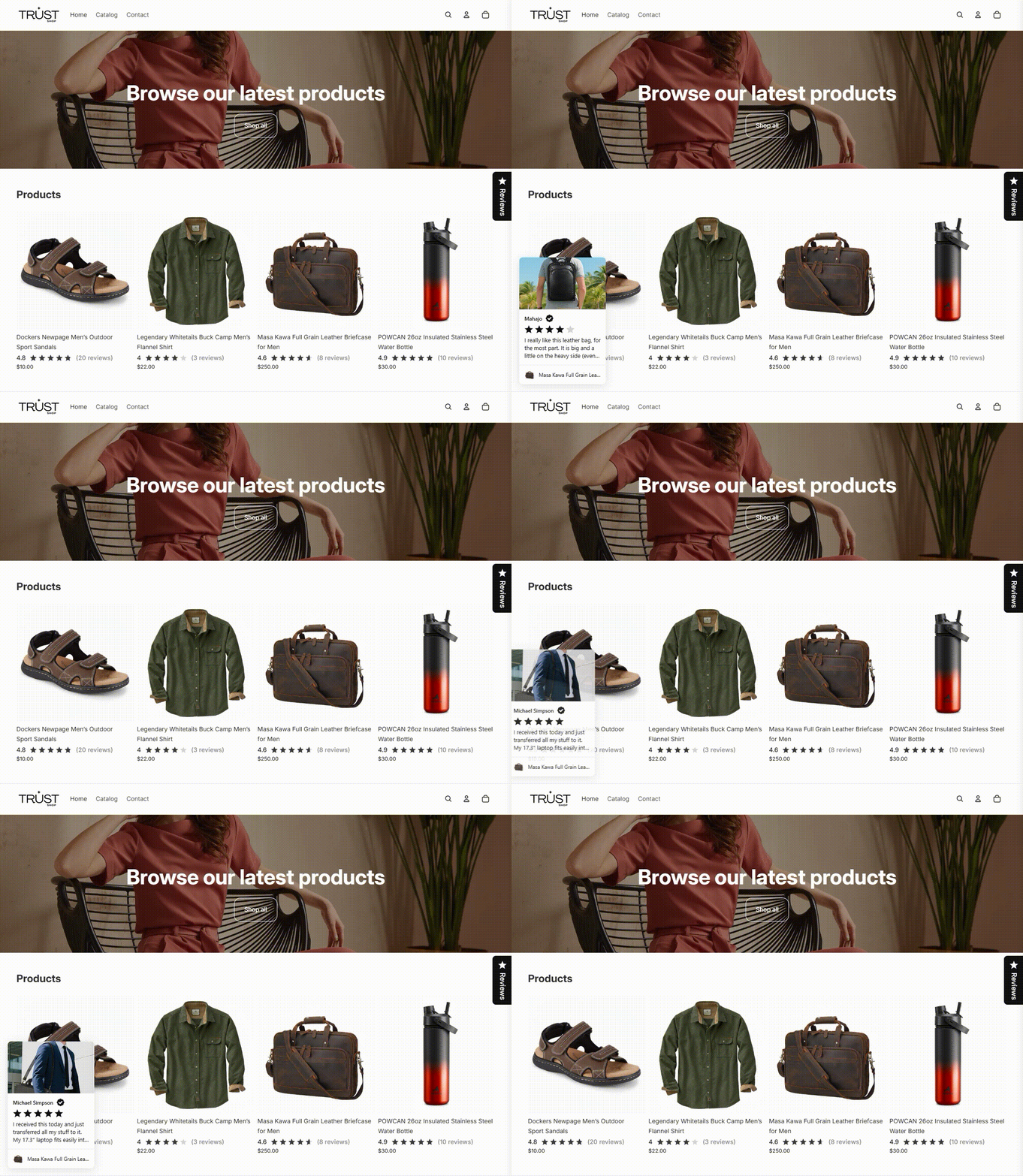
Add Review Popup Widget
- Make sure you have enabled the TrustShop Global App Embed in your store. See the setup guide.
- Go to Settings → Widgets.
- Scroll to Review Popup and click Add widget.
- Toggle Enable widget to start displaying review pop-ups on your store.
- Choose whether to show the widget on mobile devices.
- Choose where to display the widget: All store pages or specific pages such as Home page, Product pages, Collection pages, Collection list pages, or Cart page.
- Click Save.
Customize Review Popup
Go to Settings → Widgets → Review Popup → Customize.
Popup Configuration
Configure how the popups appear:
Layout
- Vertical
- Horizontal
Position (Desktop)
- Bottom left
- Bottom right
- Top left
- Top right
Timing settings
- Initial delay – Time before the first popup appears.
- Display duration – How long each popup stays visible.
- Delay between popups – Time between each popup.
Maximum reviews per session
- Set how many reviews will be shown in a visitor’s session.
- When the limit is reached, the popup sequence loops back to the first review.
Review Source & Display
Review Source
Choose which reviews appear in the popup:
- All published reviews: Displays all published reviews across your store.
- Specific reviews: Manually select reviews to highlight your best feedback.
- Reviews from specific products: Select products whose reviews should appear in the popup. This is useful when promoting certain products.
Display Order
Choose how reviews are prioritized:
- Newest 5-star first – Reviews with higher ratings appear first.
- Media reviews first – Reviews with photos or videos appear first.
- Recent reviews first – Most recently published reviews appear first.
Popups on Product Pages
Choose how popups behave on product pages:
Current product only
- Show reviews only for the product being viewed.
- The widget will be hidden if no reviews exist.
Include other products
- Show reviews for the current product first.
- If there are not enough reviews, reviews from other products will appear.
If you select Current product only but:
- The Specific reviews selection does not include reviews for the current product, or
- The Reviews from specific products selection does not include the current product
→ The popup will not appear on that product page.
If you select Include other products, reviews from the current product will still appear first. If the maximum review limit is not reached, reviews from other products will be displayed based on your Review source and Display order settings.
Popup Style
Configure which information appears on the popup, adjust the color theme, and customize other design options to match your store’s branding.
Click Save after finishing.
Need Help?
If you have any questions or need assistance, please contact us at [email protected].
Updated on: 21/03/2026