
Reviewer Name Display Settings
Overview
The Reviewer Name Display settings let you control how customer names appear on your storefront and review form. You can either let customers choose how their names are shown or apply a consistent format across all reviews.
1. Set a Global Display Format
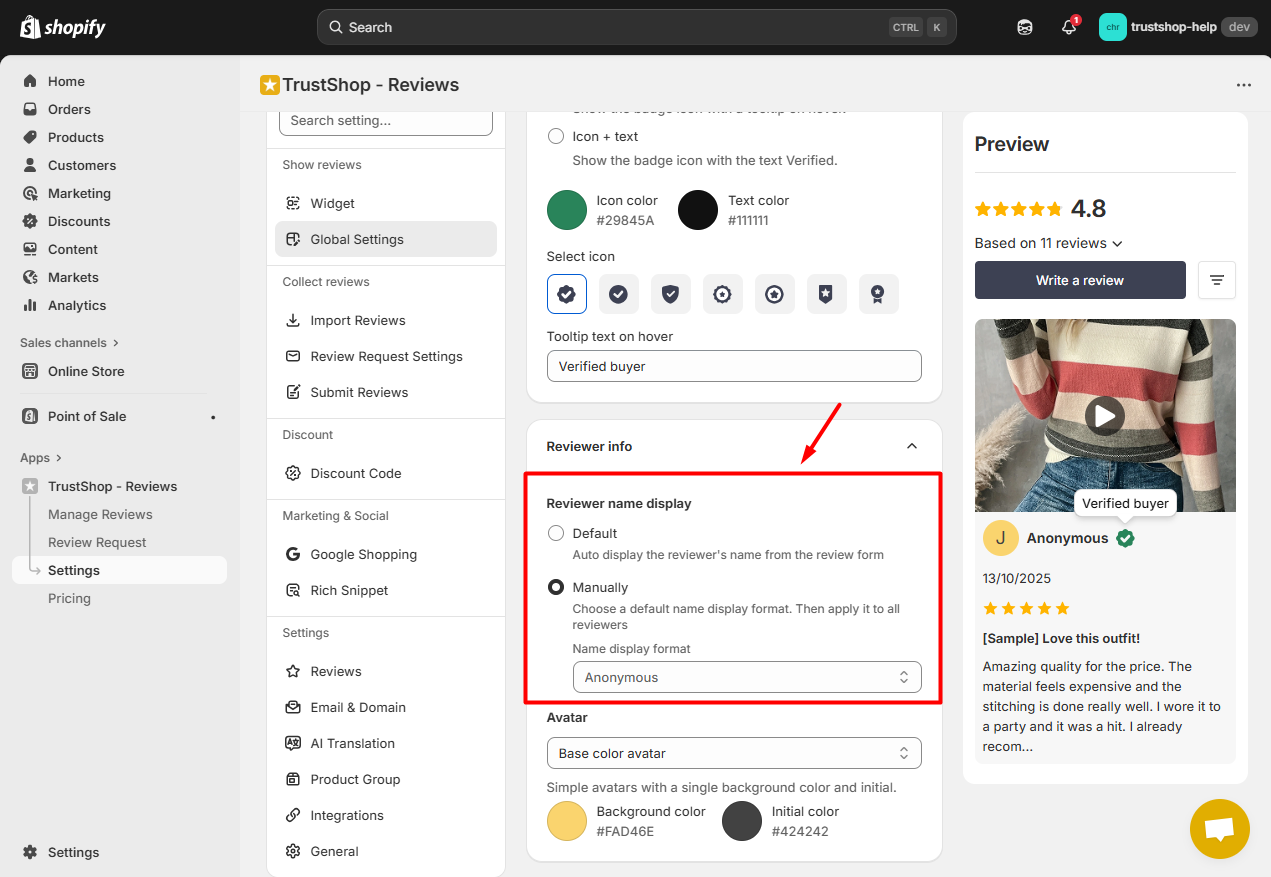
Go to: Settings → Show Reviews → Global Settings → Reviewer Info → Reviewer Name Display
You’ll find two options:
Default
This option allows each reviewer to decide how their name will appear in your store.
For example:
If a reviewer’s name is John Smith, they can choose to display it as:
- John Smith
- John S.
- J.S.
- Anonymous
They can make this selection directly in the review submission form.
Manually
This option applies a single format of your choice to all reviewer names, ensuring consistent display across your storefront.
For example:
- If you select Initials only, all reviewer names will appear as “J.S.” or “D.B.”
- If you select Anonymous, all reviewer names will appear as “Anonymous”
2. Customize Name Display Options in the Review Form
a) When using the Default setting, you can configure how name display options appear to customers in the review form.
Go to Settings → Collect Reviews → Submit Reviews → Review Submission Form → Customize Form → Information Display → Show Name Display Options. From there, you can:
- Show or hide the name format label
- Show or hide example text
- Show or hide the help tooltip
- Enable or disable specific display formats: Full name, First name and initial, Initials only or Anonymous. Note that you must select at least two name display options when using the Default setting.
- Customize the style of the Reviewer Name Display section
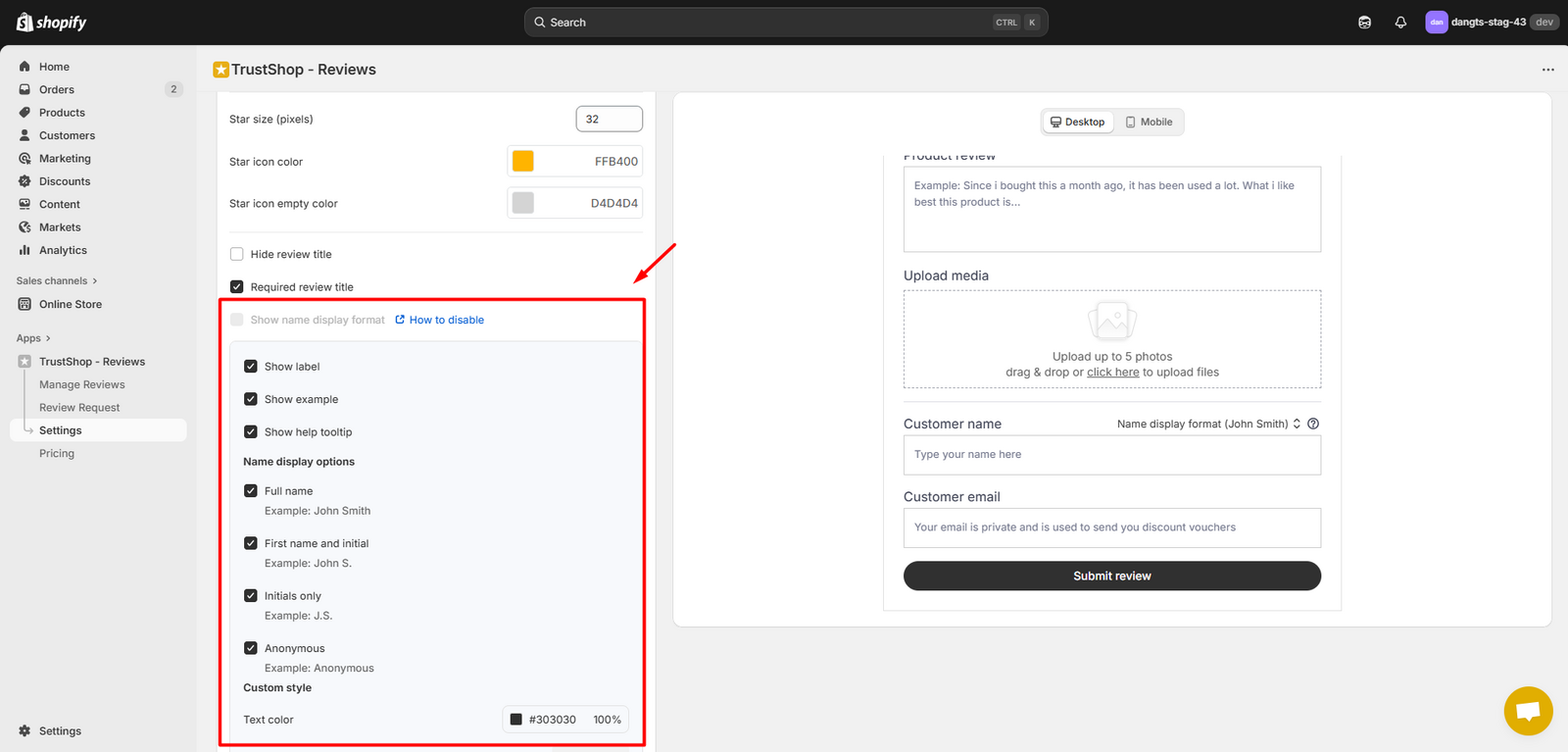
To disable these options and enforce a single display format, go to Settings → Show Reviews → Global Settings → Reviewer Info, set Reviewer Name Display to Manually, and choose your preferred name format.
b) When using the Manually setting, you can adjust how the reviewer name section appears in the review form.
Go to Settings → Collect Reviews → Submit Reviews → Review Submission Form → Customize Form → Information Display → Reviewer Name Display. From there, you can:
- Show or hide the name format label
- Show or hide example text
- Show or hide the help tooltip
- Customize the style of the Reviewer Name Display section
The name display format will follow your global setting. To change it, return to Global Settings.
To enable Custom name display options in the review form, go to Settings → Show Reviews → Global Settings → Reviewer Info, and set Reviewer Name Display to Default. This will allow reviewers to select their preferred format to display their names.
Need Help?
If you have any questions or need assistance, contact us at [email protected].
Updated on: 21/03/2026