
Add Star rating on Collection page
Collections help customers browse the product categories that they’re interested in without having to look through multiple pages of products.
In this article, we'll show you how to install Star Ratings on your collections, including collection pages and homepage.
Install using Shopify theme editor
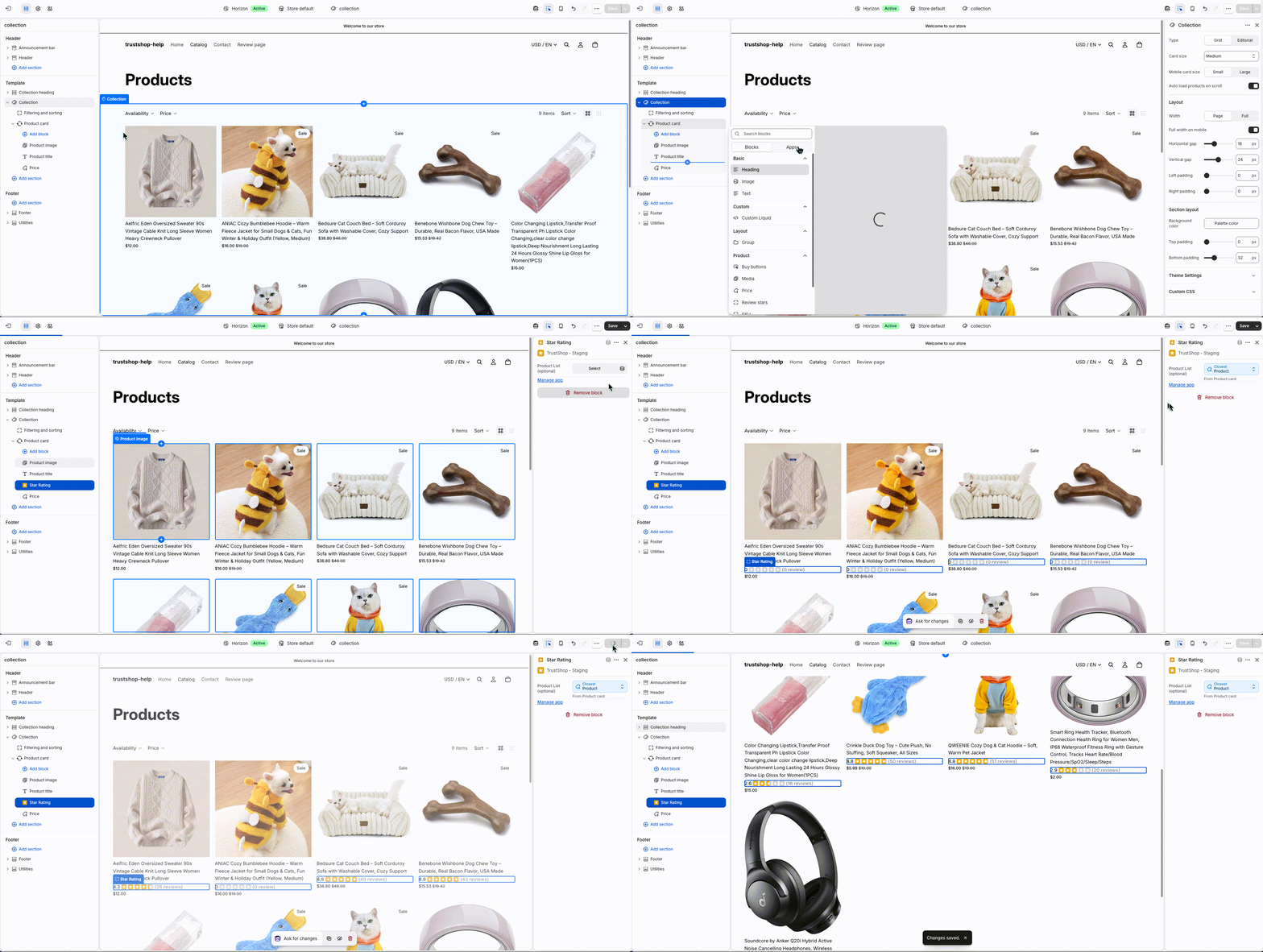
This method works only with Shopify Horizon themes or themes that allow app blocks to be added to product cards on collection pages. If your theme does not support this feature, please follow the manual installation instructions below.Step to install- Open the Theme Editor and navigate to the section where you want to display ratings, such as a collection page, featured collection, featured products section, or other product listing sections.
- Select the product card block where you want the rating to appear. Click Add block and choose TrustShop Star Rating. A Star Rating app block will be added, initially showing a rating value of 0.
- In the Star Rating block settings, locate the Product List (Optional) field. Click the Dynamic Source icon and select Product. This allows the app block to automatically use data from the current product displayed in the product card.
- Wait for the theme preview to refresh. The Star Rating block will then display the rating and review count for each product.
- Click Save to publish your changes.
Install using liquid code
For themes that don't support adding app blocks to collection product cards, such as Dawn, Vintage themes, or other older themes.Star Ratings installed via code will show on both your collection pages and the collection on your homepage. It also allows you to change the position of the ratings.Step 1: Enable TrustShop app embed
- From your Shopify admin, go to Online Store > Themes.
- Find the theme you want and click Customize.
- Go to App embeds and enable TrustShop
- Click Save.
Step 2: Add the Star Ratings code
- Once you've enabled TrustShop app embed, go back to Online Store > Themes.
- Click "..." > Edit code.
- Then depending on your theme, the next steps might differ.
Installation steps
• Open card-product.liquid.
• Above the line that contains {%- if show_rating), add the following code:
``<div
rating-value="{{ card_product.metafields.reviews.rating.value }}"
rating-count="{{ card_product.metafields.reviews.rating_count }}" >
Installation steps
• Open card-product.liquid.
• Under the line that contains <!-- /.card-product__title, add the following code:
``<div
rating-value="{{ card_product.metafields.reviews.rating.value }}"
rating-count="{{ card_product.metafields.reviews.rating_count }}" >
Installation steps
• Open card-product.liquid.
• Under the line that contains </h3>, add the following code:
``<div
rating-value="{{ card_product.metafields.reviews.rating.value }}"
rating-count="{{ card_product.metafields.reviews.rating_count }}" >
Installation steps
• Open card-product.liquid.
• Under the line that contains </h3>, add the following code:
``<div
rating-value="{{ card_product.metafields.reviews.rating.value }}"
rating-count="{{ card_product.metafields.reviews.rating_count }}" >
Installation steps
• Open product-grid-item.liquid.
• Under the line that contains {{ product.title }}, add the following code:
``<div
rating-value="{{ product.metafields.reviews.rating.value }}"
rating-count="{{ product.metafields.reviews.rating_count }}" >
Installation steps
• Open product-grid-item.liquid.
• Under the line that contains product-block__title, add the following code:
``<div
rating-value="{{ product.metafields.reviews.rating.value }}"
rating-count="{{ product.metafields.reviews.rating_count }}" >
Installation steps
• Open product-grid-item.liquid.
• Under the line that contains product-item__title, add the following code:
``<div
rating-value="{{ product.metafields.reviews.rating.value }}"
rating-count="{{ product.metafields.reviews.rating_count }}" >
Installation steps
• Open snippets/product-grid-item.liquid.
• Above the line that contains if settings.product_grid_show_rating, add the following code:
``<div
rating-value="{{ card_product.metafields.reviews.rating.value }}"
rating-count="{{ card_product.metafields.reviews.rating_count }}" >
Installation steps
• Open product-grid-item.liquid.
• Above the line that contains <p>, add the following code:
``<div
rating-value="{{ card_product.metafields.reviews.rating.value }}"
rating-count="{{ card_product.metafields.reviews.rating_count }}" >
Installation steps
• Open product-grid-item.liquid.
• Under the line that contains </h2>, add the following code:
``<div
rating-value="{{ card_product.metafields.reviews.rating.value }}"
rating-count="{{ card_product.metafields.reviews.rating_count }}" >
Installation steps
• Open product-grid-item.liquid.
• Above the line that contains {%- if settings.show_rating, add the following code:
``<div
rating-value="{{ card_product.metafields.reviews.rating.value }}"
rating-count="{{ card_product.metafields.reviews.rating_count }}" >
Installation steps
• Open product-grid-item.liquid.
• Under the line that contains product-card__title, add the following code:
``<div
rating-value="{{ card_product.metafields.reviews.rating.value }}"
rating-count="{{ card_product.metafields.reviews.rating_count }}" >
Installation steps
• Open product-grid-item.liquid.
• Above the line that contains {%- if settings.enable_product_reviews -%}, add the following code:
``<div
rating-value="{{ card_product.metafields.reviews.rating.value }}"
rating-count="{{ card_product.metafields.reviews.rating_count }}" >
Installation steps
• Open product-grid-item-design-1.liquid.
• Under the line that contains </h2>, add the following code:
``<div
rating-value="{{ card_product.metafields.reviews.rating.value }}"
rating-count="{{ card_product.metafields.reviews.rating_count }}" >
Installation steps
• Open product-card.liquid.
• Above the line that contains {%- if settings.product_card_show_product_rating, add the following code:
``<div
rating-value="{{ card_product.metafields.reviews.rating.value }}"
rating-count="{{ card_product.metafields.reviews.rating_count }}" >
Installation steps
• Open product-card.liquid.
• Above the line that contains {% if section.settings.show_rating, add the following code:
``<div
rating-value="{{ card_product.metafields.reviews.rating.value }}"
rating-count="{{ card_product.metafields.reviews.rating_count }}" >
Installation steps
• Open product-card.liquid.
• Under the line that contains {{ product_card_product.title }}, add the following code:
``<div
rating-value="{{ card_product.metafields.reviews.rating.value }}"
rating-count="{{ card_product.metafields.reviews.rating_count }}" >
Installation steps
• Open product-card.liquid.
• Above the line that contains {% render 'price', add the following code:
``<div
rating-value="{{ card_product.metafields.reviews.rating.value }}"
rating-count="{{ card_product.metafields.reviews.rating_count }}" >
Installation steps
• Open product-block.liquid.
• Under the line that contains class="product-block__title" , add the following code:
``<div
rating-value="{{ card_product.metafields.reviews.rating.value }}"
rating-count="{{ card_product.metafields.reviews.rating_count }}" >
Installation steps
• Open product-card.liquid.
• Under the line that contains {%- if enable_product_review -%}, add the following code:
``<div
rating-value="{{ product.metafields.reviews.rating.value }}"
rating-count="{{ product.metafields.reviews.rating_count }}" >
Installation steps
• Open product-card.liquid.
• Above the line that contains <div>, add the following code:
``<div
rating-value="{{ card_product.metafields.reviews.rating.value }}"
rating-count="{{ card_product.metafields.reviews.rating_count }}" >
Installation steps
• Open product-card.liquid.
• Above the line that contains {%- if show_price -%}, add the following code:
``<div
rating-value="{{ card_product.metafields.reviews.rating.value }}"
rating-count="{{ card_product.metafields.reviews.rating_count }}" >
Installation steps
• Open product-card.liquid.
• Above the line that contains <divtrustshop-collection-rating--item"
rating-value="{{ card_product.metafields.reviews.rating.value }}"
rating-count="{{ card_product.metafields.reviews.rating_count }}" >
Installation steps
• Open product-card.liquid.
• Under the line that contains </h3>, add the following code:
``<div
rating-value="{{ card_product.metafields.reviews.rating.value }}"
rating-count="{{ card_product.metafields.reviews.rating_count }}" >
Installation steps
• Open product-card.liquid.
• Under the line that contains <h2>{{ product.title }}</h2>, add the following code:
``<div
rating-value="{{ card_product.metafields.reviews.rating.value }}"
rating-count="{{ card_product.metafields.reviews.rating_count }}" >
Installation steps
• Open product-card.liquid.
• Under the line that contains </h5>, add the following code:
``<div
rating-value="{{ card_product.metafields.reviews.rating.value }}"
rating-count="{{ card_product.metafields.reviews.rating_count }}" >
Installation steps
• Open product-card.liquid.
• Under the line that contains {% if settings.show_review_badge %}, add the following code:
``<div
rating-value="{{ card_product.metafields.reviews.rating.value }}"
rating-count="{{ card_product.metafields.reviews.rating_count }}" >
Installation steps
• Open ship-product-card.liquid.
• Above the line that contains {% if block_name == 'price' %}, add the following code:
``<div
rating-value="{{ card_product.metafields.reviews.rating.value }}"
rating-count="{{ card_product.metafields.reviews.rating_count }}" >
Installation steps
• Open ship-product-card.liquid.
• Above the line that contains {% render 'product-price', product: product_card_product %}, add the following code:
``<div
rating-value="{{ card_product.metafields.reviews.rating.value }}"
rating-count="{{ `card_product.metafields.reviews.rating_count }}" >
Installation steps
• Open product-block.liquid.
• Above the line that contains <divtrustshop-collection-rating--item"
rating-value="{{ product.metafields.reviews.rating.value }}"
rating-count="{{ product.metafields.reviews.rating_count }}" >
Installation steps
• Open product-block.liquid.
• Under the line that contains {{ product.title }}, add the following code:
``<div
rating-value="{{ product.metafields.reviews.rating.value }}"
rating-count="{{ product.metafields.reviews.rating_count }}" >
Installation steps
• Open product-item.liquid.
• Above the line that contains {%- if settings.show_product_rating -%}, add the following code:
``<div
rating-value="{{ card_product.metafields.reviews.rating.value }}"
rating-count="{{ card_product.metafields.reviews.rating_count }}" >
Installation steps
• Open product-item.liquid.
• Under the line that contains {{ product.title }}, add the following code:
``<div
rating-value="{{ product.metafields.reviews.rating.value }}"
rating-count="{{ product.metafields.reviews.rating_count }}" >
Installation steps
• Open product-item.liquid.
• Above the line that contains {% if settings.product_listing_show_vendor and prod.vendor %}, add the following code:
``<div
rating-value="{{ card_product.metafields.reviews.rating.value }}"
rating-count="{{ card_product.metafields.reviews.rating_count }}" >
Installation steps
• Open product-item.liquid.
• Above the line that contains {%- when 'rating' -%}, add the following code:
``<div
rating-value="{{ product.metafields.reviews.rating.value }}"
rating-count="{{ product.metafields.reviews.rating_count }}" >
Installation steps
• Open product-item.liquid.
• Above the line that contains <div>, add the following code:
``<div
rating-value="{{ product.metafields.reviews.rating.value }}"
rating-count="{{ product.metafields.reviews.rating_count }}" >
Installation steps
• Open product-item.liquid.
• Above the line that contains product-item__price, add the following code:
``<div
rating-value="{{ product.metafields.reviews.rating.value }}"
rating-count="{{ product.metafields.reviews.rating_count }}" >
Installation steps
• Open product-item.liquid.
• Under the line that contains </h4>, add the following code:
``<div
rating-value="{{ product.metafields.reviews.rating.value }}"
rating-count="{{ product.metafields.reviews.rating_count }}" >
Installation steps
• Open product-item.liquid.
• Under the line that contains </h2>, add the following code:
``<div
rating-value="{{ product.metafields.reviews.rating.value }}"
rating-count="{{ product.metafields.reviews.rating_count }}" >
Installation steps
• Open product-item.liquid.
• Above the line that contains {% include 'product-grid-review' %}, add the following code:
``<div
rating-value="{{ product.metafields.reviews.rating.value }}"
rating-count="{{ product.metafields.reviews.rating_count }}" >
Installation steps
• Open product-item.liquid.
• Above the line that contains {%- if settings.show_reviews_badge -%}, add the following code:
``<div
rating-value="{{ product.metafields.reviews.rating.value }}"
rating-count="{{ product.metafields.reviews.rating_count }}" >
Installation steps
• Open component__product-item.liquid.
• Under the line that contains </h3>, add the following code:
``<div
rating-value="{{ card_product.metafields.reviews.rating.value }}"
rating-count="{{ card_product.metafields.reviews.rating_count }}" >
Installation steps
• Open small-product-item.liquid.
• Under the line that contains </h3>, add the following code:
``<div
rating-value="{{ card_product.metafields.reviews.rating.value }}"
rating-count="{{ card_product.metafields.reviews.rating_count }}" >
Installation steps
• Open product-grid.liquid.
• Under the line that contains yv-product-title, add the following code:
``<div
rating-value="{{ card_product.metafields.reviews.rating.value }}"
rating-count="{{ card_product.metafields.reviews.rating_count }}" >
Installation steps
• Open product-tile.liquid.
• Above the line that contains {% if settings.product_tile_star_ratings, add the following code:
``<div
rating-value="{{ card_product.metafields.reviews.rating.value }}"
rating-count="{{ card_product.metafields.reviews.rating_count }}" >
Installation steps
• Open product-tile.liquid.
• Under the line that contains {{ product.title | escape }} , add the following code:
``<div
rating-value="{{ product.metafields.reviews.rating.value }}"
rating-count="{{ product.metafields.reviews.rating_count }}" >
Installation steps
• Open product-tile.liquid.
• Under the line that contains </h2> , add the following code:
``<div
rating-value="{{ card_product.metafields.reviews.rating.value }}"
rating-count="{{ card_product.metafields.reviews.rating_count }}" >
Installation steps
• Open product-listing.liquid.
• Above the line that contains {% render 'product-price-listing', product: product %}, add the following code:
``<div
rating-value="{{ product.metafields.reviews.rating.value }}"
rating-count="{{ product.metafields.reviews.rating_count }}" >
Installation steps
• Open product-grid--indiv-product.liquid.
• Under the line that contains {{ liquidObject.title }} , add the following code:
``<div
rating-value="{{ card_product.metafields.reviews.rating.value }}"
rating-count="{{ card_product.metafields.reviews.rating_count }}" >
Installation steps
• Open product-card-item.liquid.
• Under the line that contains {{ product.title }} , add the following code:
``<div
rating-value="{{ product.metafields.reviews.rating.value }}"
rating-count="{{ product.metafields.reviews.rating_count }}" >
Installation steps
• Open product-card-item.liquid.
• Above the line that contains {%- if show_price -%} , add the following code:
``<div
rating-value="{{ card_product.metafields.reviews.rating.value }}"
rating-count="{{ card_product.metafields.reviews.rating_count }}" >
Installation steps
• Open product-loop.liquid.
• Under the line that contains <div> , add the following code:
``<div
rating-value="{{ card_product.metafields.reviews.rating.value }}"
rating-count="{{ card_product.metafields.reviews.rating_count }}" >
Installation steps
• Open product-loop.liquid.
• Above the line that contains {%- if settings.show_rating , add the following code:
``<div
rating-value="{{ card_product.metafields.reviews.rating.value }}"
rating-count="{{ card_product.metafields.reviews.rating_count }}" >
Installation steps
• Open global-product-card.liquid.
• Under the line that contains {{ product.title }} , add the following code:
``<div
rating-value="{{ product.metafields.reviews.rating.value }}"
rating-count="{{ product.metafields.reviews.rating_count }}" >
Installation steps
• Open product-thumbnail.liquid.
• Above the line that contains {% if settings.display_vendor_collection %} , add the following code:
``<div
rating-value="{{ card_product.metafields.reviews.rating.value }}"
rating-count="{{ card_product.metafields.reviews.rating_count }}" >
Installation steps
• Open product-info.liquid.
• Above the line that contains <div> , add the following code:
``<div
rating-value="{{ card_product.metafields.reviews.rating.value }}"
rating-count="{{ card_product.metafields.reviews.rating_count }}" >
Installation steps
• Open product-info.liquid.
• Under the line that contains {{ product.title }}, add the following code:
``<div
rating-value="{{ product.metafields.reviews.rating.value }}"
rating-count="{{ product.metafields.reviews.rating_count }}" >
Installation steps
• Open product-list-item.liquid.
• Under the line that contains {{ item.title }}, add the following code:
``<div
rating-value="{{ card_product.metafields.reviews.rating.value }}"
rating-count="{{ card_product.metafields.reviews.rating_count }}" >
Installation steps
• Open product-list-item.liquid.
• Above the line that contains <p> , add the following code:
``<div
rating-value="{{ card_product.metafields.reviews.rating.value }}"
rating-count="{{ card_product.metafields.reviews.rating_count }}" >
Installation steps
• Open component-card-product.liquid.
• Above the line that contains {%- unless show_footer == false -%}, add the following code:
``<div
rating-value="{{ card_product.metafields.reviews.rating.value }}"
rating-count="{{ card_product.metafields.reviews.rating_count }}" >
Installation steps
• Open productRender.liquid.
• Under the line that contains {{ product.title }}, add the following code:
``<div
rating-value="{{ product.metafields.reviews.rating.value }}"
rating-count="{{ product.metafields.reviews.rating_count }}" >
Installation steps
• Open product-card-minimal.liquid.
• Under the line that contains {{ product.title }}, add the following code:
``<div
rating-value="{{ product.metafields.reviews.rating.value }}"
rating-count="{{ product.metafields.reviews.rating_count }}" >
Installation steps
• Open product.loop.liquid.
• Under the line that contains {% if show_vendors %}, add the following code:
``<div
rating-value="{{ card_product.metafields.reviews.rating.value }}"
rating-count="{{ card_product.metafields.reviews.rating_count }}" >
Installation steps
• Open collection-product.liquid.
• Under the line that contains {{ product.title }}, add the following code:
``<div
rating-value="{{ product.metafields.reviews.rating.value }}"
rating-count="{{ product.metafields.reviews.rating_count }}" >
Installation steps
• Open block.liquid.
• Above the line that contains <div>, add the following code:
``<div
rating-value="{{ card_product.metafields.reviews.rating.value }}"
rating-count="{{ card_product.metafields.reviews.rating_count }}" >
Installation steps
• Open product.liquid.
• Above the line that contains {% if show_vendor %}, add the following code:
``<div
rating-value="{{ card_product.metafields.reviews.rating.value }}"
rating-count="{{ card_product.metafields.reviews.rating_count }}" >
Installation steps
• Open product-loop-item.liquid.
• Above the line that contains {%- if show_reviews -%}, add the following code:
``<div
rating-value="{{ card_product.metafields.reviews.rating.value }}"
rating-count="{{ card_product.metafields.reviews.rating_count }}" >
Installation steps
• Open product-card-grid.liquid.
• Under the line that contains {{ product.title }}, add the following code:
``<div
rating-value="{{ product.metafields.reviews.rating.value }}"
rating-count="{{ product.metafields.reviews.rating_count }}" >
Installation steps
• Open product-card-info.liquid.
• Above the line that contains {% if settings.show_review_badge %}, add the following code:
``<div
rating-value="{{ card_product.metafields.reviews.rating.value }}"
rating-count="{{ card_product.metafields.reviews.rating_count }}" >
Installation steps
• Open grid-item-product.liquid.
• Under the line that contains <p>{{ product.title | default: 'Example product title' }}</p>, add the following code:
<divrating-value="{{ product.metafields.reviews.rating.value }}"rating-count="{{ product.metafields.reviews.rating_count }}" >/div>
• Click Save.
Updated on: 16/06/2026