
Setting Up and Customizing Product Rating
Set up and customize Product Rating
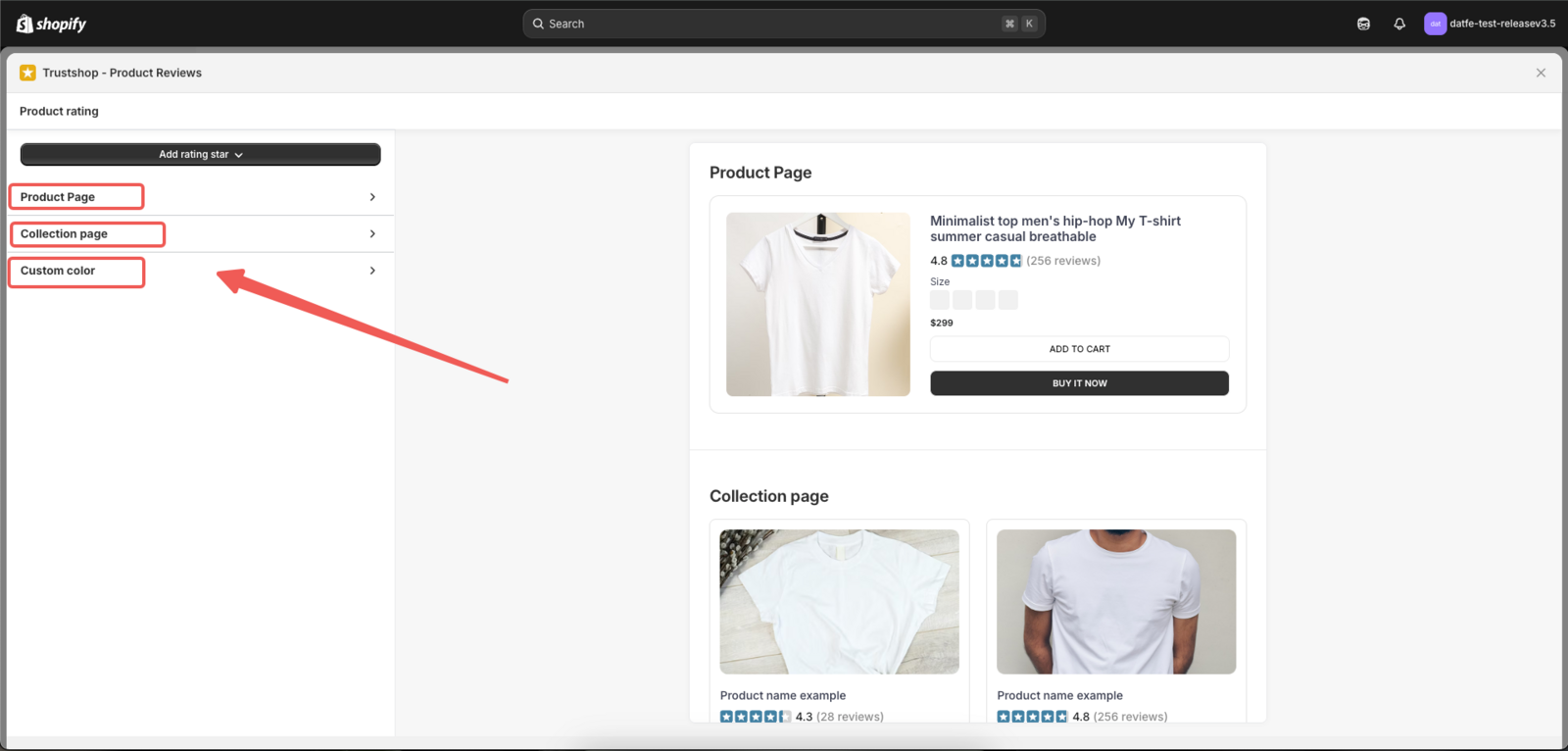
- Product Page
- Collection Page
- Custom Color
Step 1:
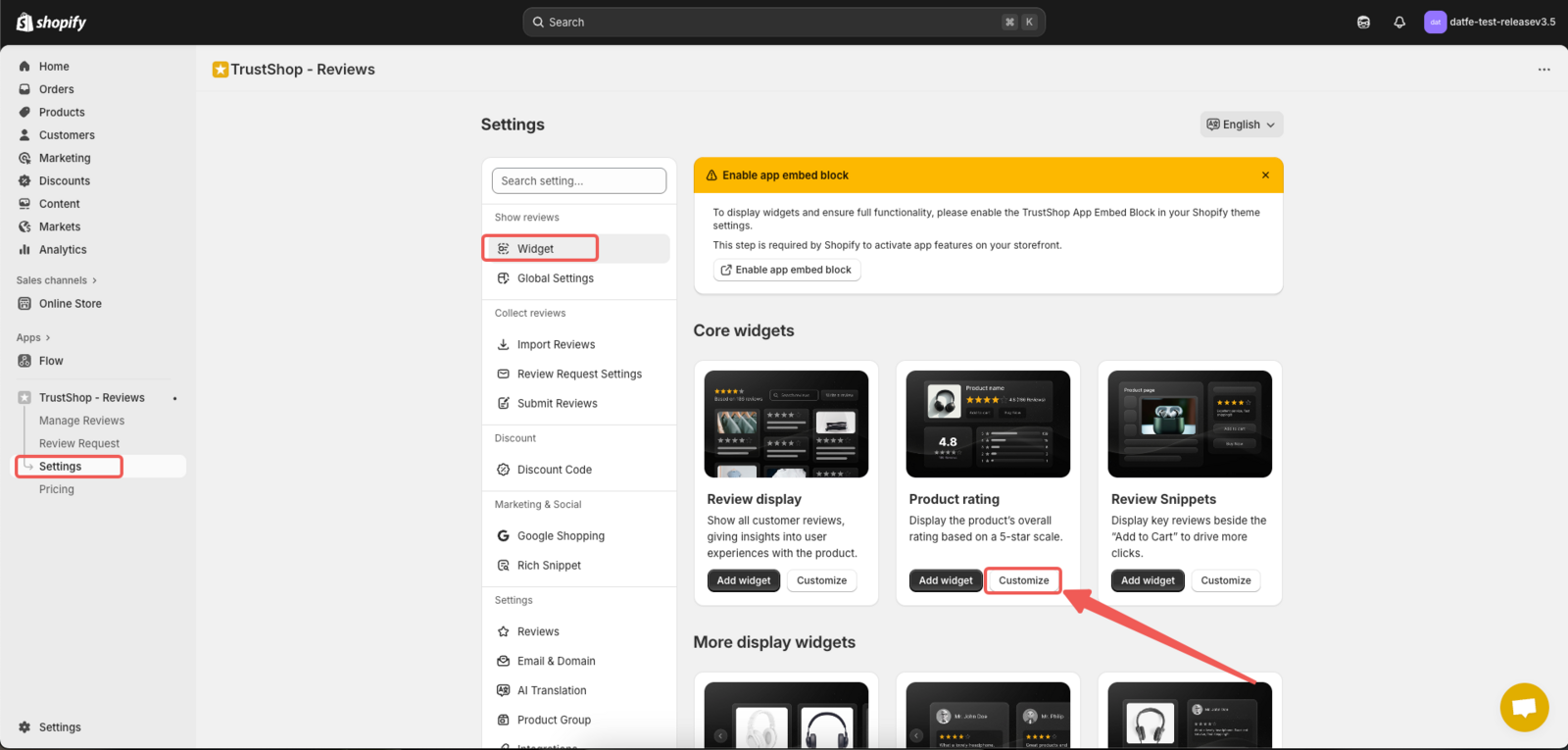
In the Settings, select the Widget tab. Under Core widgets, choose Product rating, then click the Customize button.
Step 2:
Click to select the section you want to customize.
1. Production Page
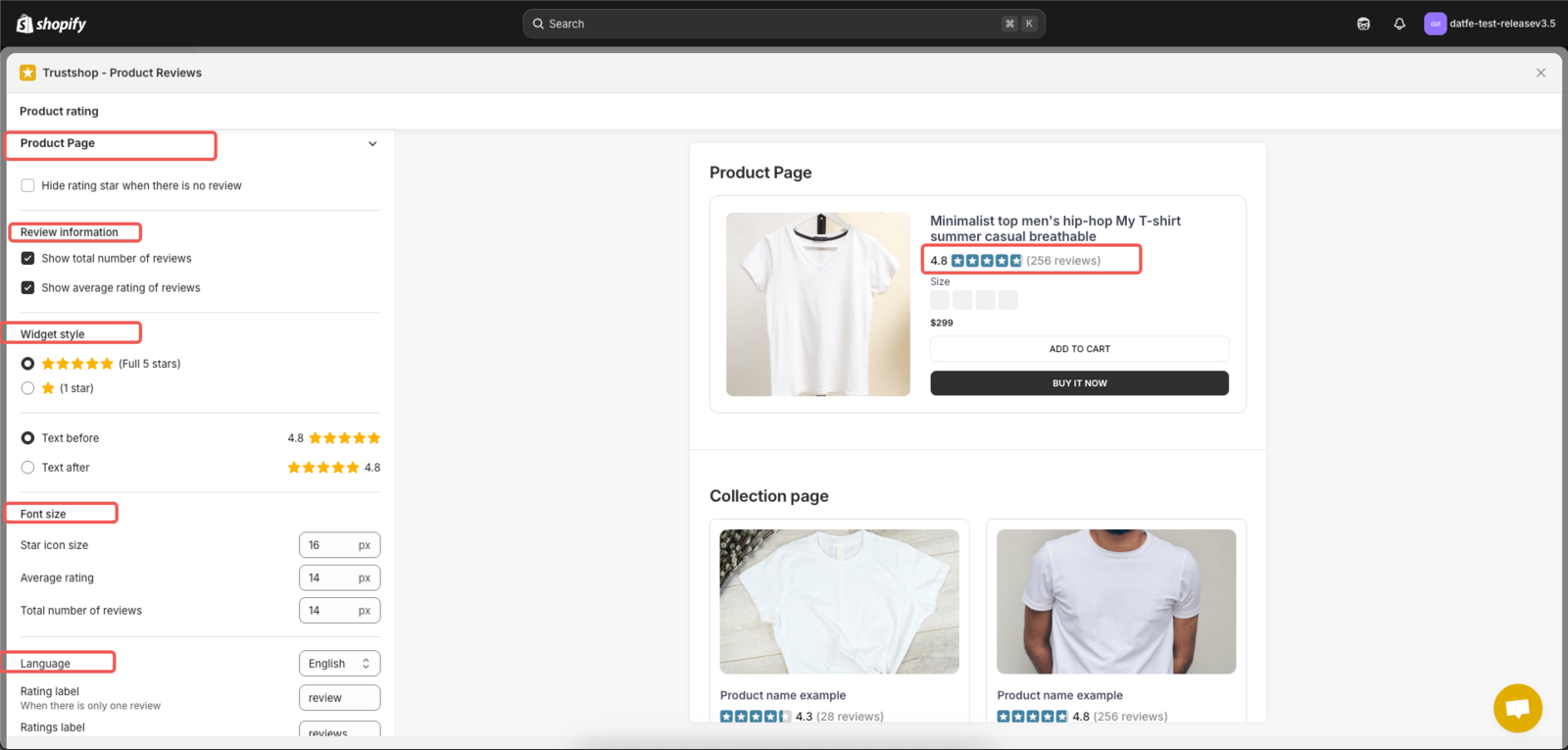
Step 3: Set up product reviews for the Product Page.
- Option to hide the star rating when a product has no reviews (Check the checkbox to hide or uncheck to display the rating) on the product page.
- Option to display text showing the average review count of the product before the star rating.
- Option to display text showing the average review count of the product after the star rating.
- Option to hide the text showing the average review count of the product.
- Option to adjust font size for: star size and the text size of the average review count.
- Option to display the total number of reviews.
- Option to select the language for the review texts.
- Option to customize the label text for the star rating.
- Option to customize the label text for the star rating (repeat).
Then, click Save to apply and save the changes you've made.
- View the guide image:
2. Collection Page
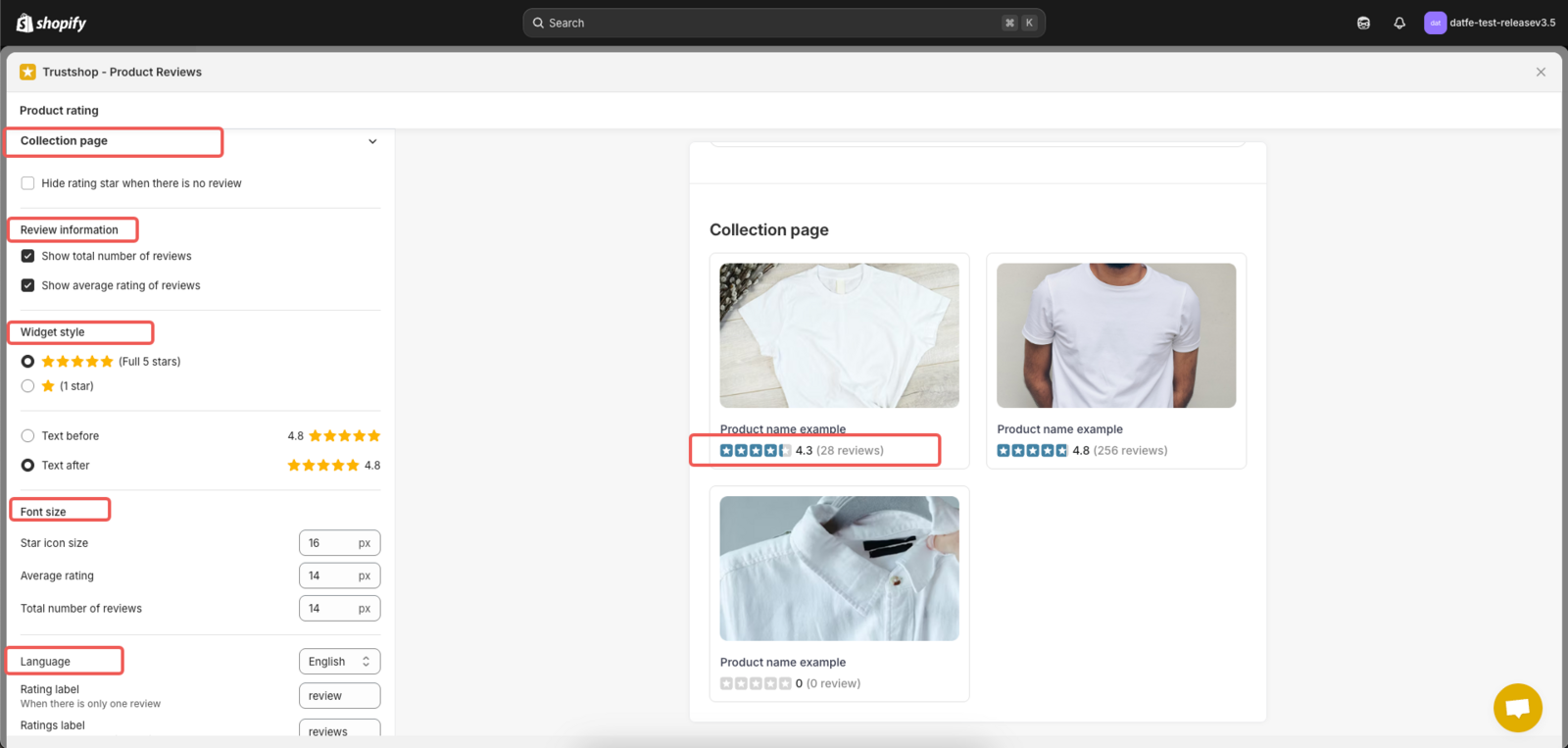
Step 4: Set up product reviews for the Collection Page .
- Option to hide the star rating when a product has no reviews (Check the checkbox to hide or uncheck to display the rating) on the collection page.
- Options to display text and adjust font sizes for: star size and the average review count text, similar to the settings for the product page. Then, click Save to apply and save the changes you've made.
- View the guide image:
3. Custom Color Setting
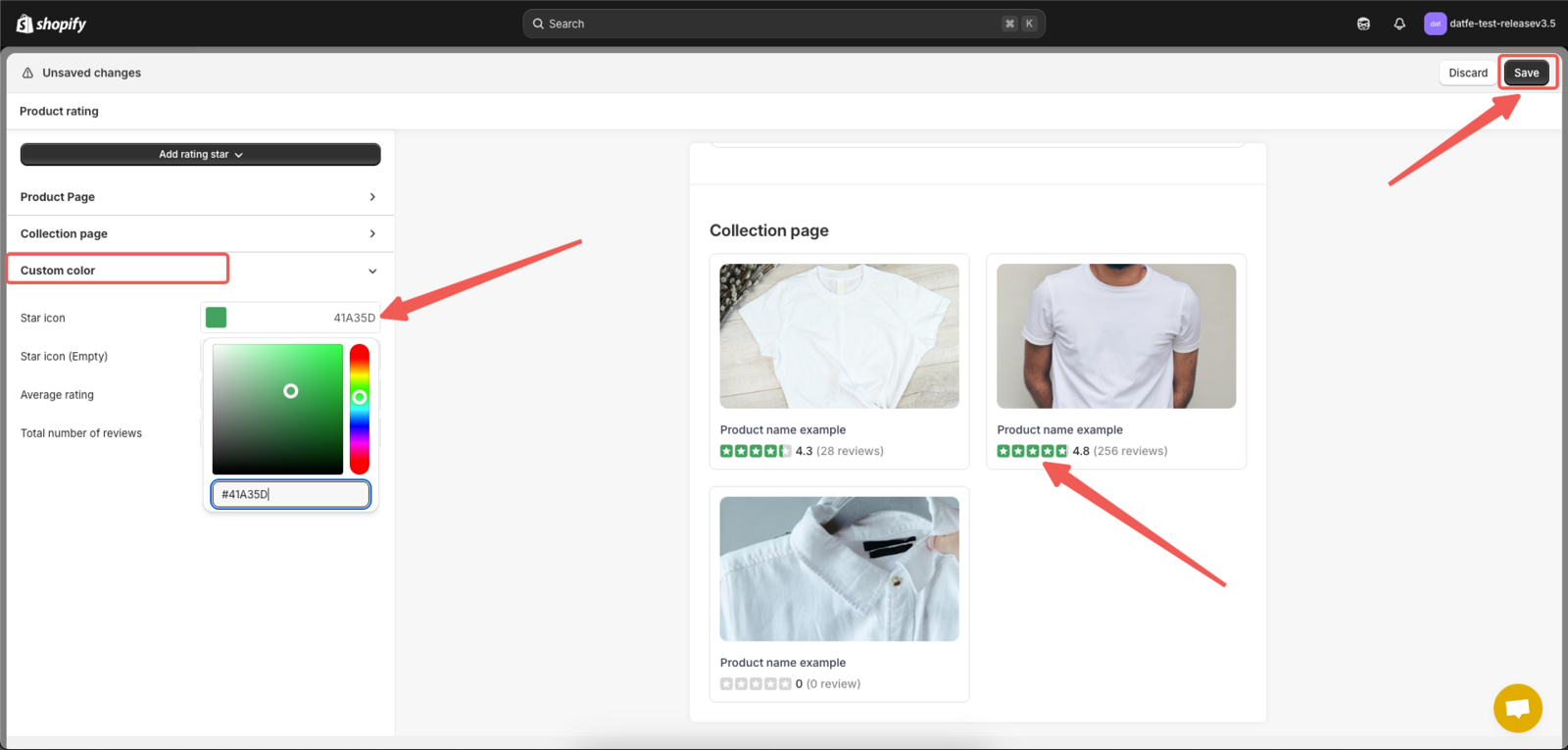
Step 5 : Set color for product reviews
- Option to change the color of the rating icon by clicking on the color code, then entering your color code or dragging the slider to see the color change.
- Option to change the color of the review text by clicking on the color code, then entering your color code or dragging the slider to see the color change.
- Option to change the color of the number of review text by clicking on the color code, then entering your color code or dragging the slider to see the color change.
Finally, click Save to save the changes you have made.
- View the guide image:
Updated on: 04/06/2026