
Product Bundles
Product Bundles
Collect and display reviews correctly for combo products, so a newly created bundle never shows up with zero reviews — even when the items inside it already have hundreds.
Plan availability: Product Bundles is available on the Unlimited and AI-Powered plans.Goals and Outcomes
Bundles and combo products create a common problem: the bundle is a brand-new product, so its review count starts at 0 — even though the individual items inside it may already have hundreds of 5-star reviews. An empty review section on a combo page lowers trust and hurts conversion. On top of that, review request emails often go to the wrong place: customers get asked to review each small item separately, or only the combo, and you miss valid reviews.
The Product Bundles feature solves both problems.
After setting it up, you can expect:
- No more empty combo pages. A bundle's product page can inherit and display the combined reviews of all the items inside it.
- Higher trust and conversion on combo, kit, and gift-set products, because social proof appears immediately.
- Accurate review requests. You decide whether a purchase triggers a request for the parent bundle, the child products, or both — so you never over-ask or miss a review opportunity.
- Hands-off syncing for bundles created with the native Shopify Bundles app, plus a manual fallback for combos you built yourself.
Feature Overview
Product Bundles connects your combo products to the reviews of the items they contain. It works through two mechanisms.
1. Shopify Bundles Sync (automatic)
TrustShop detects bundles created with the native Shopify Bundles app. These bundles are imported automatically and re-sync on their own when they change — no manual mapping needed. Once synced, your review settings take effect immediately.
Use this when your combos are real bundle products created through Shopify Bundles (a parent item that exists in your product listing with defined child items).
2. Manual Mapping (fallback)
Not every combo is a real Shopify bundle. Many merchants create a "combo" as a normal Shopify product (a dummy or standalone product) without any bundle app. TrustShop can't detect those automatically, so Manual Mapping lets you define the relationship yourself: pick a parent product, then pick the child products whose reviews it should inherit.
Use this when you sell items individually but created a combo product directly in Shopify without a dedicated bundle app. (See the Use Cases section below.)
Concept | What it means |
|---|---|
Parent Bundle | The combo product. Its product page is where combined reviews are displayed on the storefront. |
Child Products | The individual items that make up the bundle and supply the reviews. |
Source | How the bundle was added: Shopify Sync (auto-detected) or Manual (mapped by you). |
Request Type | Which items trigger a review request email: Parent & Child, Parent only, or Child only. |
Widget Display | Which reviews show on the parent page: Inherit from children (combined) or Bundle reviews only (parent combo only). |
Every bundle is governed by two settings. You can set them globally as Default Bundle Rules, and override them per bundle.
- Send review requests for — Choose which items trigger an email request when a bundle is purchased.
- Request for the Parent Bundle — asks the customer to review the combo as a whole.
- Request for Child Products — asks the customer to review each individual item.
- You can enable one or both.
- Inherit reviews on storefront — Control what reviews appear on the parent bundle's product page.
- Inherit from child products (Recommended) — shows the combined reviews of all items.
- Show bundle reviews only — shows only reviews written about the parent combo.
Step-by-Step Guide
All settings live in TrustShop – Reviews → Settings → Product Bundles.
Step 1 — Turn on Product BundlesAt the top of the Product Bundles page, toggle Product Bundles on. The status badge changes from Inactive to Active, and the settings below become editable.
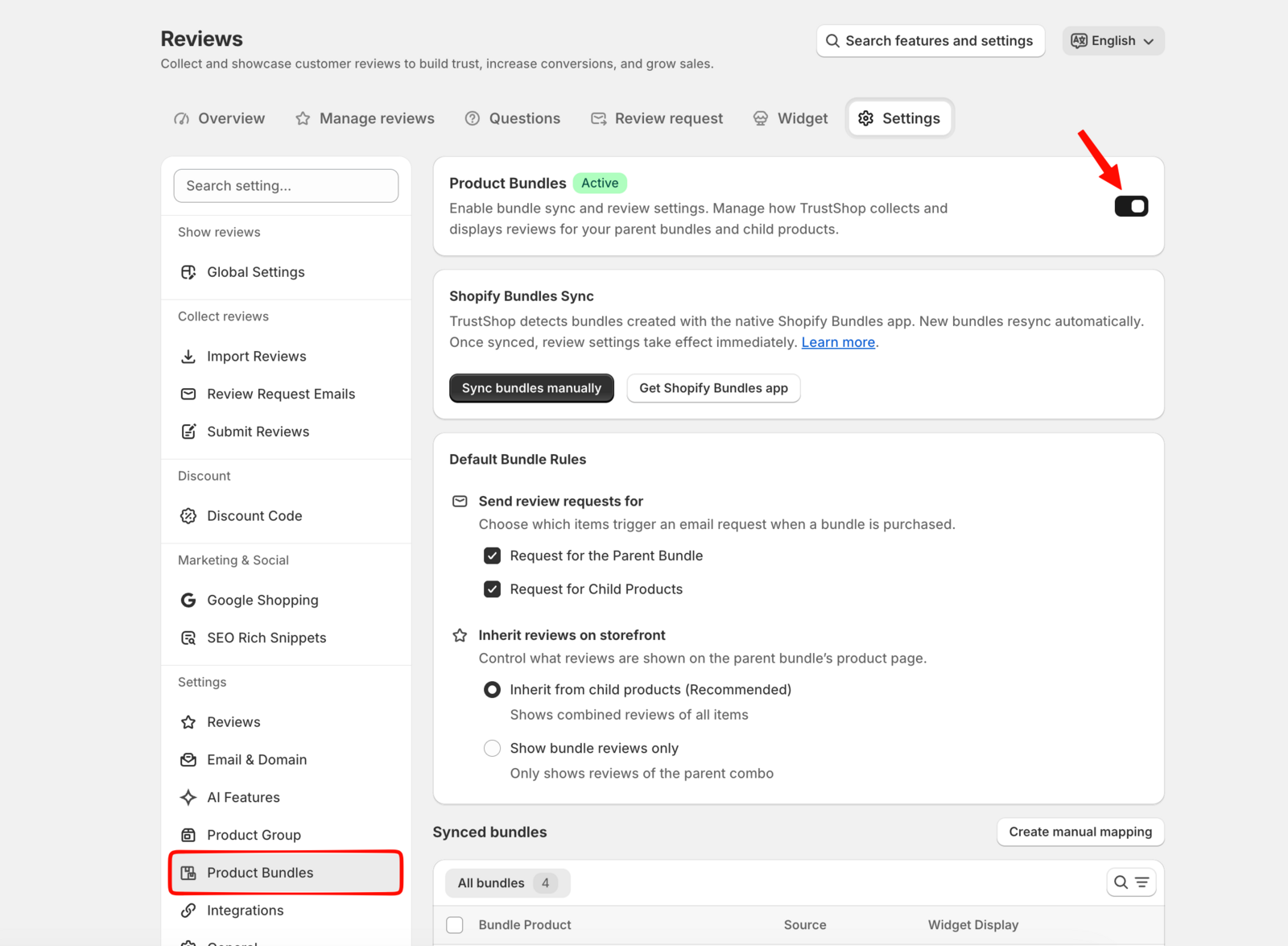
These defaults apply to every new bundle. Under Default Bundle Rules:
- Under Send review requests for, choose Request for the Parent Bundle, Request for Child Products, or both.
- Under Inherit reviews on storefront, choose Inherit from child products (Recommended) to show combined reviews, or Show bundle reviews only to show only the combo's own reviews.
You can change these per bundle later, so pick the option that fits most of your combos.
Step 3 — Add your bundlesChoose the path that matches how you build combos.
Option A — Sync from Shopify Bundles (automatic)- In the Shopify Bundles Sync card, click Sync bundles manually to pull in your current bundles right away. (New bundles created afterward re-sync automatically.)
- If you don't have the Shopify Bundles app yet, click Get Shopify Bundles app to install it first.
- Synced bundles appear in the Synced bundles table with the source Shopify Sync.
- In the Synced bundles section (or from the empty state), click Create manual mapping.
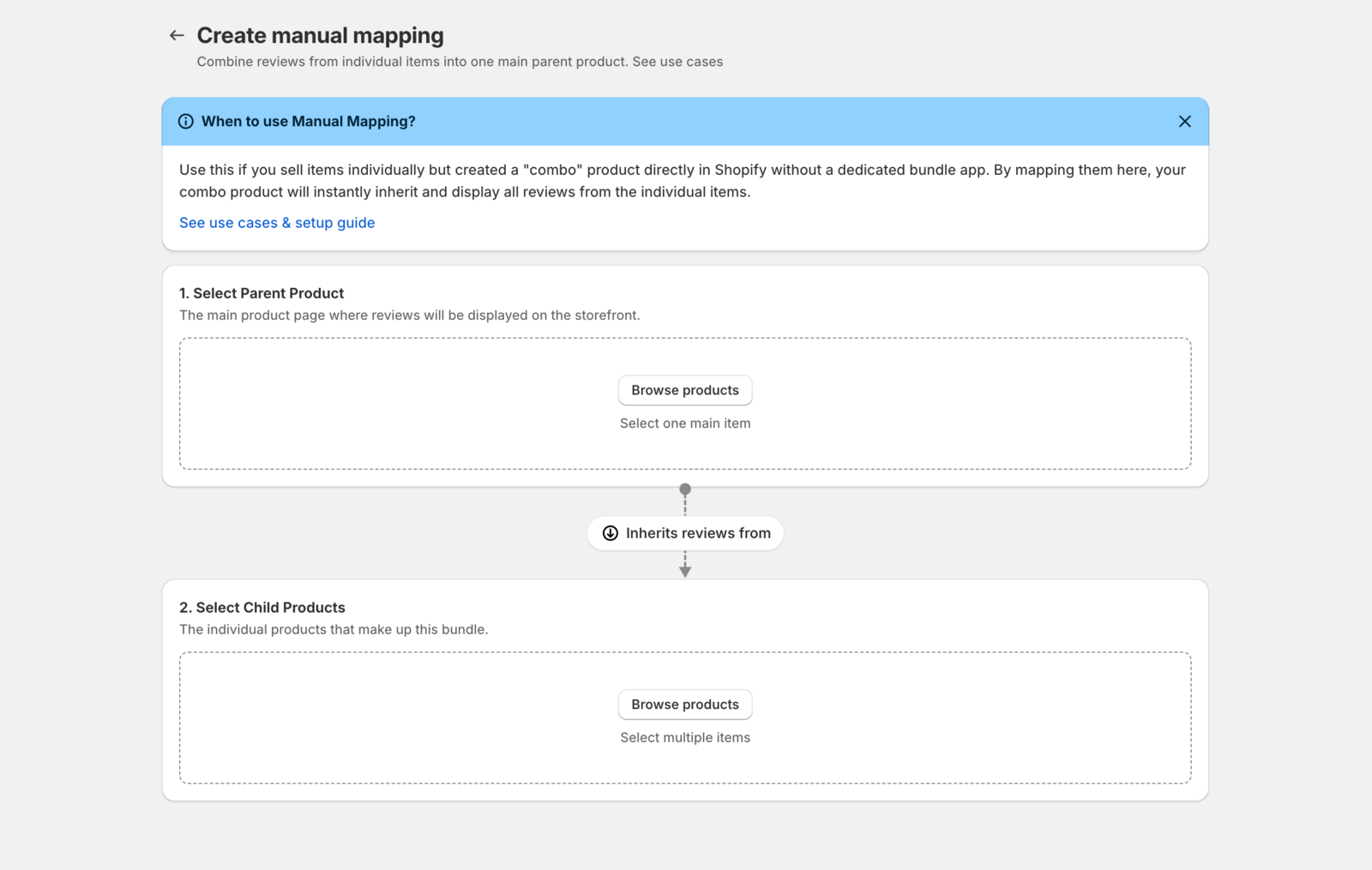
- Under 1. Select Parent Product, click Browse products and pick the one main combo product where reviews will be displayed on the storefront. Select one item.
- Under 2. Select Child Products, click Browse products (then Add product for more) and select the individual items that make up the bundle. You can add multiple.
- Confirm the relationship — the parent now inherits reviews from the children you selected.
- Save. The new mapping appears in Synced bundles with the source Manual.
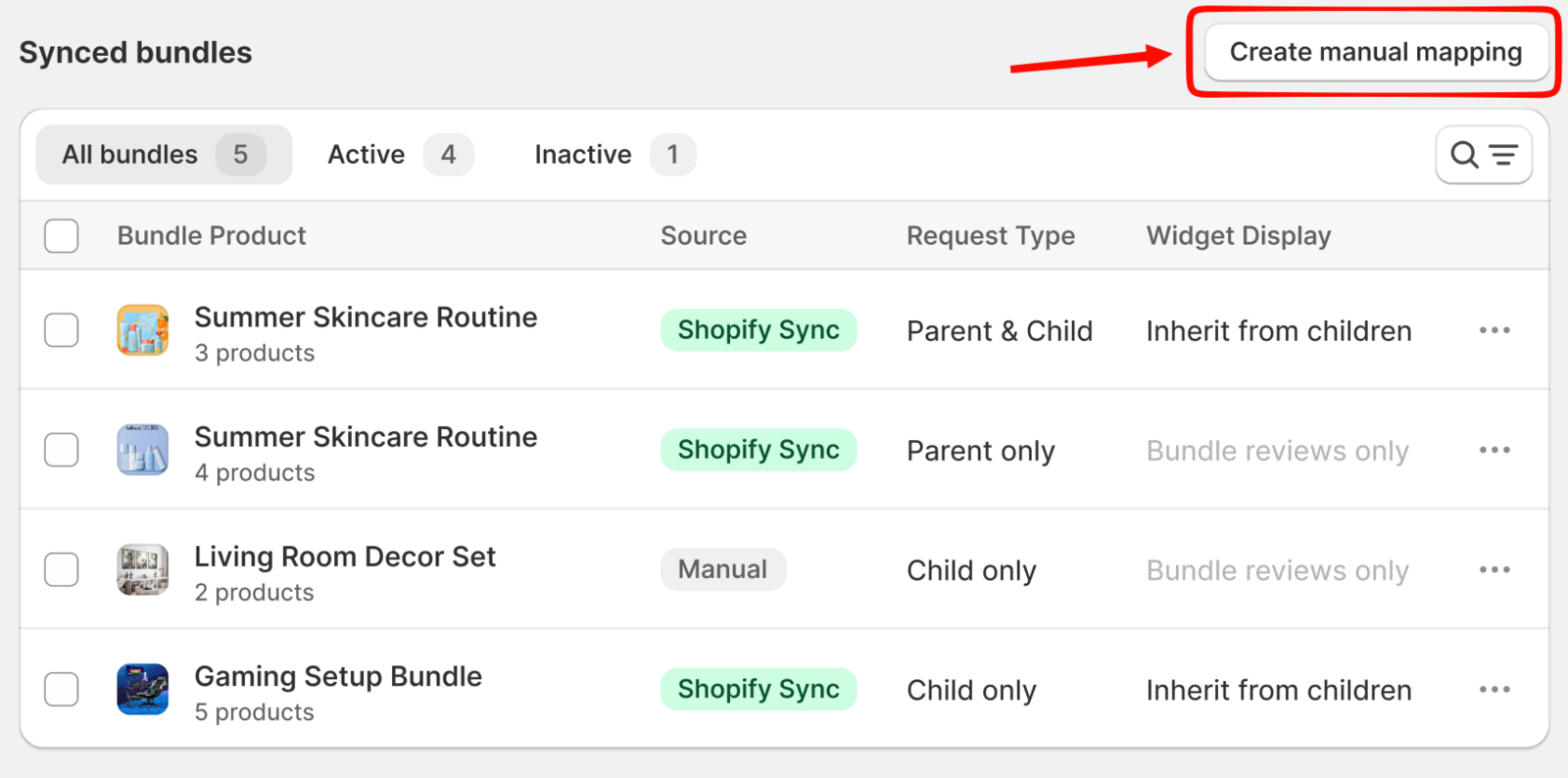
The Synced bundles table lists every bundle, filterable by All bundles, Active, and Inactive. Each row shows the Bundle Product (and item count), Source, Request Type, and Widget Display.
Open the ⋯ menu on any row to manage it:
- Change bundle rules — override the request and inheritance settings for that specific bundle (opens the Change bundle rules modal).
- View in Online Store — open the product page on your storefront.
- View in Shopify Admin — open the product in Shopify.
- Edit mapping (manual bundles only) — change the parent or child products.
- Remove (manual bundles only) — delete the manual mapping.
Use Cases: When to use Manual Mapping
Manual Mapping is the flexible fallback for combos you didn't build with a dedicated bundle app. Here's when it earns its place.
1. You created a combo product directly in ShopifyYou sell items individually but made a "combo" as a normal Shopify product — no bundle app involved. TrustShop can't auto-detect this, so you map it manually. Once mapped, the combo page instantly inherits and displays all reviews from the individual items.
Example: You created Ultimate Skincare Bundle (0 reviews) as a standalone product. Map it to Vitamin C Serum (86 reviews), Hyaluronic Acid Face Cream (112 reviews), and Retinol Night Gel (98 reviews). The bundle page immediately shows the combined social proof of all three instead of an empty review section.
You bundle existing best-sellers into a themed gift product for a season or promotion.
Example: For a Valentine Gift Box, map it to Lip Balm and Perfume (both already well-reviewed). The gift box page shows strong ratings from day one, boosting trust during a short, high-intent sales window.
You launch a combo that pairs a proven best-seller with a brand-new product that has no reviews yet.
Example: Sell a combo of a Best-Seller Serum (many reviews) + a Newly Launched Cream (0 reviews). Manual Mapping lets the new product borrow credibility from the best-seller directly on the combo page, giving the launch a stronger start.
Situation | Use |
|---|---|
Combo built with the native Shopify Bundles app | Shopify Bundles Sync |
Combo created as a normal Shopify product, no bundle app | Manual Mapping |
Combo needs custom, one-off parent/child relationships | Manual Mapping |
Tips & Notes
- Inherit from child products is recommended for most combos — it maximizes visible social proof.
- Set your Default Bundle Rules to match your most common combo type, then override individual bundles only when needed.
- Shopify-synced bundles re-sync automatically; you don't need to re-run the sync each time you change a bundle in Shopify.
- Removing a manual mapping is permanent — the parent stops inheriting child reviews immediately.
Updated on: 01/07/2026