
Add widget to Product Detail
The tutorial will provide guidance for both Theme 2.0 and Theme 1.0. You can find the instructions for Theme 1.0 below.
For Theme 2.0
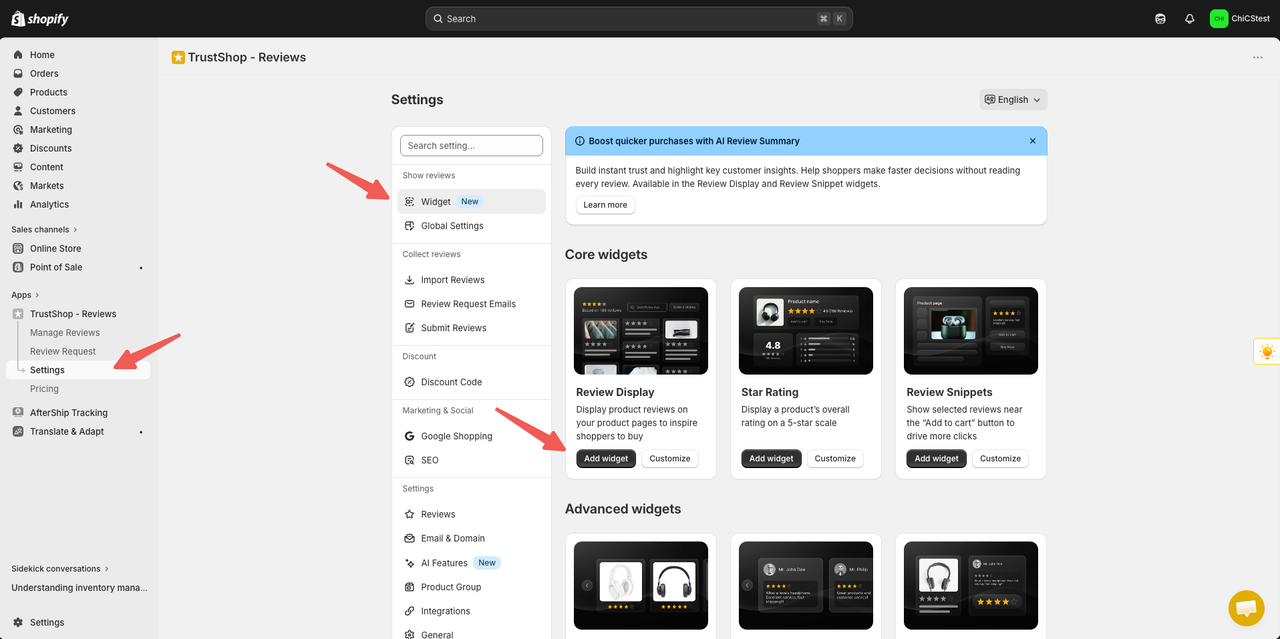
Step 1: Go to Settings-> Widget-> Add widget
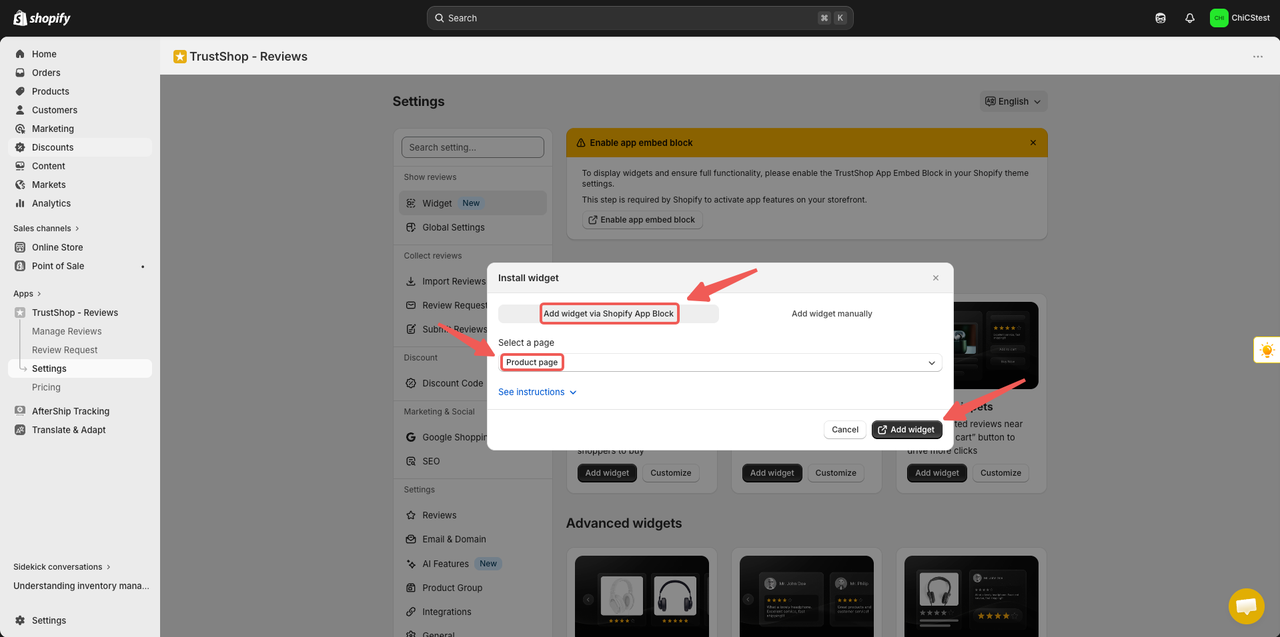
Step 2: Choose Add widget via Shopify App Block, select the page you want to add the widget to and click Add widget
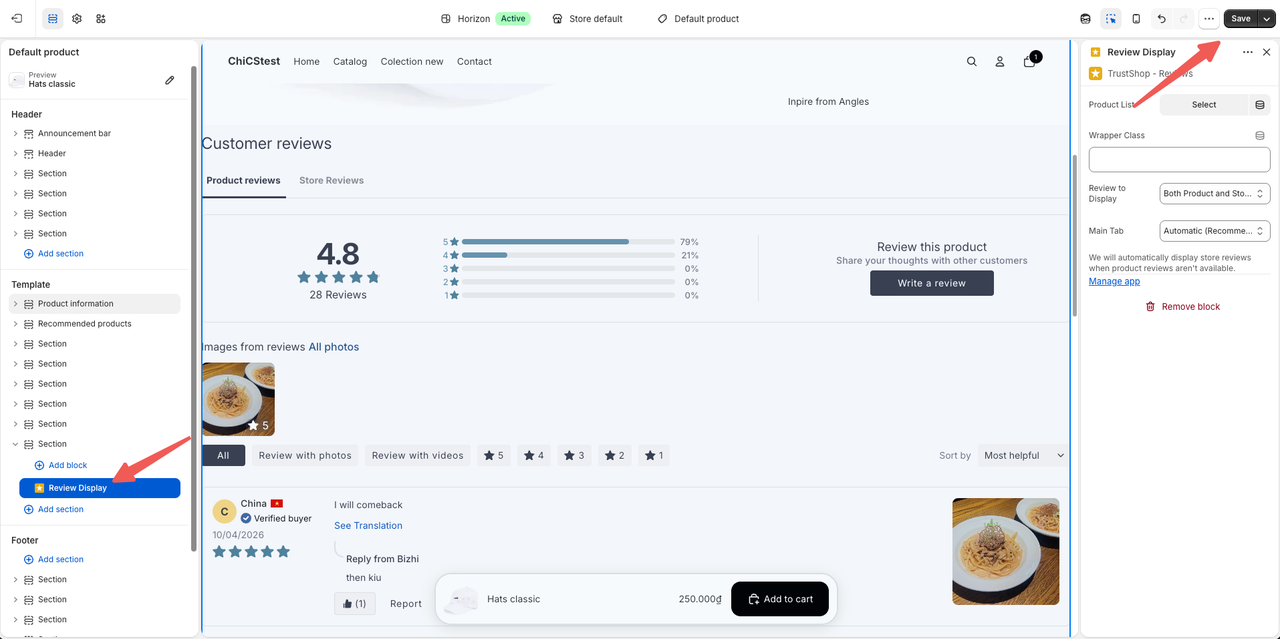
Step 3: The widget you added through the block will appear there. You can drag and drop it to adjust the position you want, after finished press save.
For Theme 1.0
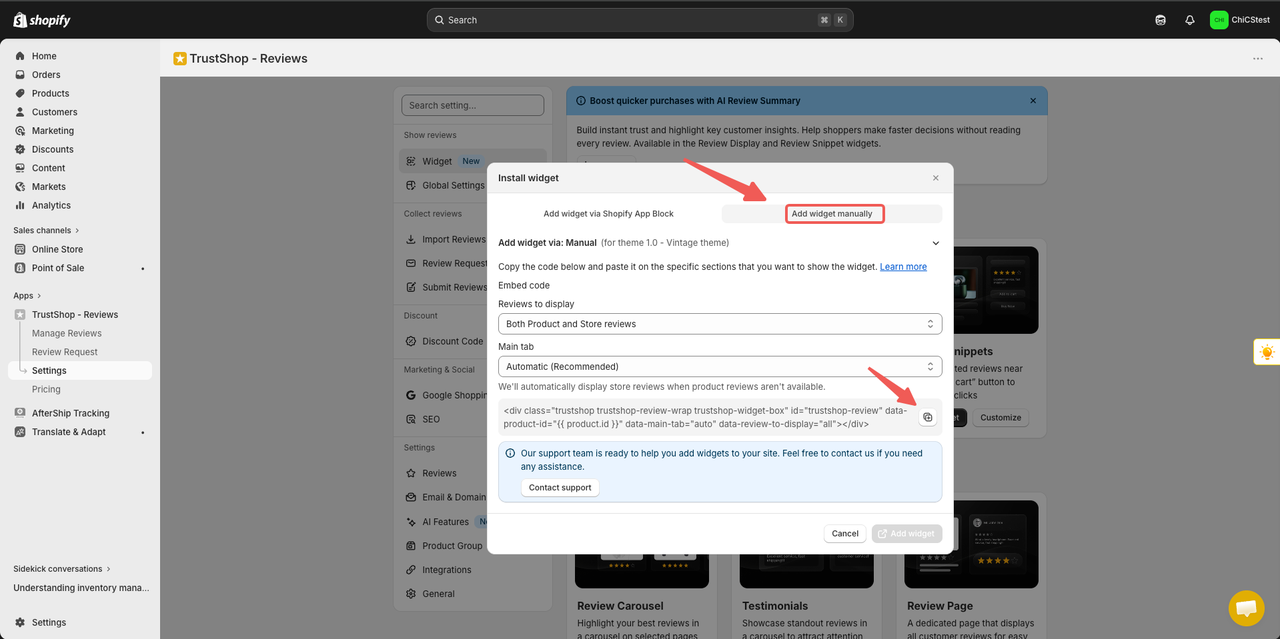
Step 1: Go to Settings-> Widget-> Add widget
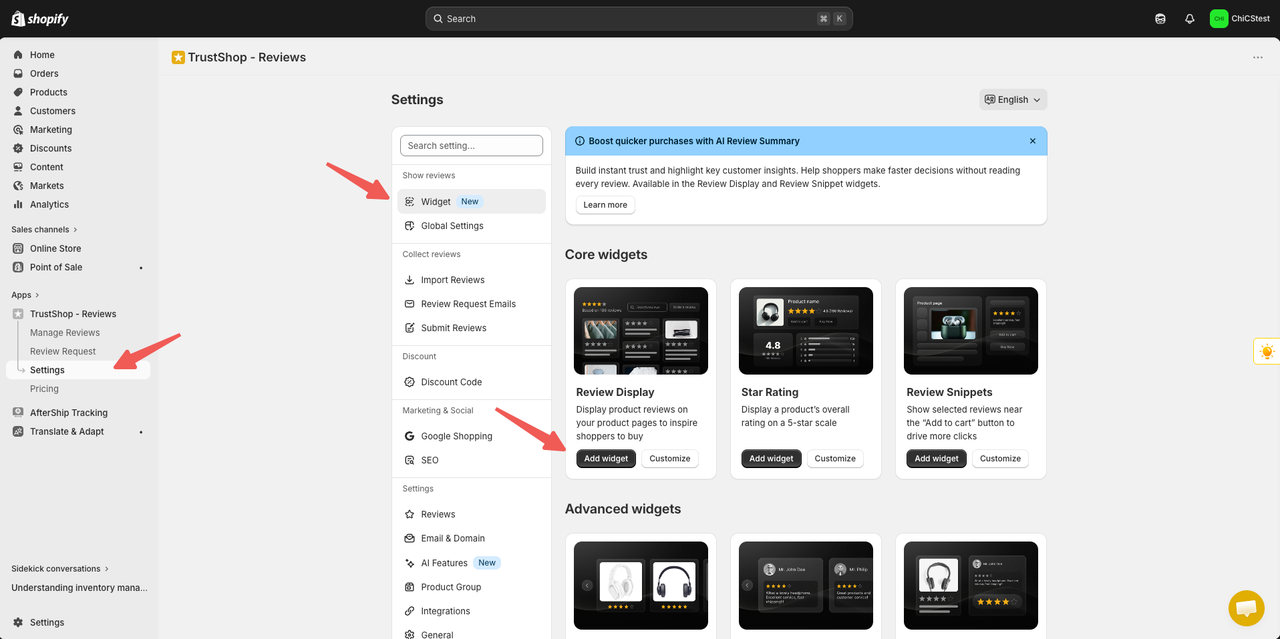
Step 2: Select Add widget manually then copy the code of the add-ons
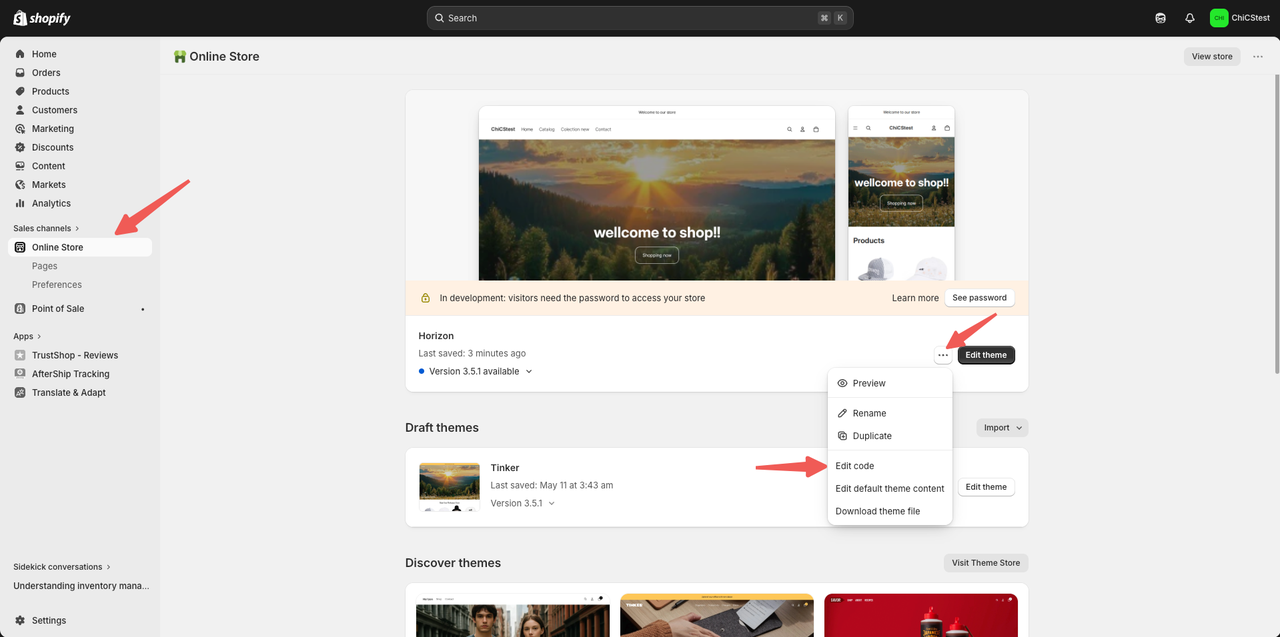
Step 3: Close tap-> Online store->** click on the 3 dots icon-> Edit code**
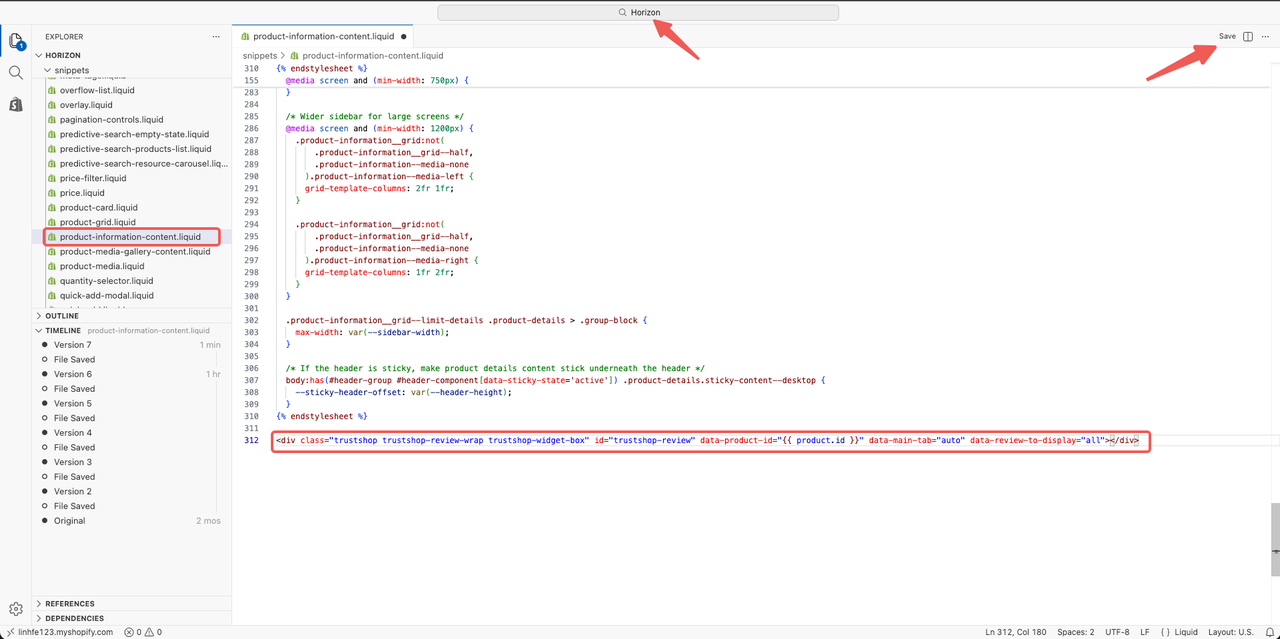
Step 4: Find the file based on your theme and add the code
- On the Edit Code page, use the search bar at the top to find the file to which you will add the widget code. The file name may vary depending on the interface you are using.
- For example: I am currently using the Horizon interface, so I will look for a file named
product-information-content.liquid. - Open this file and paste the copied code at the end of the file.
- Click Save.
To embed the application, do the following:
Step 1: Online store-> Edit theme
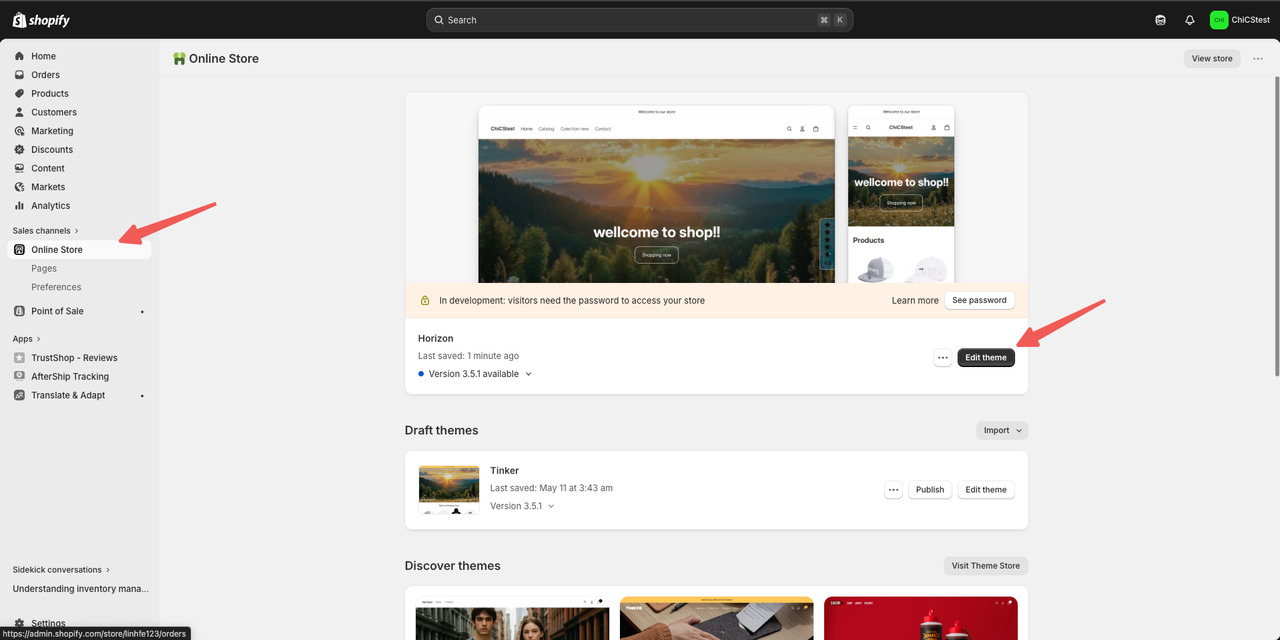
Step 2: Enable Embedded app-> Save

Updated on: 25/05/2026