
How to Create a Reviews Page
The tutorial will provide guidance for both Theme 2.0 and Theme 1.0. You can find the instructions for Theme 1.0 below.
For theme 2.0
Step 1: Create a new page template. This step helps create a new page template to use as a review page, remove the title of the page and does not affect your current pages.
- To create a new page template, go to Customize in Online Store > Themes.
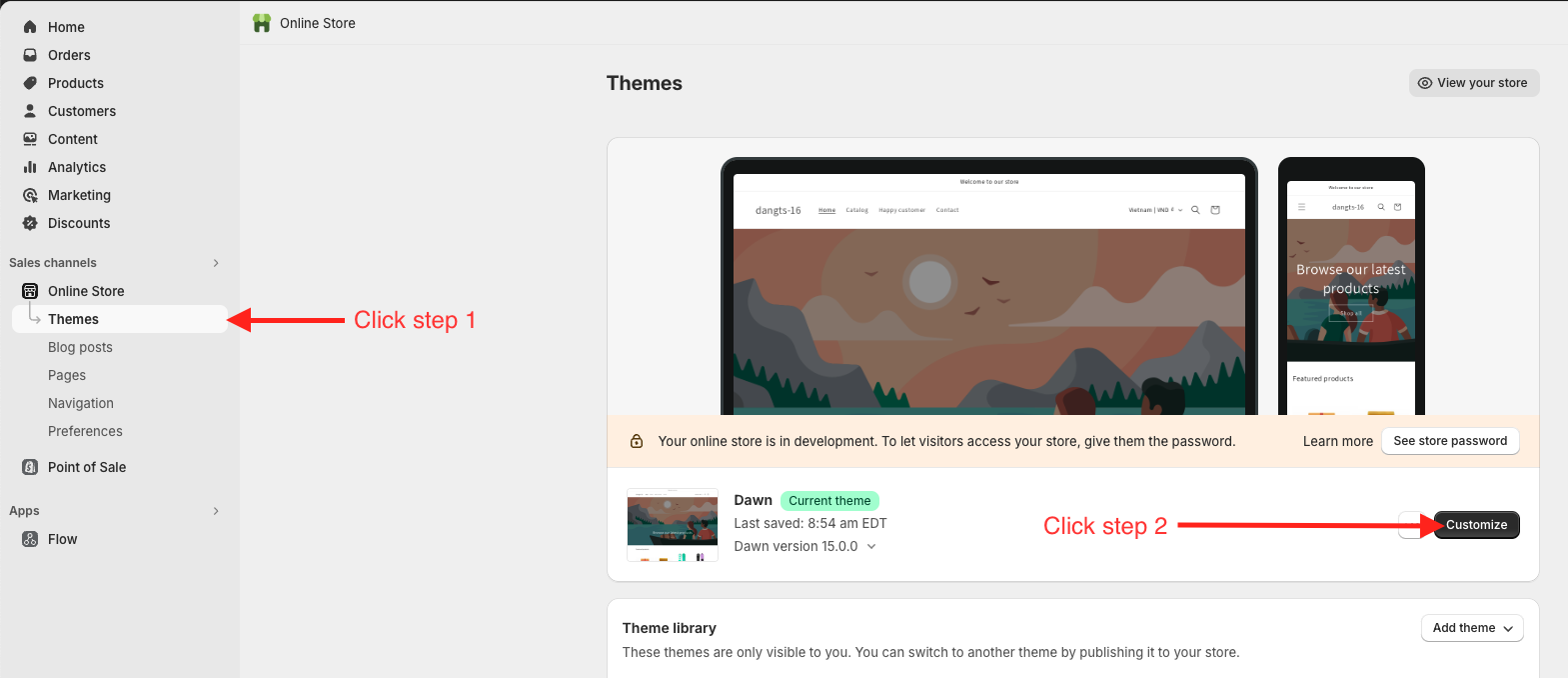
- Then, create a new template page in the Customize section.
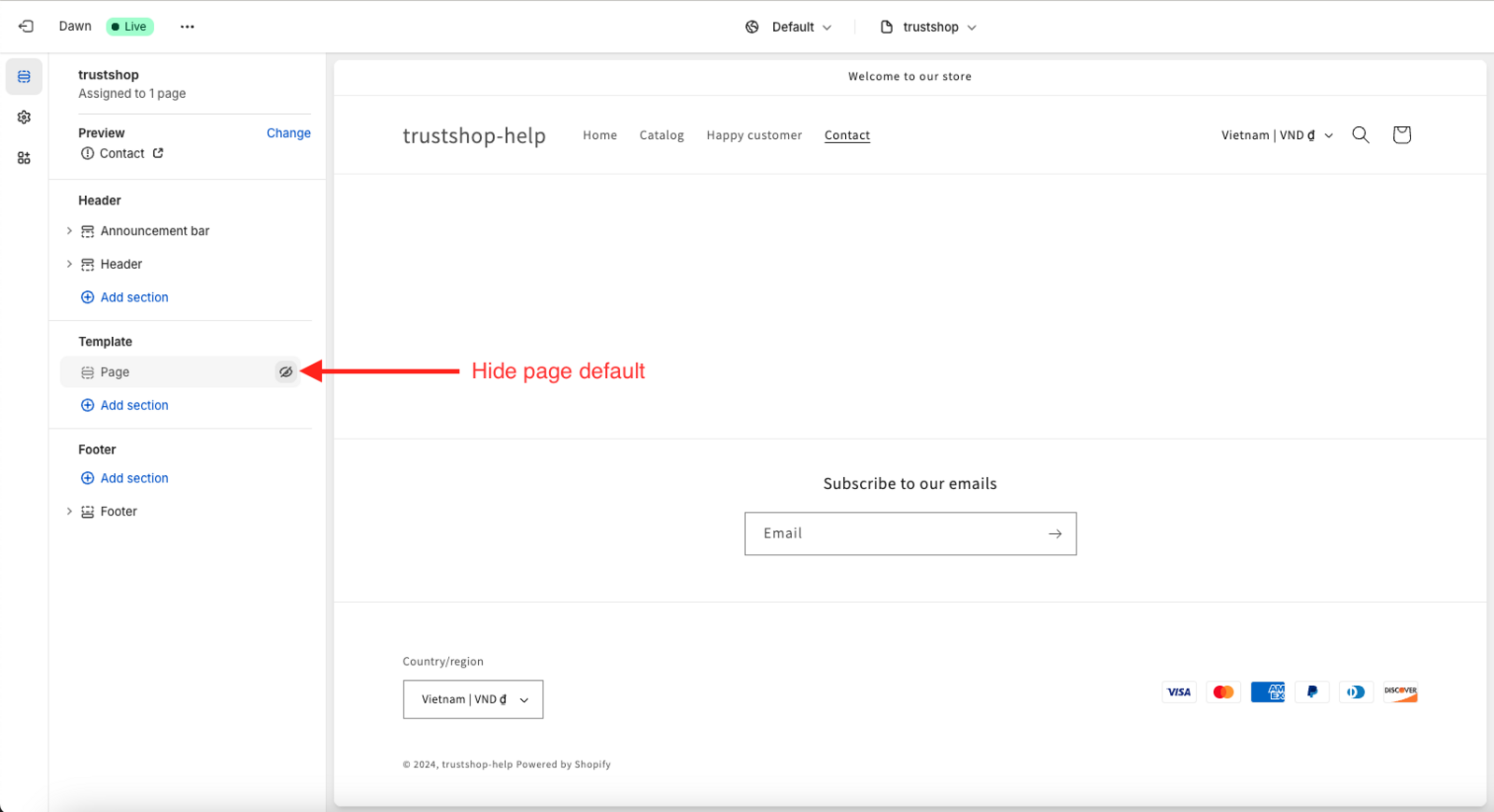
- Since TrustShop supports adding title and subtitle for the review pages, you need to disable the default Shopify page title. To disable the title, click on the eye icon on the left side of the Customize theme.
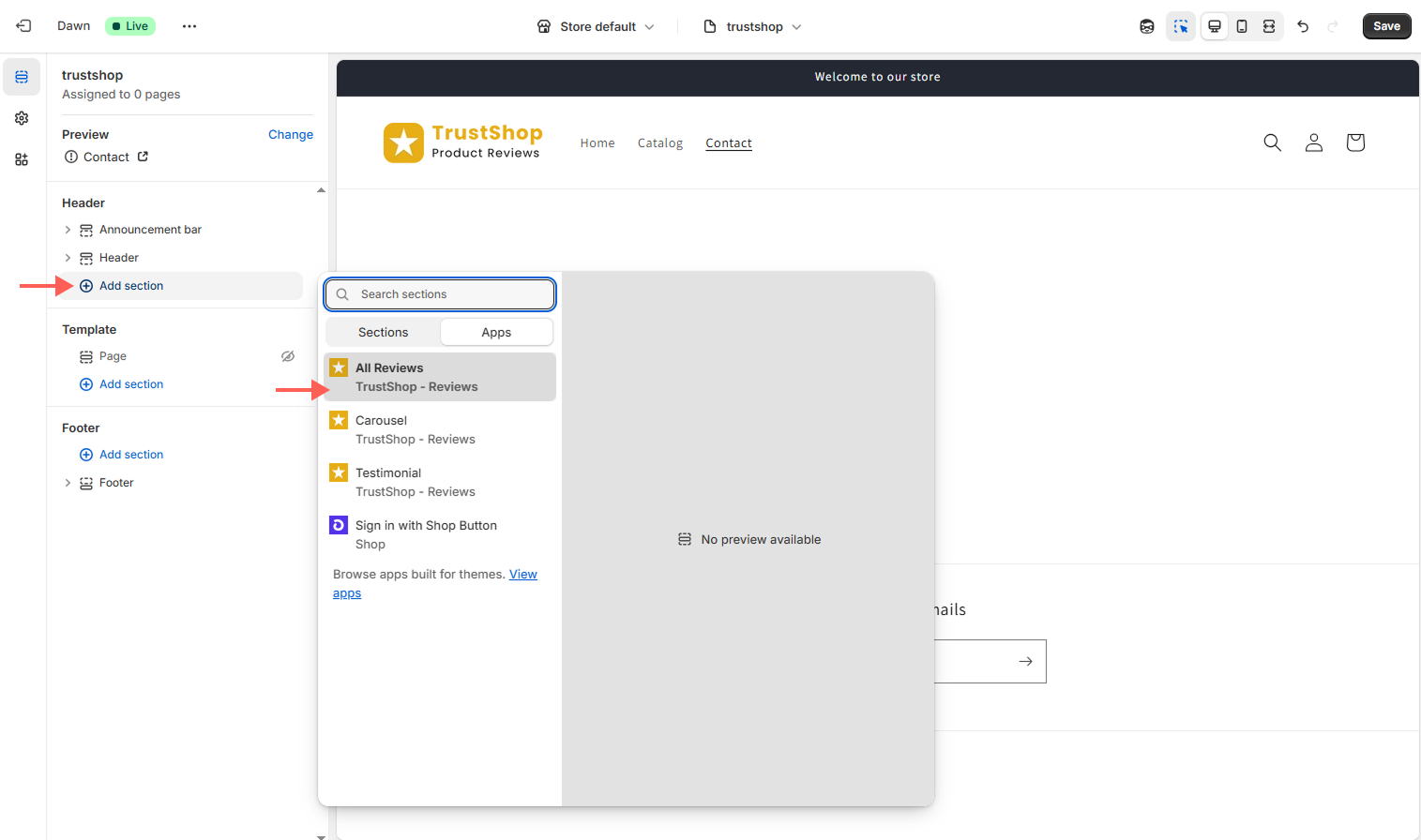
- Add the All Reviews section of TrustShop to display all your reviews.
Step 2: Create a new Page
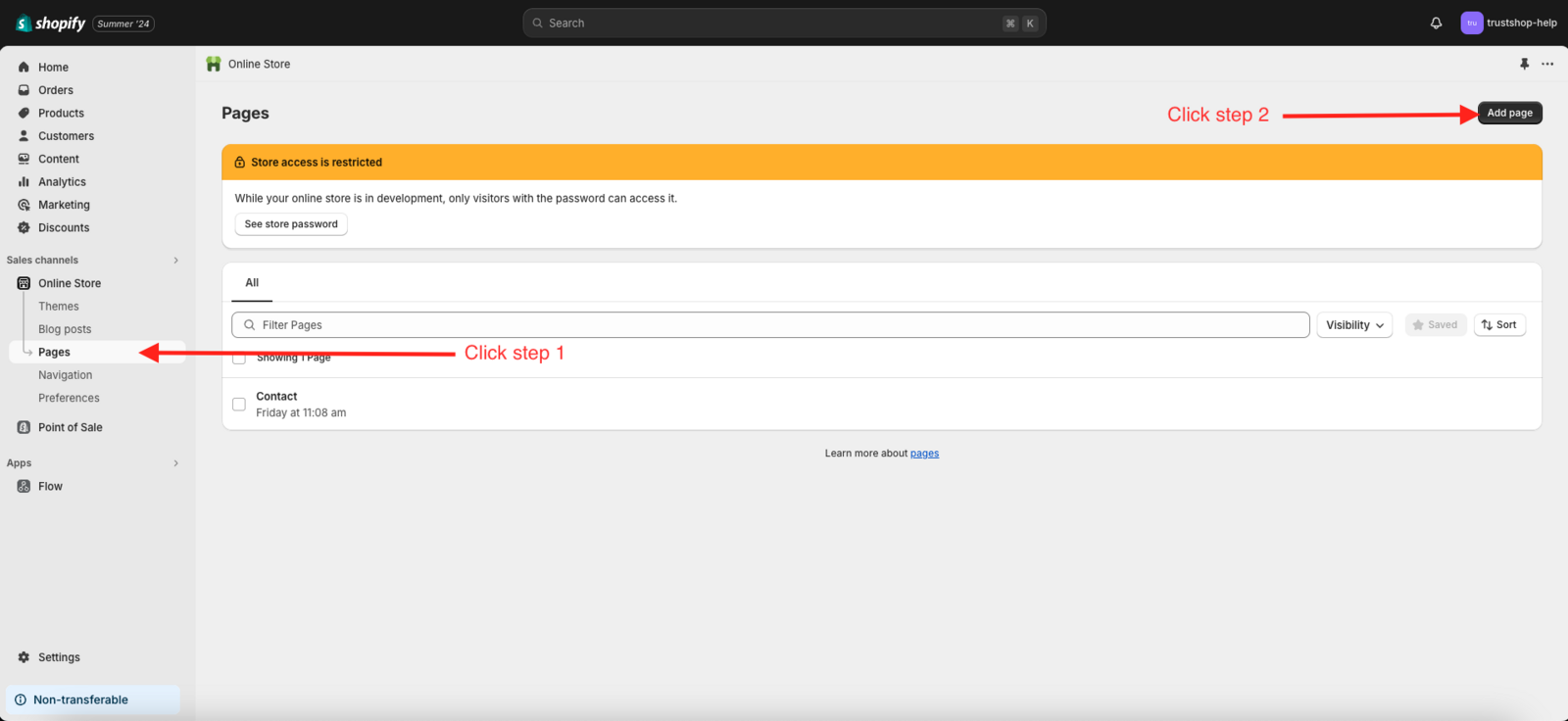
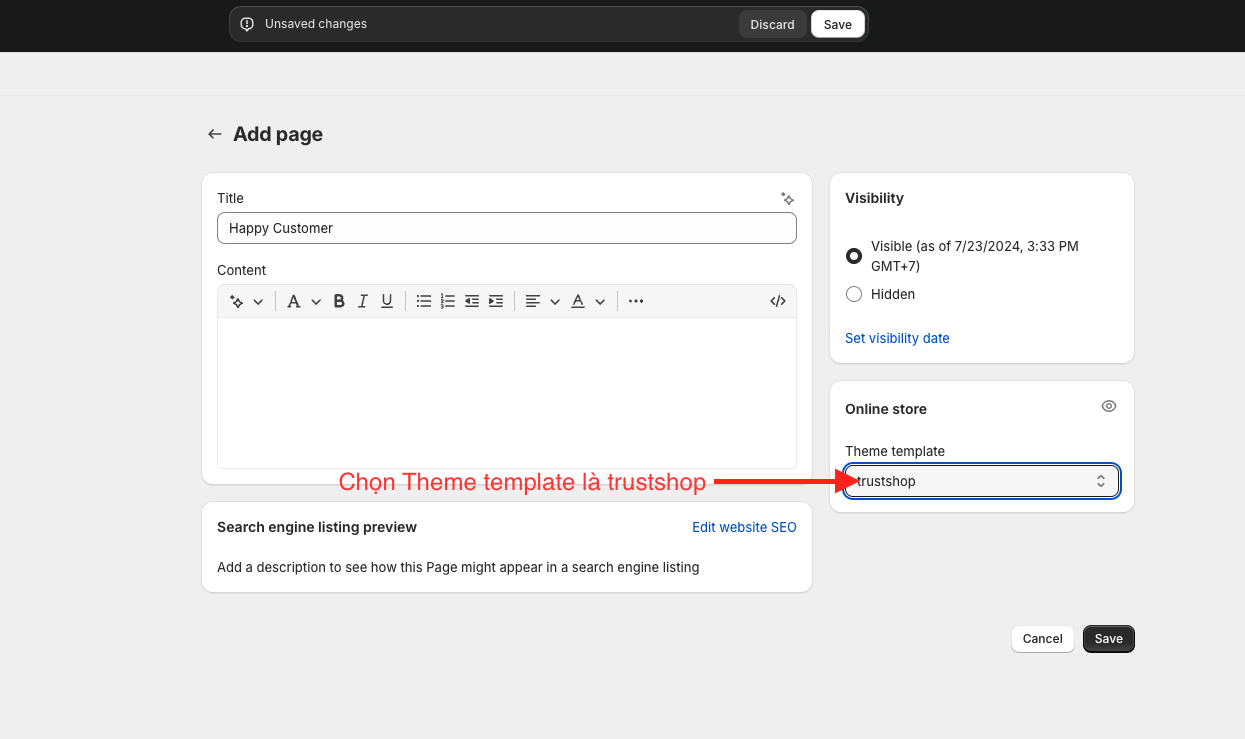
- After creating the TrustShop page template, you need to create a page to display all reviews. To create a page, go to Online Store > Pages and click on Add page.
- In the new page creation section, select the theme template as trustshop.
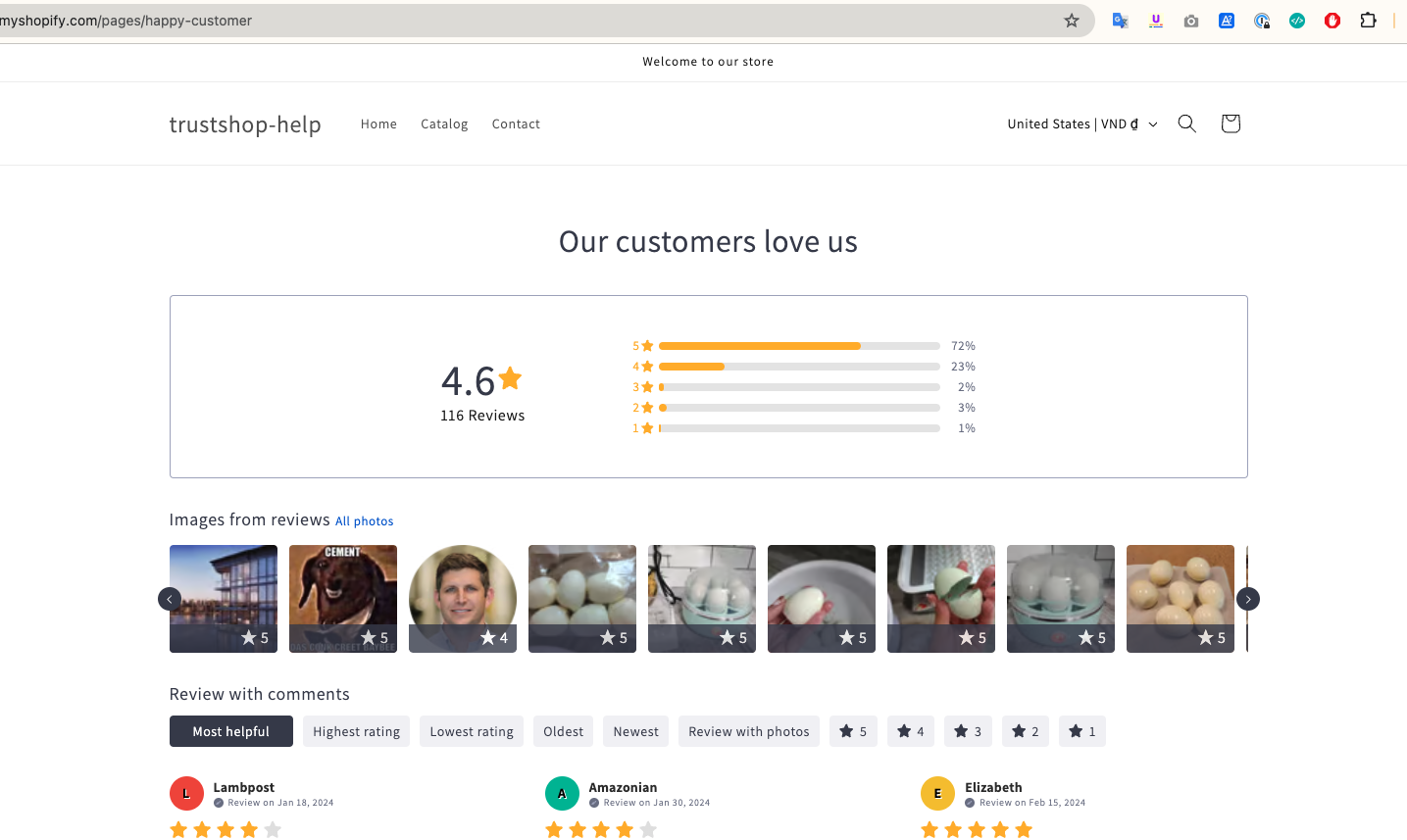
- Then you can view the newly created page:
Step 3: Add the page to the menu
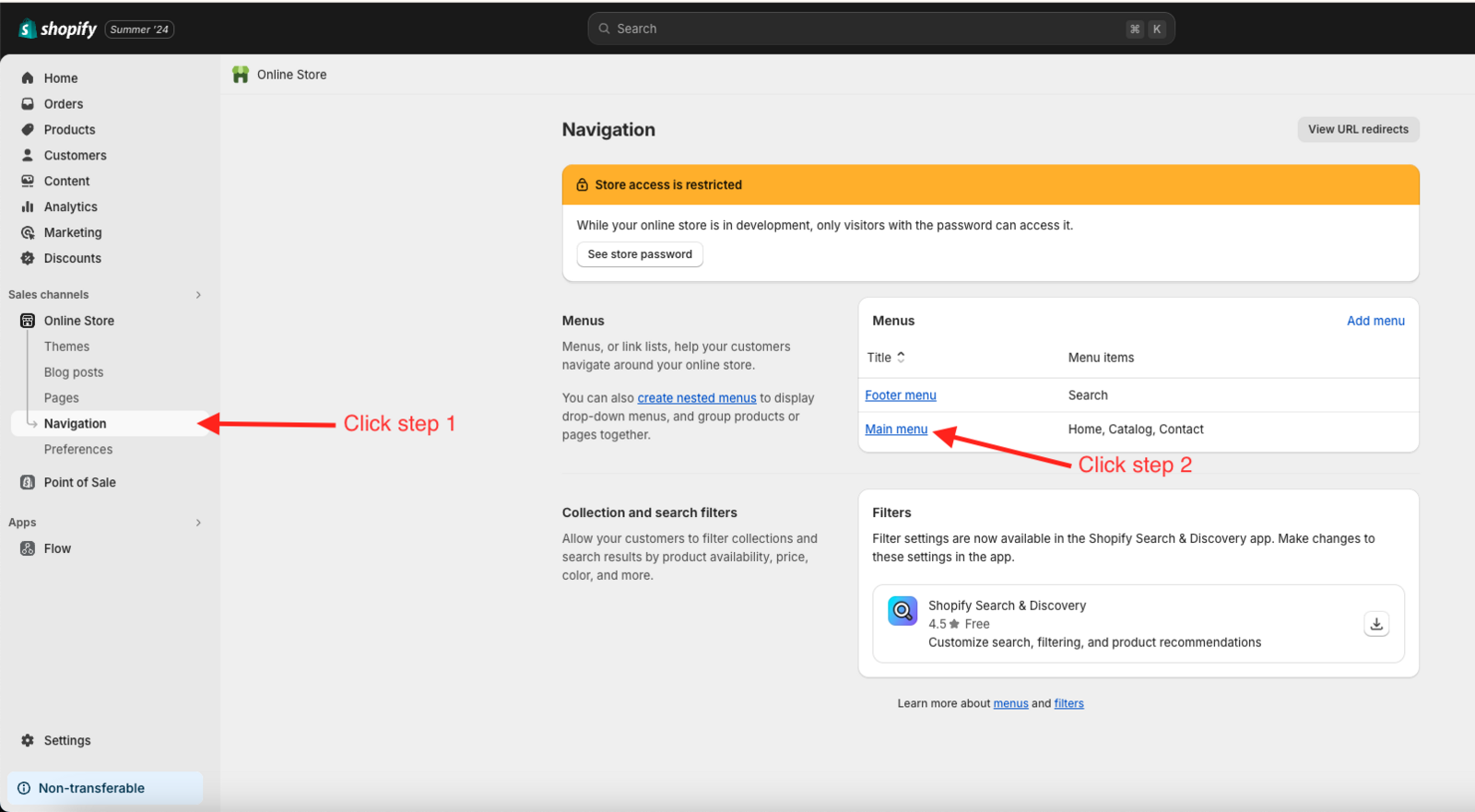
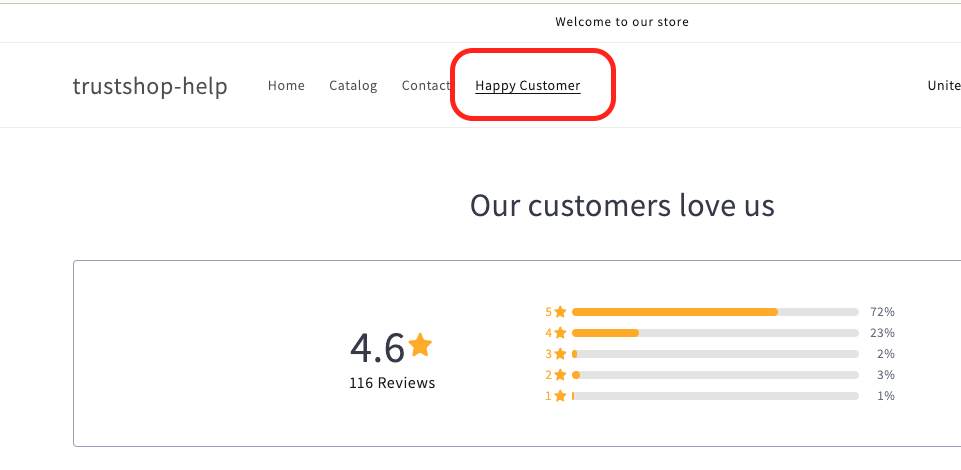
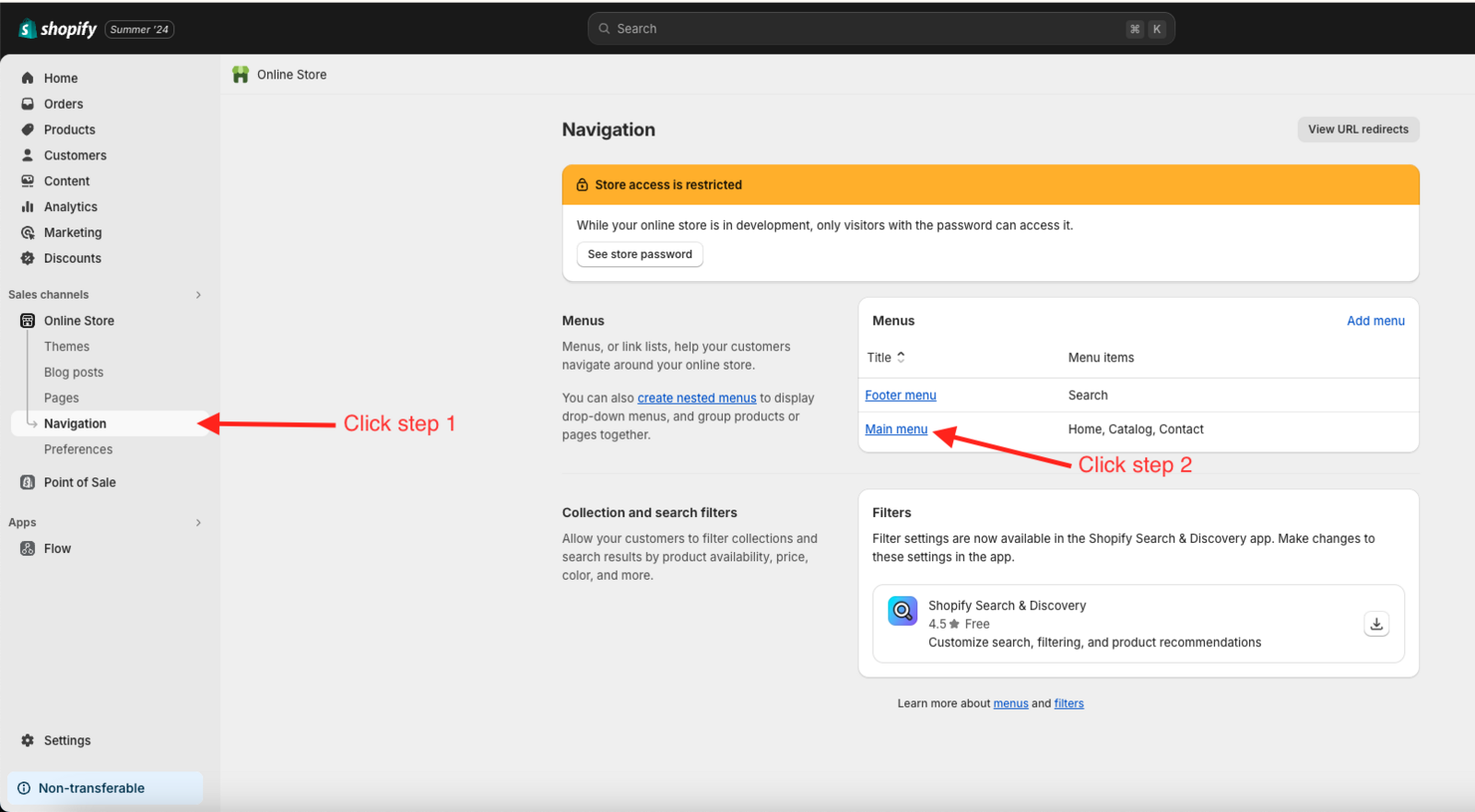
- After the all reviews page has been created, you can add this page to the Main menu to display the access link to the page. To add, go to Online Store > Navigation.
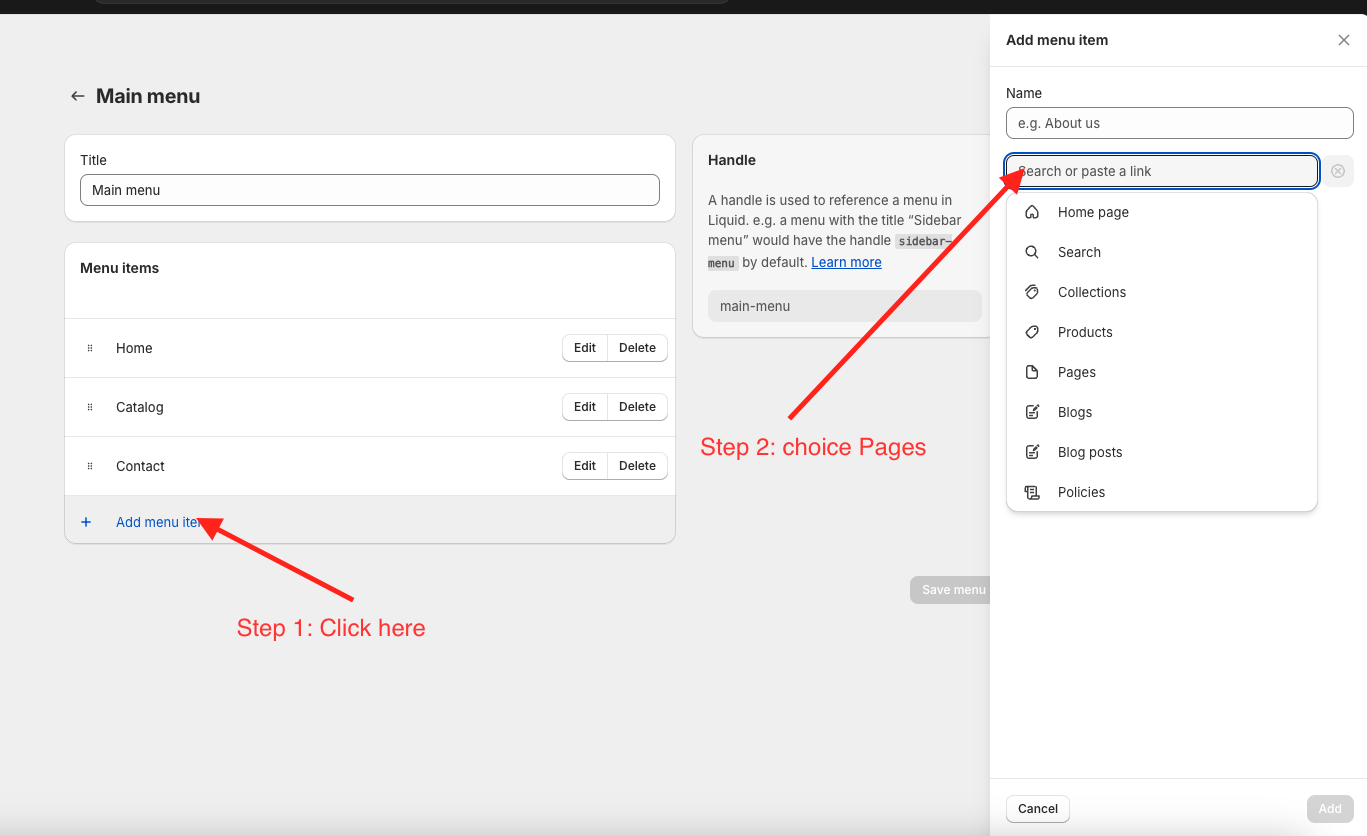
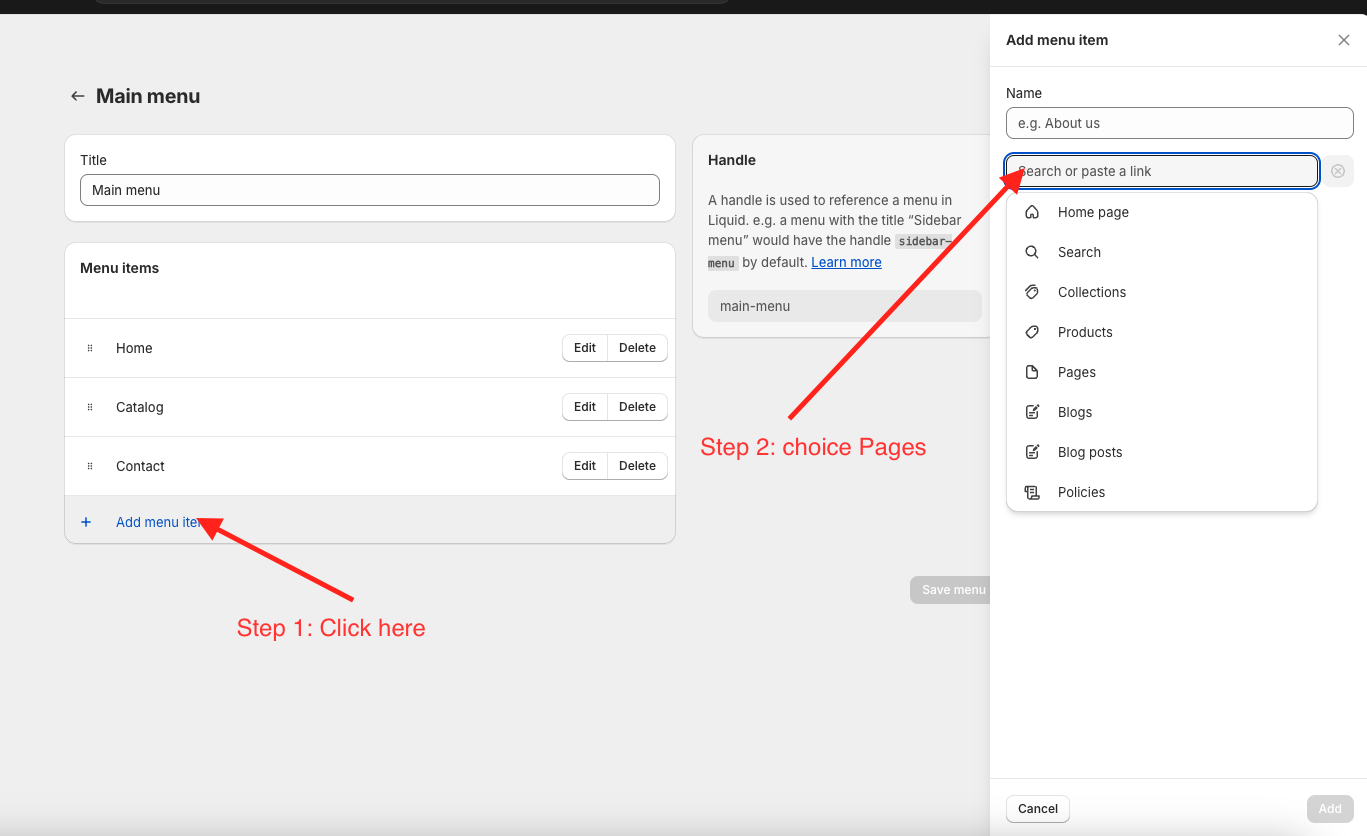
- Then, select the newly created page and add it to the Main menu.
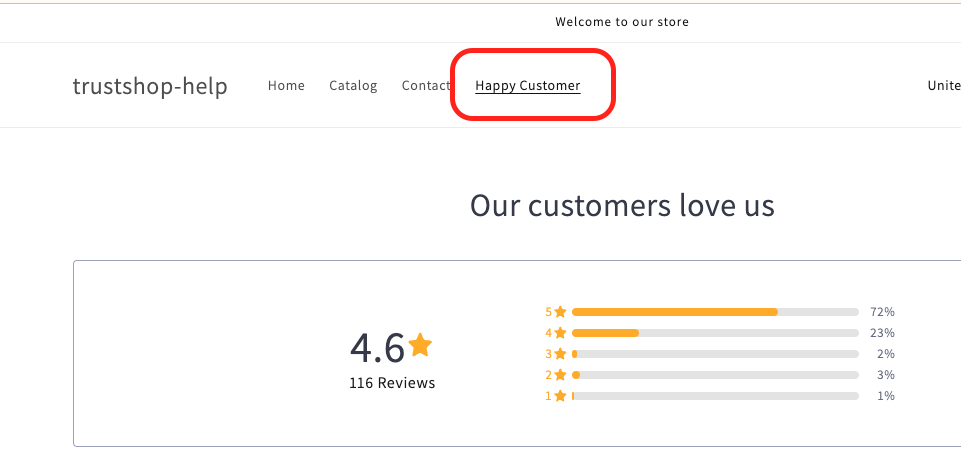
- Result:
For theme 1.0
Step 1: Create a new page template. This step helps create a new page template to use as a review page, remove the title of the page and does not affect your current pages.
- To create a new page template, go to Edit code in Online Store > Themes.
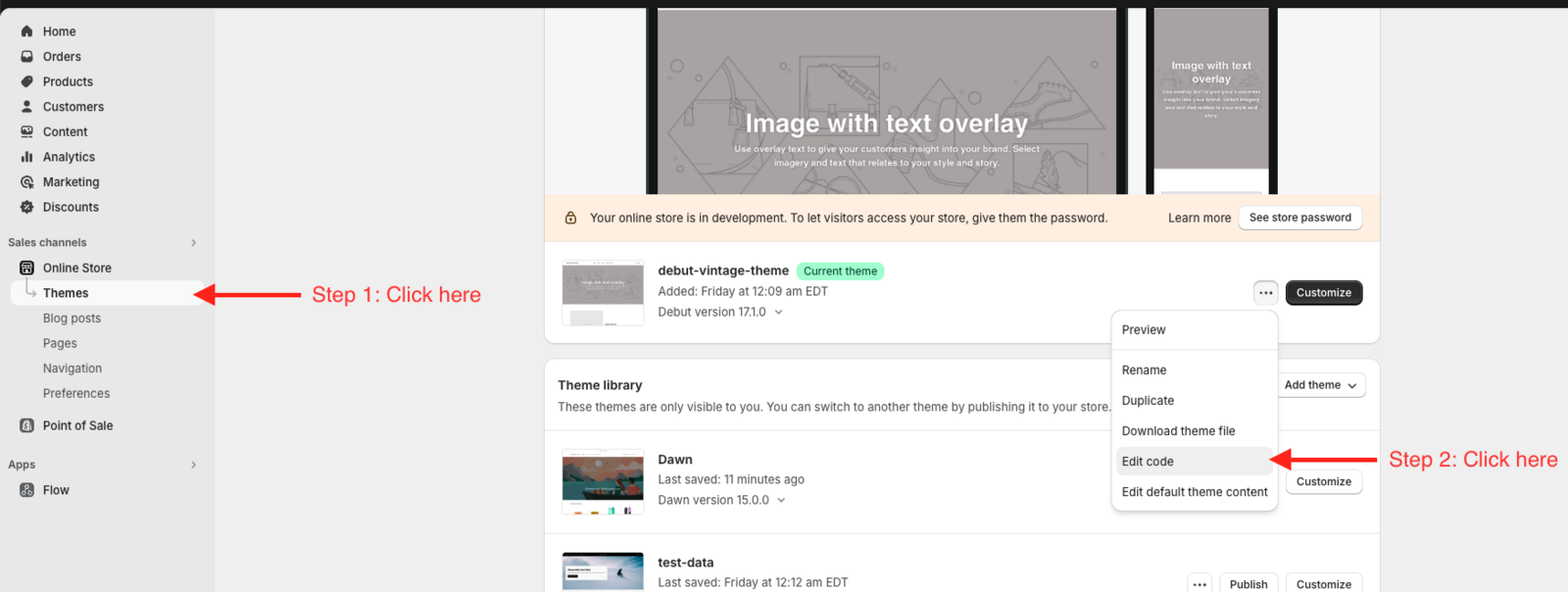
- In the Edit code section of Shopify, click on Add a new template.
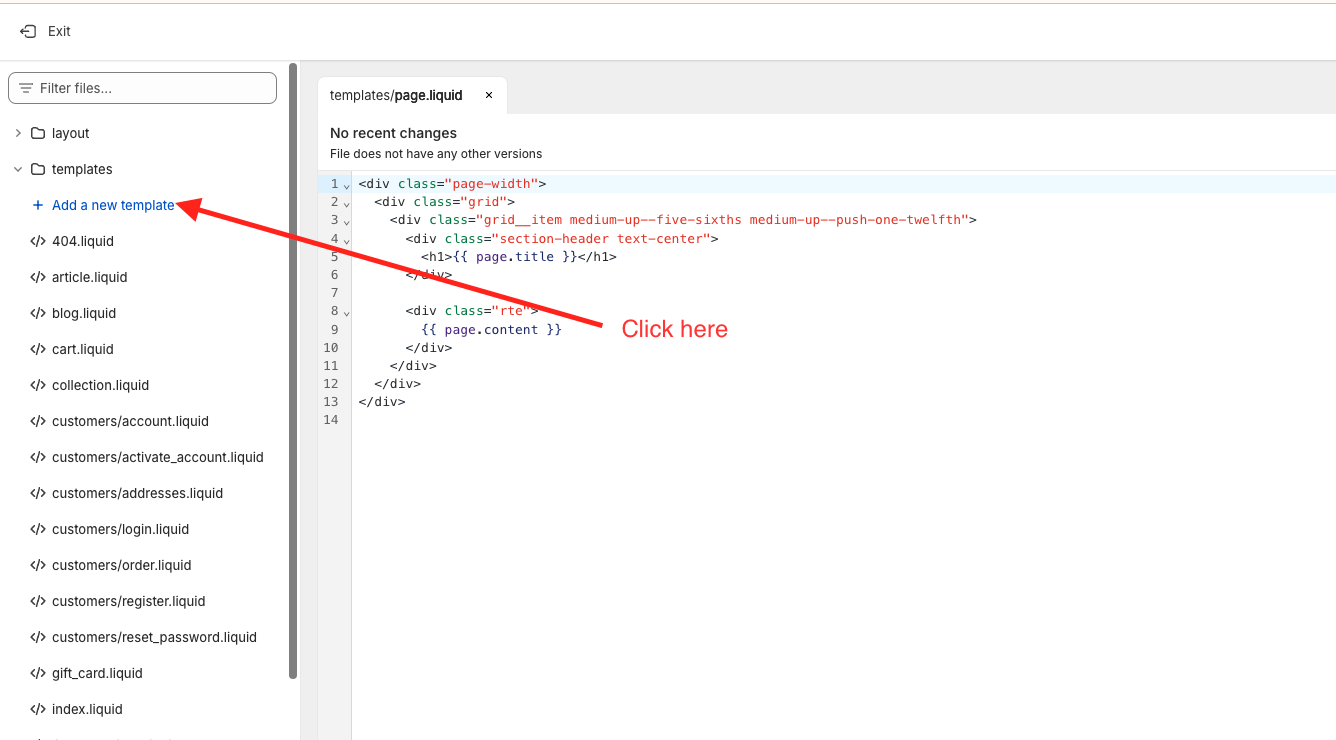
- Select: Template type is page; File type is JSON; File name is TrustShop. Then click Done to create the new trustshop page template.
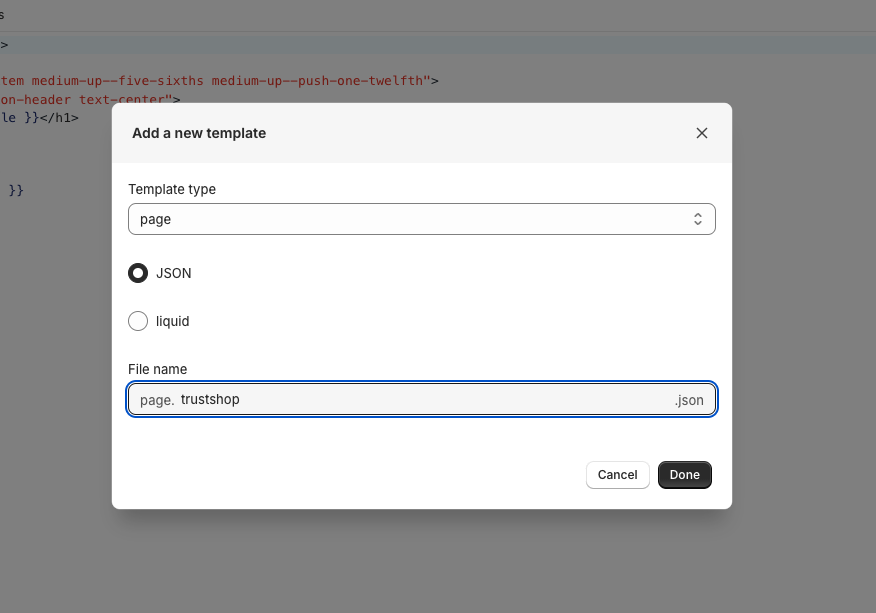
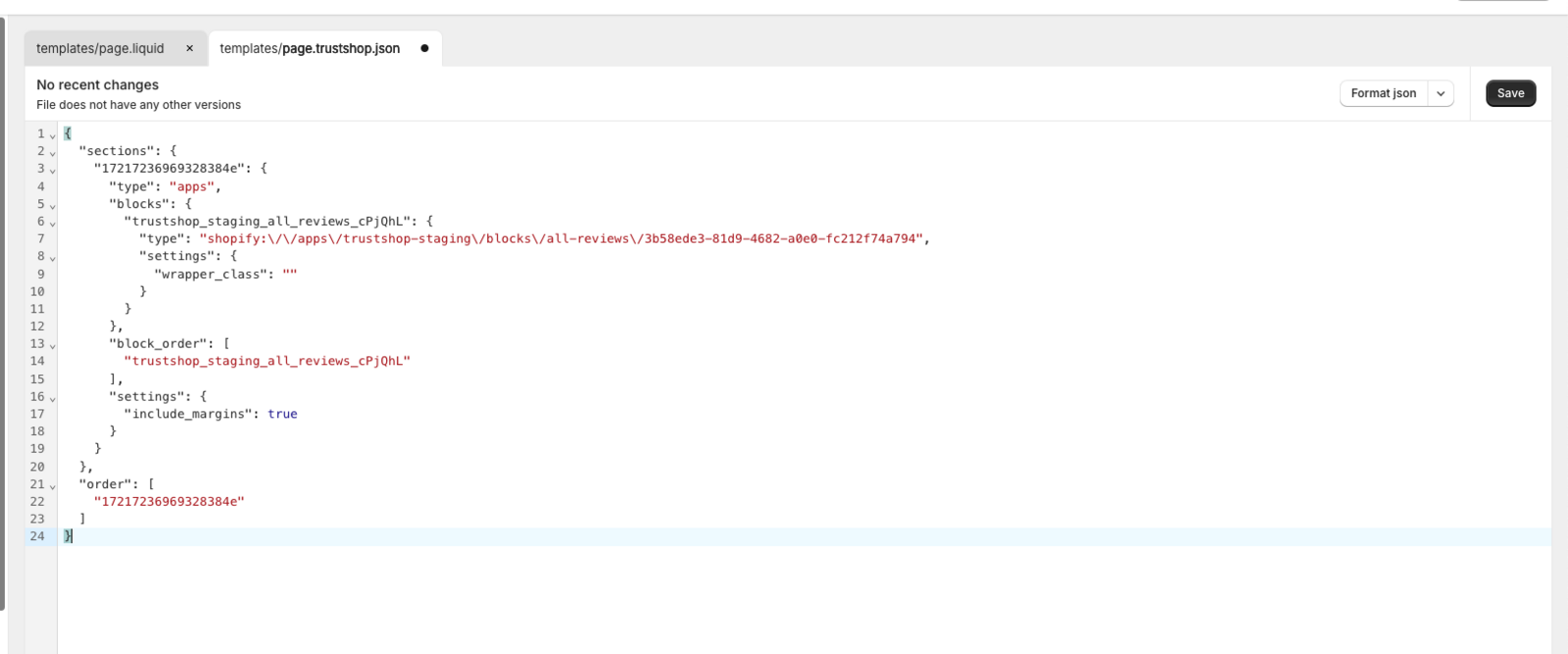
- Then, a new page template will be created. Paste this content into the new page template and save it.
{
  "sections": {
    "trustshop_all_reviews": {
      "type": "apps",
      "blocks": {
        "trustshop_staging_all_reviews_cPjQhL": {
          "type": "shopify:\/\/apps\/trustshop-product-reviews\/blocks\/all-reviews\/18b0c4cc-5411-4b6e-922d-34fdc2f30ab9",
          "settings": {
            "wrapper_class": ""
          }
        }
      },
      "block_order": [
        "trustshop_staging_all_reviews_cPjQhL"
      ],
      "settings": {
        "include_margins": true
      }
    }
  },
  "order": [
    "trustshop_all_reviews"
  ]
}
Step 2: Create a new Page
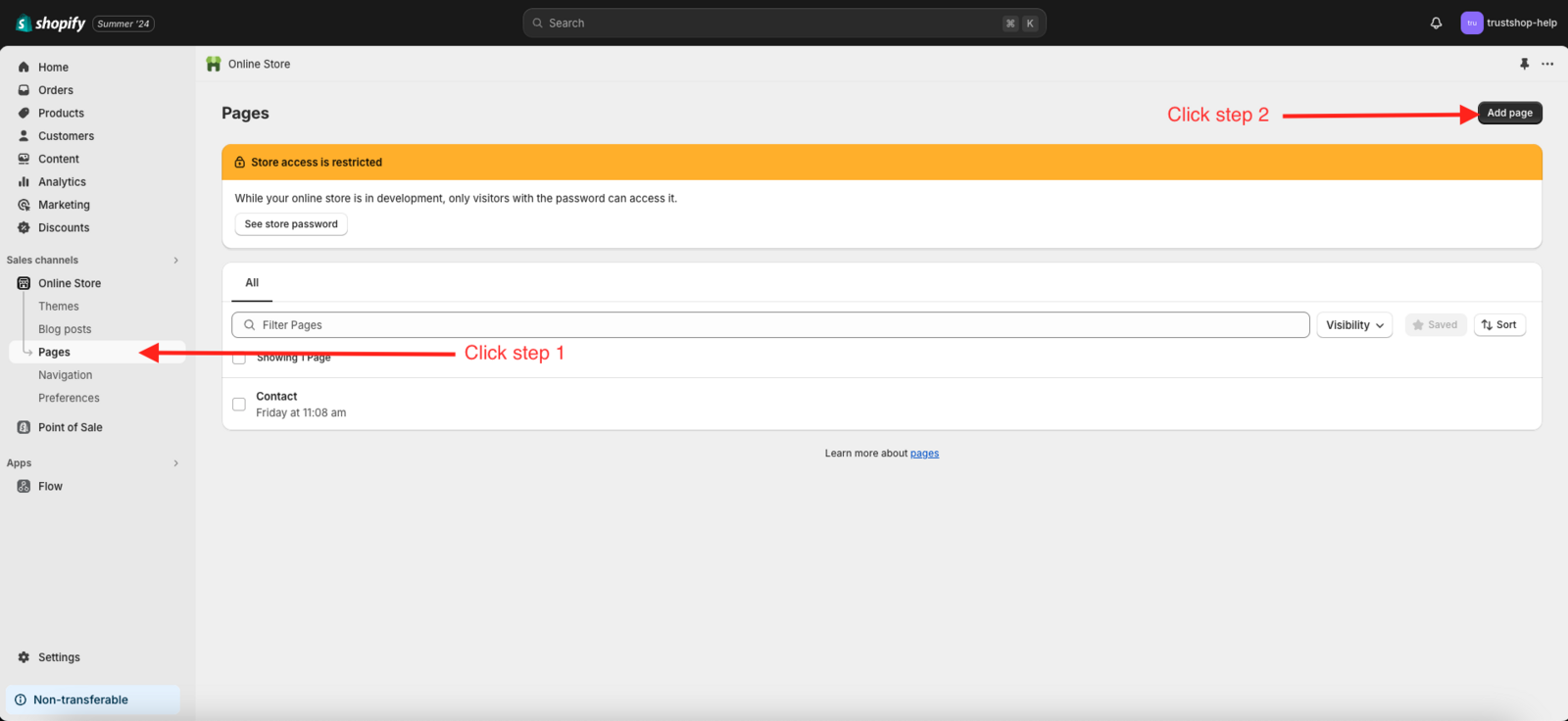
- After creating the trustshop page template, you need to create a page to display all reviews. To create a page, go to Online Store > Pages and click on Add page.
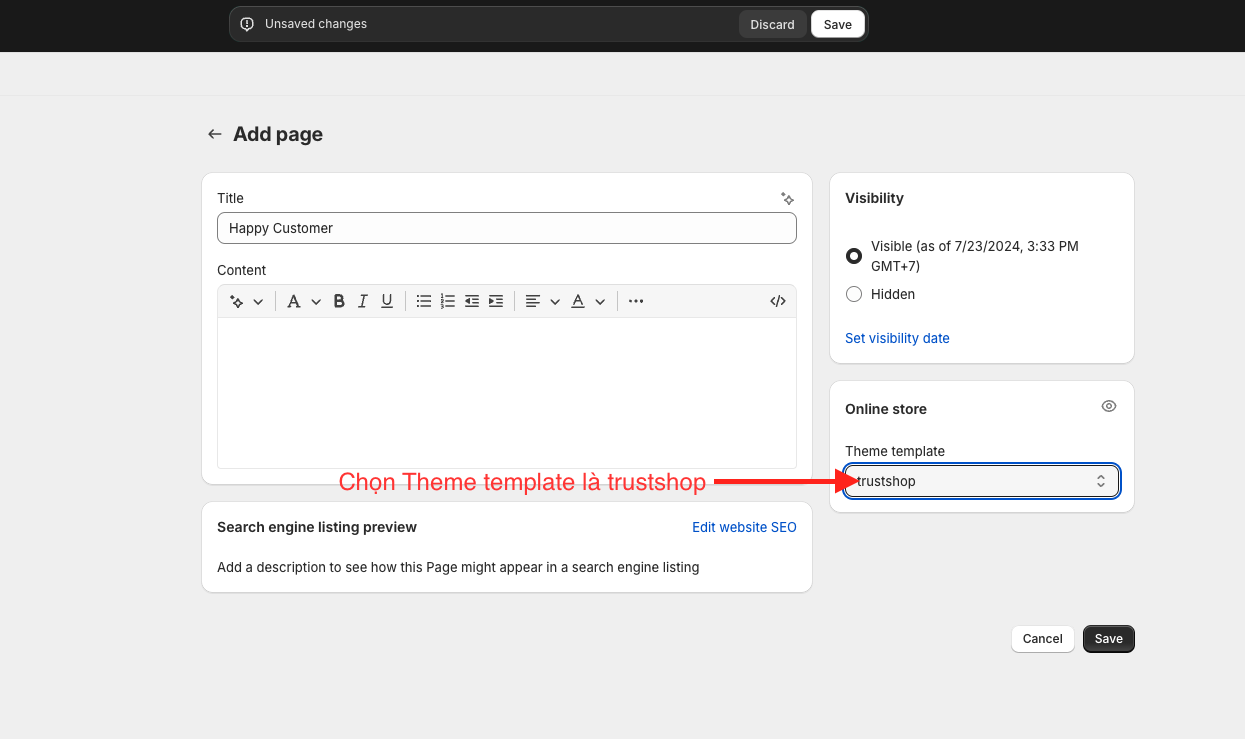
- In the new page creation section, select the theme template as trustshop.
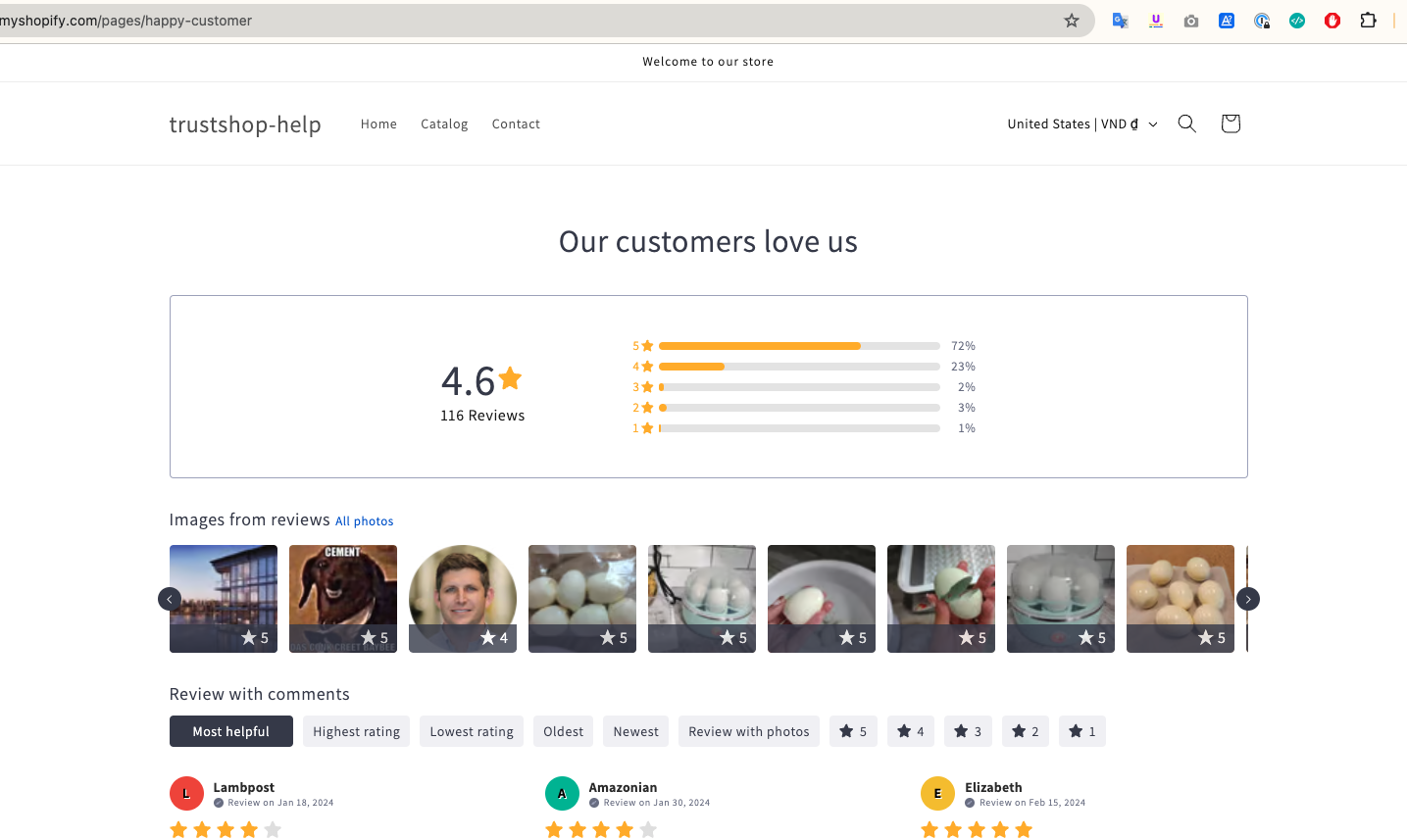
- Then you can view the newly created page:
Step 3: Add the page to the menu
- After the all reviews page has been created, you can add this page to the Main menu to display the access link to the page. To add, go to Online Store > Navigation.
- Then, select the newly created page and add it to the Main menu.
- Result:
Updated on: 21/03/2026