
Add TrustShop review widgets to a Theme Canvas store with Sidekick
1. Overview
On a Theme Canvas theme, Shopify Sidekick adds TrustShop's review widgets to your theme for you. TrustShop's setup guide writes the request to Sidekick from the choices you make, so you don't need to write code.
Why Sidekick: Canvas themes don't support app blocks or app embeds. The usual Add widget and Enable in theme buttons can't place widgets in a Canvas theme, so Sidekick edits the theme instead.
Where to find it:
Reviews › Widget, on the banner Building your store with Theme Canvas? → View setup guide
Home › Theme Integration, when your live theme is a Canvas theme → Set up widgets
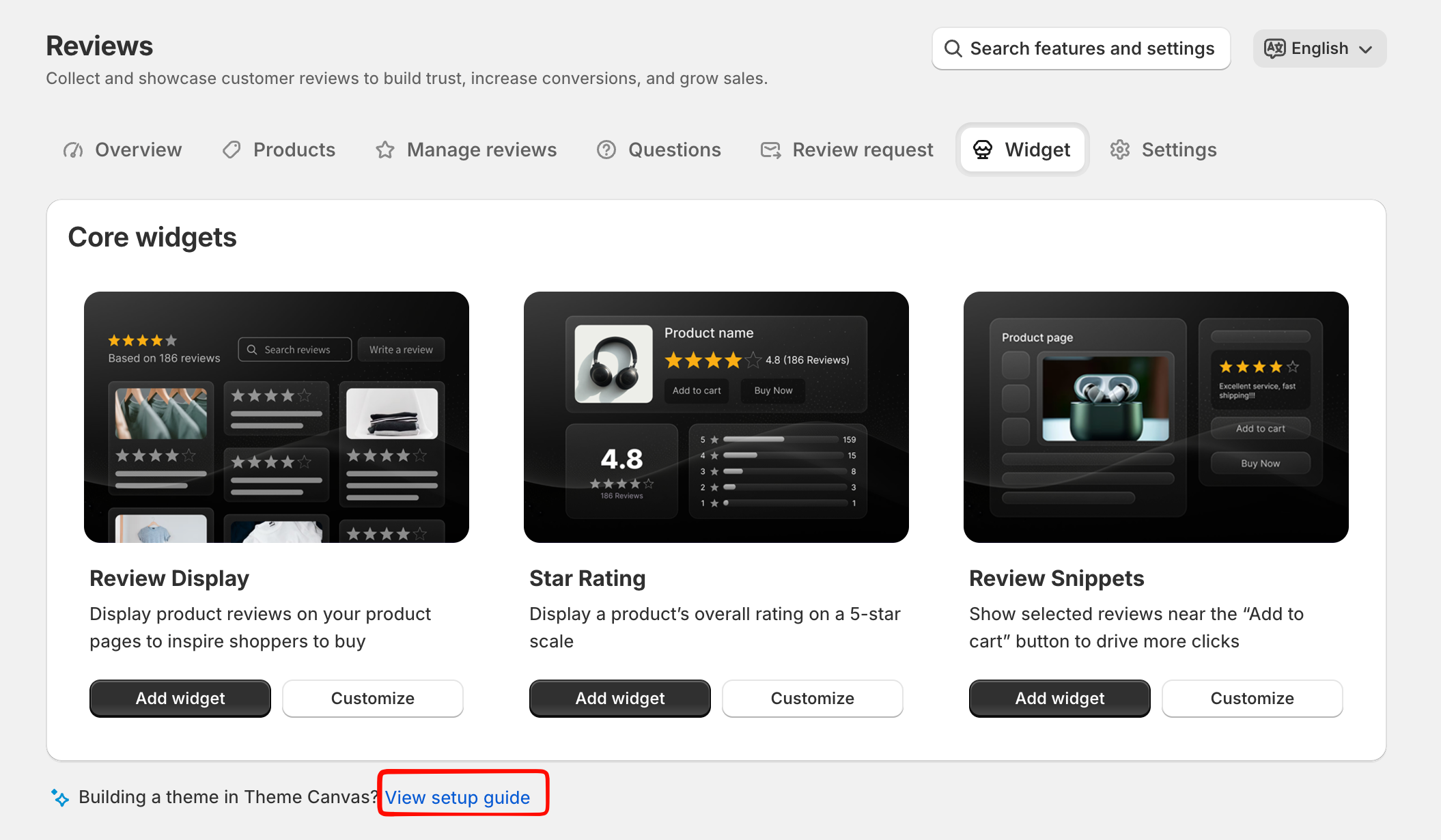
Widgets you can add: Product reviews, Star rating, Review snippets, Review carousel, Testimonials, Review counter and All reviews page. Sidebar and Popup need no setup here; turn them on in TrustShop.
2. Choose a design: Designed by Sidekick or TrustShop's design
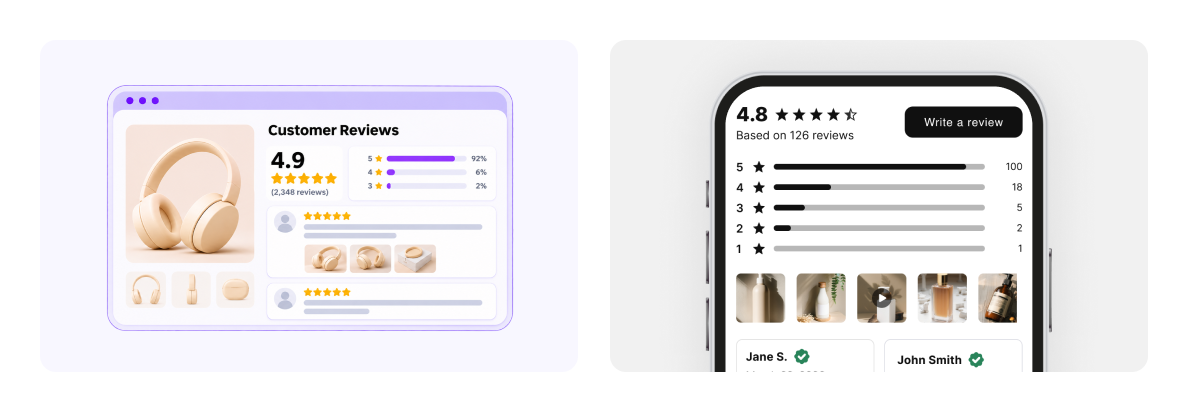
Both options use your TrustShop reviews and the same review moderation. They differ in who builds the widget and where you change its look.
Designed by Sidekick | TrustShop's design | |
|---|---|---|
What Sidekick does | Builds a new review section from scratch, styled like your theme | Adds TrustShop's script once and an empty container where the widget goes |
Look | Matches your theme's fonts, colors and buttons | TrustShop's ready-made widget, the same one used on classic themes |
Settings on the setup page | All features: placement, sorting, AI summary, Q&A, Write a review, discount after a review | Placement and a few display choices only; everything else in TrustShop's widget editor |
Change the look later | Chat with Sidekick | TrustShop widget editor, changes show as soon as you save |
New TrustShop features | Ask Sidekick to add them | Appear automatically |
Result each time | Can vary from one request to the next | The same layout every time |
Who can fix the code | You or Sidekick (the code belongs to your theme) | TrustShop support can help, since the widget is TrustShop's |
Choose Designed by Sidekick when:
You want the reviews to look like a natural part of your store, not like an app.
You're comfortable refining the result by chatting with Sidekick.
You want a custom layout TrustShop's widgets don't offer.
Choose TrustShop's design when:
You want a proven layout that looks the same on every page and needs no follow-up chat.
You already customized TrustShop's widgets on another theme and want the same look.
You want new TrustShop features to appear without asking Sidekick again.
You'd rather change colors, fonts and labels in a visual editor than in a chat.
Not sure? Start with TrustShop's design. It is the more predictable result, and you can ask Sidekick for a custom section later.
3. Before you start
Check these four things first. Most failed setups come from one of them.
Open your Canvas theme in the theme editor. Go to Online Store › Themes, find the theme with the Canvas badge and click Edit. Sidekick changes the theme you have open, so open the right one before you send the request. Canvas runs on desktop only.
Be ready to grant Sidekick permissions. During setup, Sidekick asks for the permissions it needs to edit your theme. Click Allow each time you're asked. If you decline, Sidekick stops and the widget isn't added.
Have some published reviews. Only published reviews appear, so you can't check the result without them.
Check your TrustShop plan. Product reviews and Star rating work on every plan. Review snippets, Review carousel, Testimonials, Review counter, All reviews page and the Q&A tab need Unlimited or AI-Powered; on Free they stay hidden. See Plans & quota in the TrustShop help center.
4. Talk to Sidekick in plain language
Sidekick understands everyday sentences, so you describe what you want the way you'd tell a designer. The setup guide writes the first message for you; you can edit it before sending and keep chatting afterwards.
Tips for good results:
Keep the word "TrustShop" in every request, so Sidekick uses your TrustShop reviews instead of inventing sample ones.
Name the page and the spot: "on the product page, under the description", "on the home page, above the footer".
Ask for one change at a time and check the preview before the next one.
Describe the result, not the code: "make the stars use my accent color" works better than CSS.
Say what must stay the same: "don't change anything else in my theme".
Write in your own language. Pick the message language in step 3 of the setup guide (English or Tiếng Việt); the guide writes the request in that language.
5. Step by step
Open the setup guide. In TrustShop, go to Reviews › Widget and click View setup guide on the Theme Canvas banner, or click Set up widgets under Theme Integration on the Home page. Use the language button at the top right to switch the guide between English and Tiếng Việt.
Choose a design. Pick Designed by Sidekick or Use TrustShop's design. The comparison table under the two cards sums up the differences; see Choose a design above.
Choose a widget and its settings. Pick the widget, then where it should appear and which features to turn on.
With TrustShop's design, only placement and a few display choices are here, for example Which reviews to show for Product reviews. Other settings live in TrustShop's widget editor; use Open widget editor in the settings panel.
Options your plan doesn't include, such as a discount after a review when Review discount is off, are shown as locked with a link to the setting.
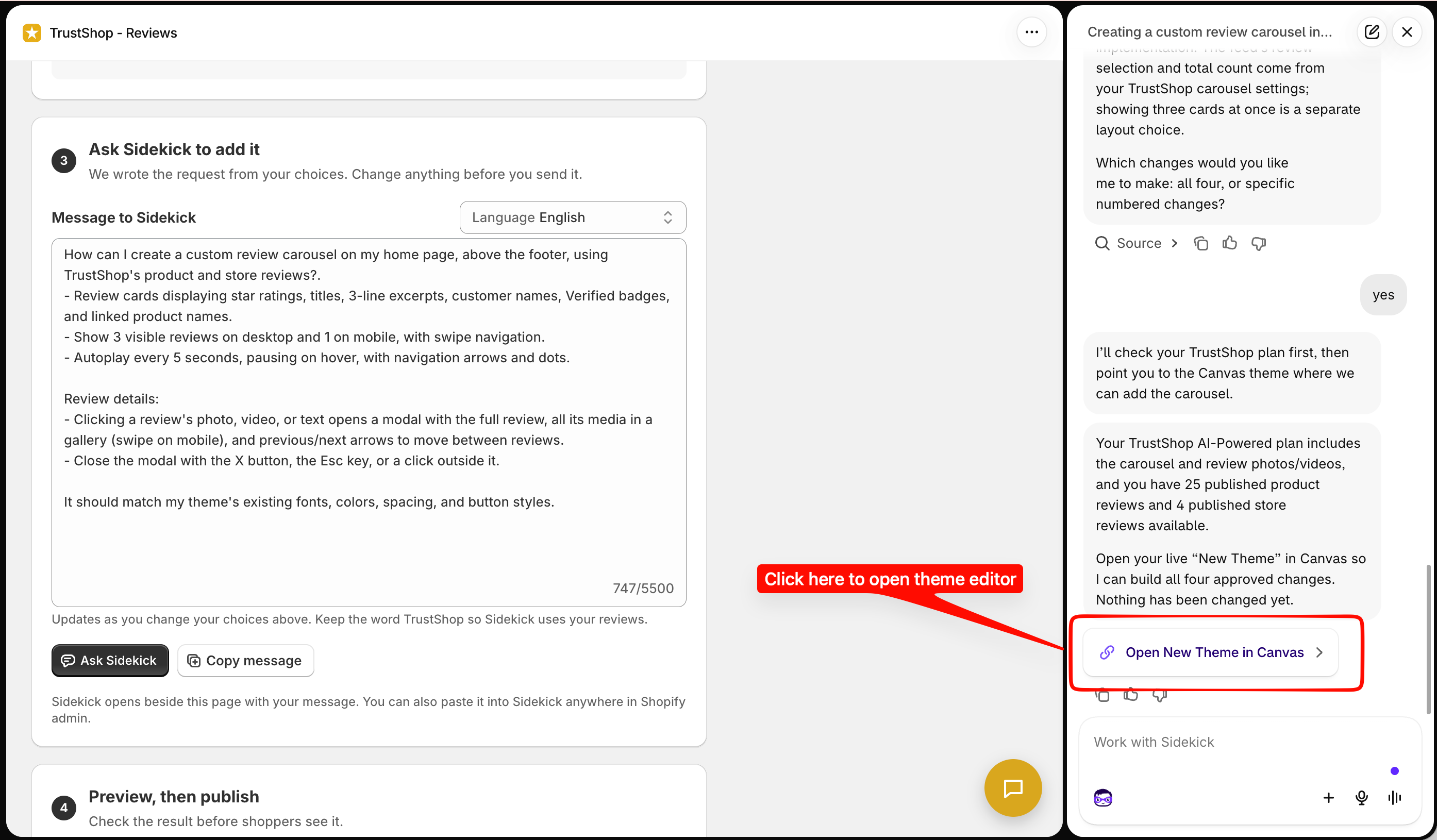
Review the message to Sidekick. Step 3 of the guide shows the request written from your choices. Pick the message Language, edit the text if you want, and keep it under the 5,500-character limit shown under the box. Changing a setting above rewrites the message and replaces your edits.
Click Ask Sidekick. A confirmation opens, because Sidekick starts working on the request right away. Click Send to Sidekick. You can tick Don't ask me again to skip this step next time. Prefer to paste it yourself? Click Copy message and paste it into Sidekick anywhere in Shopify admin.
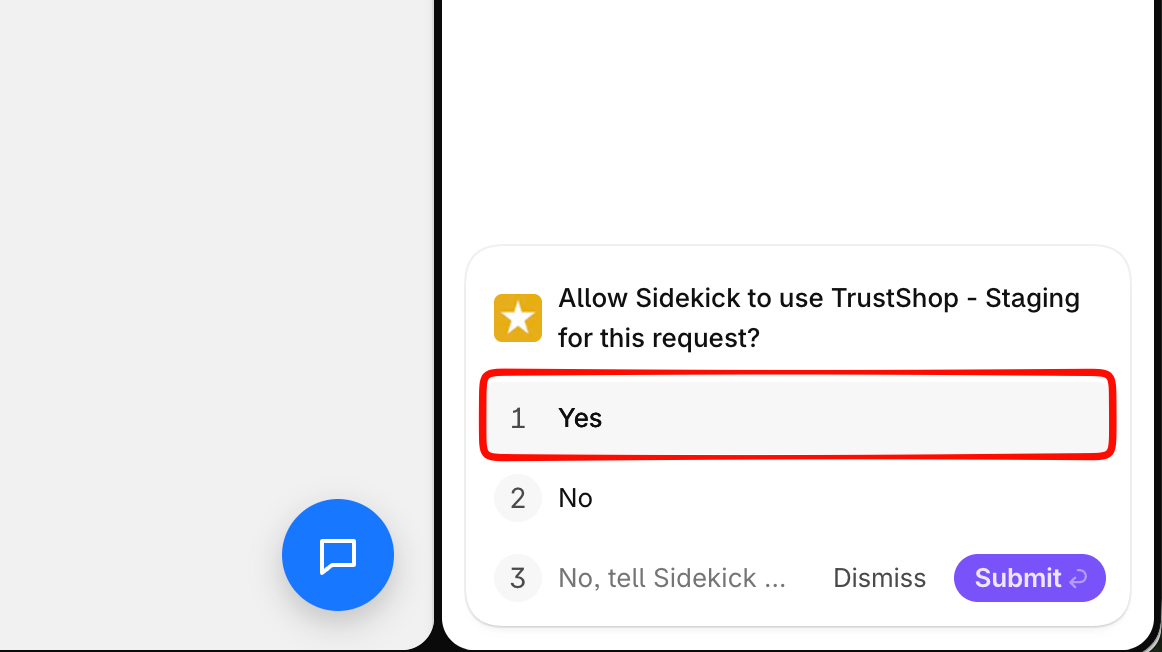
Allow Sidekick's permission requests and confirm your theme. Sidekick usually checks two things before it starts:
Which theme to add the widget to. Sidekick names a theme and asks you to confirm it. Check it's the theme with the Canvas badge, then confirm.
That the theme editor is open. If it isn't, Sidekick asks you to open it and won't go on until you do. Click Go to Theme Editor, wait for the theme to open, then tell Sidekick to continue, for example "The theme editor is open, please continue."
Permissions. Click Allow each time Sidekick asks, then let it finish.
Preview, then publish. Open the theme's storefront Preview, not the Canvas view: Canvas doesn't always show widgets that load in the browser. Check desktop and mobile, try the flows you turned on, and compare the rating and review count with TrustShop. Then publish the theme; nothing changes on your live store before that.
Fine-tune.
Designed by Sidekick: keep chatting with Sidekick. The guide lists a few common follow-ups you can send with one click.
TrustShop's design: click Open widget editor to change colors, fonts, layout and labels. Changes show as soon as you save.
6. Common problems with Sidekick
What you see | Why | What to do |
|---|---|---|
Sidekick says it can't add TrustShop's app block | Canvas themes have no app blocks or app embeds | Send the request from the setup guide instead; both designs work without app blocks |
Sidekick stops or nothing changes after you send | A permission request was declined or missed | Send the request again and click Allow when Sidekick asks |
Sidekick changed the wrong theme | Another theme was open when you sent the request | Open the theme with the Canvas badge, then send the request again |
Sidekick won't use TrustShop's script or API | Sidekick only builds on an outside host when the app's help docs name it | Paste the link to TrustShop's install guide into the chat: https://asset.trustshop.io/standalone/demo.html |
The widget is empty or stuck loading in Canvas | Canvas doesn't always show widgets that load in the browser | Check the theme's storefront Preview instead |
The widget shows twice | TrustShop's script was added to the page twice | Ask Sidekick: "Keep only one copy of the TrustShop loader script in my theme layout" |
The widget never appears on one page | The script's condition doesn't include that page's template | Ask Sidekick to load the TrustShop script on that template too |
A product widget shows nothing | The container has a missing or | Ask Sidekick to use the numeric |
Sidekick shows sample reviews, not yours | The request lost the word "TrustShop" or uses a store id from an example | Keep "TrustShop" in the message, and keep |
A widget is hidden on the storefront | It needs Unlimited or AI-Powered and the store is on Free | Upgrade, or use Product reviews or Star rating |
TrustShop's design looks different from the app | Sidekick restyled the container or copied widget code into it | Ask Sidekick to keep the TrustShop container empty and unstyled |
The result isn't what you picked | The message was edited, or Sidekick took liberties | Reply with one concrete correction, for example "Put the reviews at the bottom of the product page" |
The character count under the message turns red | The message is over 5,500 characters | Remove optional features or shorten your edits |
Sidekick changed other parts of the theme | The request was too open | Ask Sidekick to undo those changes, then resend with "Don't change anything else in my theme" |
The code Sidekick writes belongs to your theme, so TrustShop support can't edit it for you. Review settings, moderation and plan changes stay in TrustShop; Sidekick changes only theme code.
7. Related
TrustShop's own widgets in Canvas and custom themes (TrustShop's design, with the containers and where the script goes)
Build with Shopify Sidekick (Designed by Sidekick, with more example prompts)
Plans & quota (which widgets each plan includes)
Still stuck? Click Contact support on the Theme Canvas banner in Reviews › Widget, or Chat with support in the setup guide.