
Configure request emails
You can collect reviews by sending a request email to your customers. This article will walk you through step-by-step guideline to configure these emails.
Activate automated emails
Step 1: Settings - > Review request email - > Select the email you need to configure
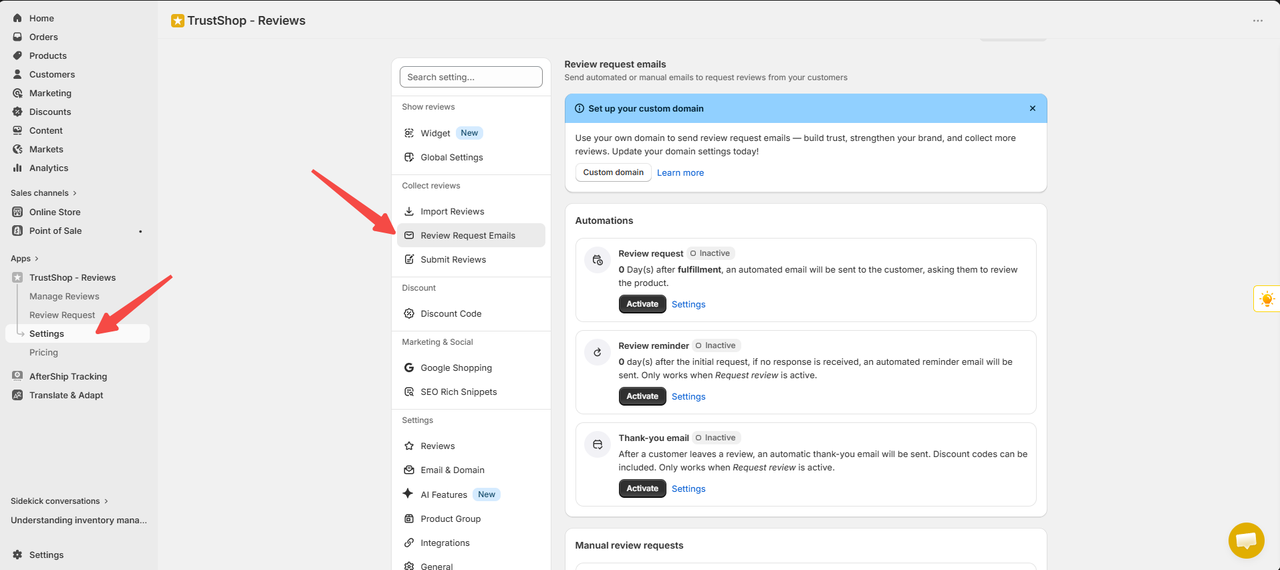
Step 2: Click the button to activate the email you want to send automatically
Press activate and then display "active" is the email that has been activated successfully, inactive is the automatic email in the unactivated state.
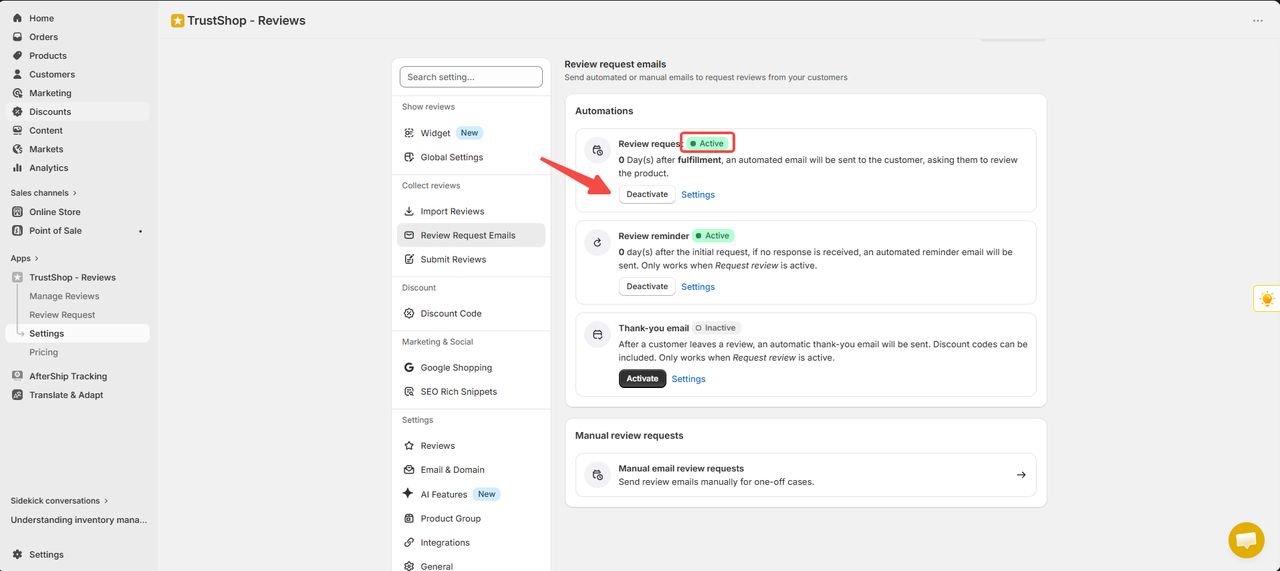
Email request for review
To configure automated email, please click on settings.
First email delivery schedule
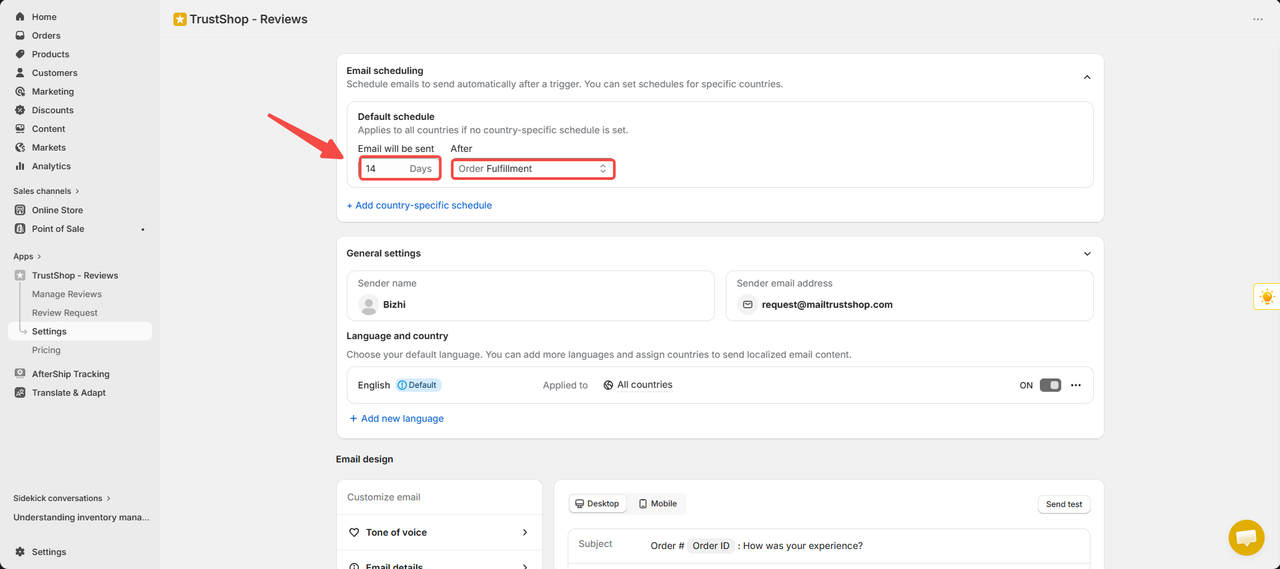
Set up an automatic email delivery time after the order is processed.
- Number of days: The number of days to wait before sending an email.
- Event: The timeline used to calculate the delivery schedule (e.g., order completion).
Ví dụ:
0 day + fulfillment: The email was sent 0 day after the order was completed.14 days + fulfillment: The email was sent 14 days after the order was completed.
Or you can set it by country.
Click Add calendar by country to set different sending times for each country. These settings take precedence over the default calendar.
Set up sender information and email language to send to customers.
- Sender name: The name displayed in the email the customer received.
- Sender Email: The email address shown is the sender.
To change the Sender email address, you can refer to the following document
here
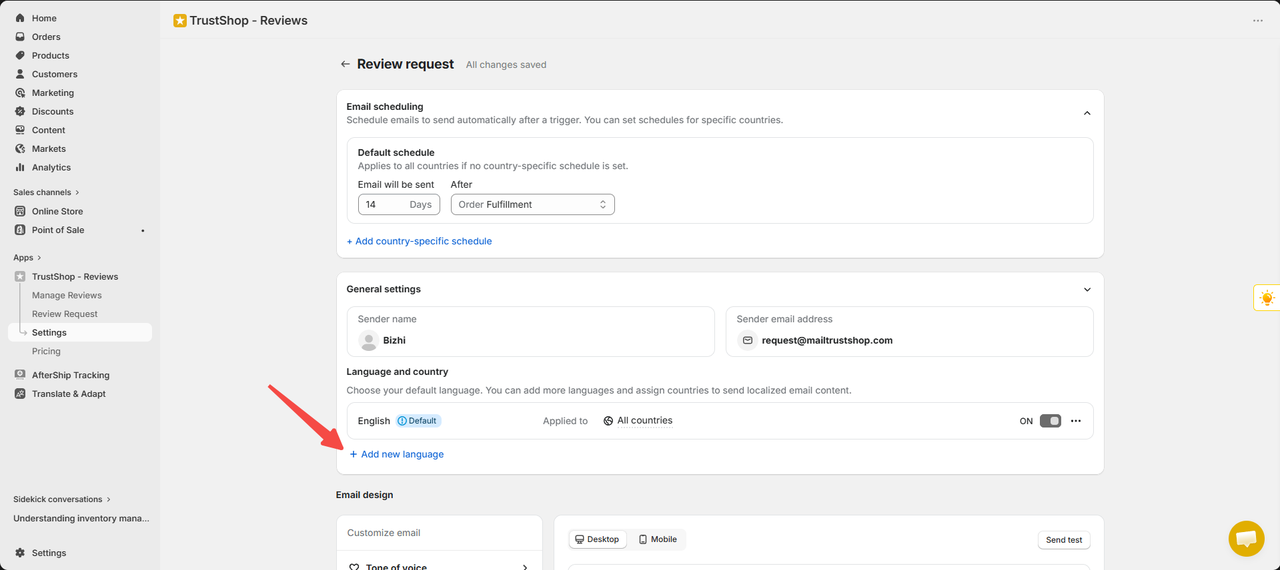
Now create a review request email that matches the customer's language.
- Manage email language by country to send appropriate content to customers.
- Default language: Used for all countries that have not been assigned their own language.
- Applicable to: Designated country using the corresponding language.
- On / Off: Enable or disable languages.
- Add new language: Add language and assign it to desired countries
Customize email
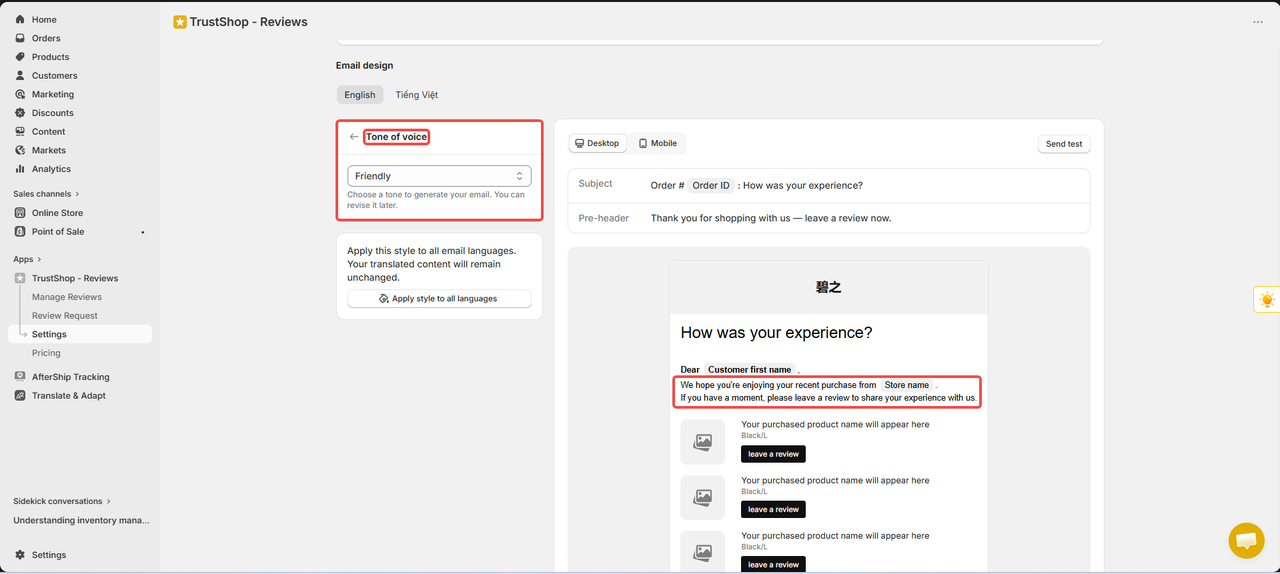
**Tone of voice: **Choose language style for email (friendly, professional, formal...)
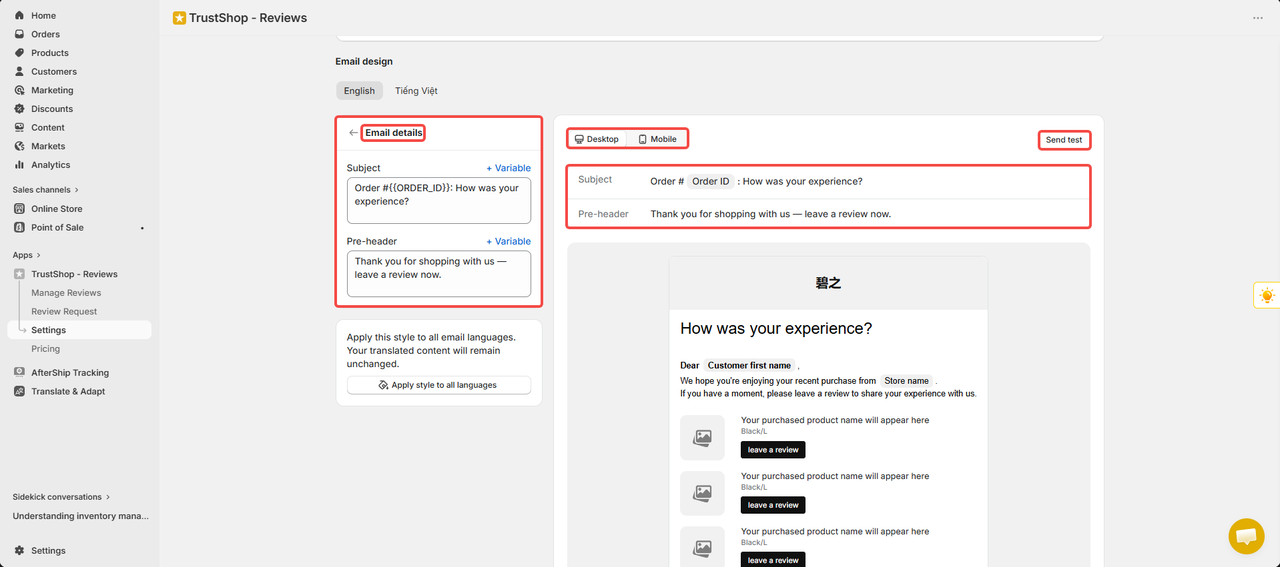
Email details:
Subject: The content of the email subject that the customer sees in the inbox.
Pre-header: A short description is displayed next to or below the email header, which helps increase email open rates.
Variable: Insert variables such as customer name, order code, store name... to personalize email content.
Desktop / Mobile: Preview the email interface on your computer or mobile device.
Send test: Send a test email to test the content and interface before applying.
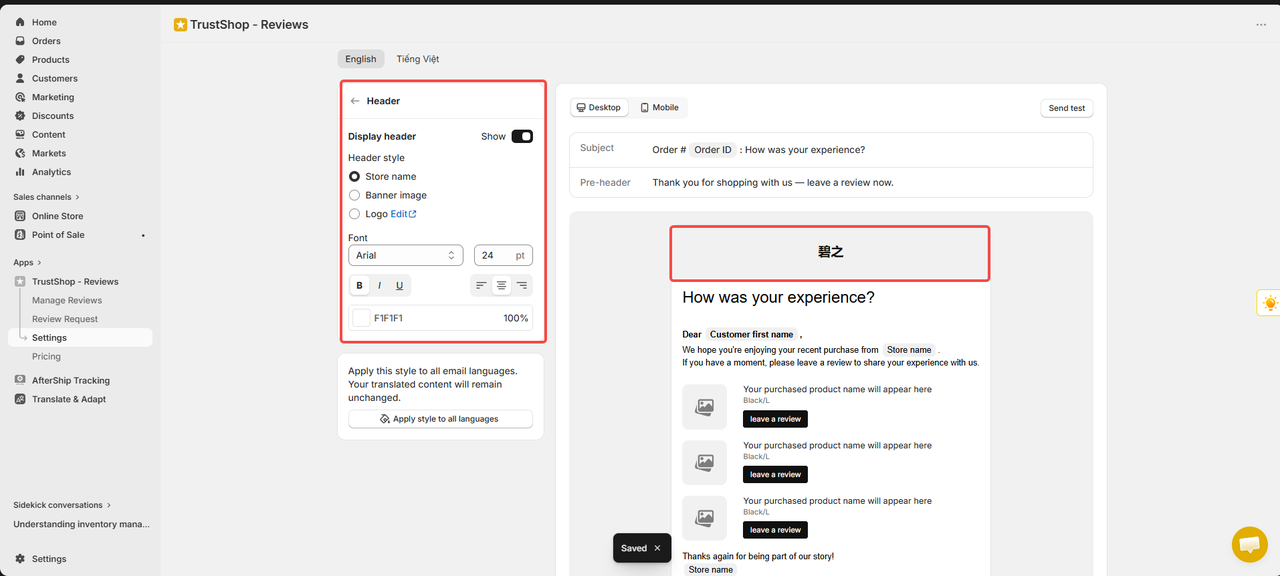
Header (the first part of the email)
In this section, you can choose the store name, banner or logo to make automatic email look better.
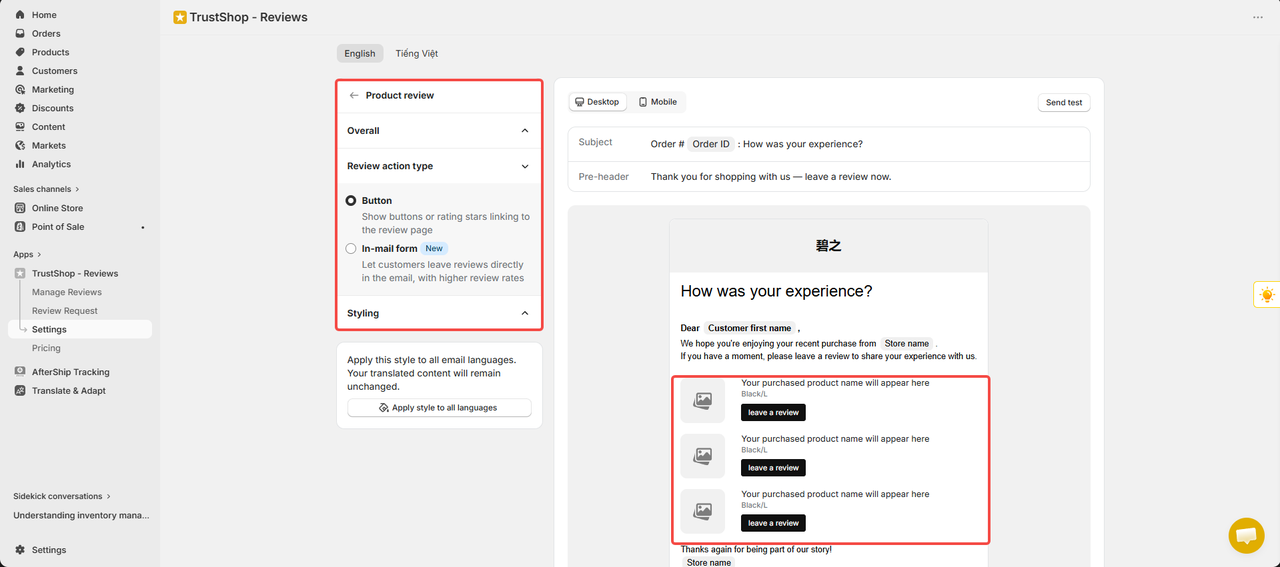
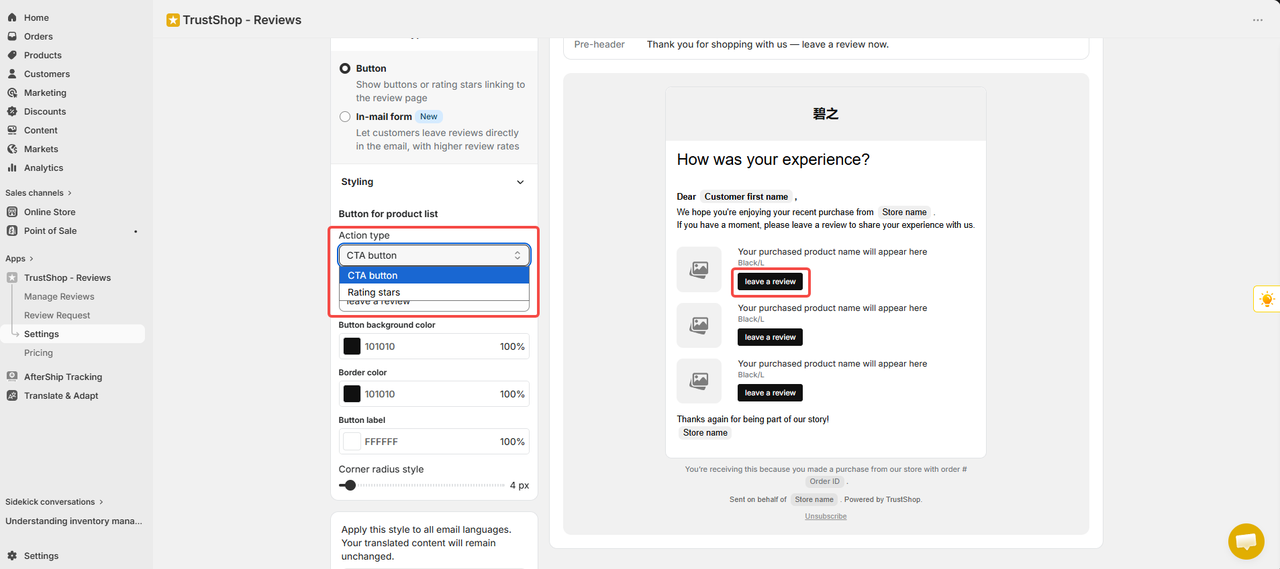
Product review
You can choose to write a review using the button or add a small form in the review email that applies to the first product.
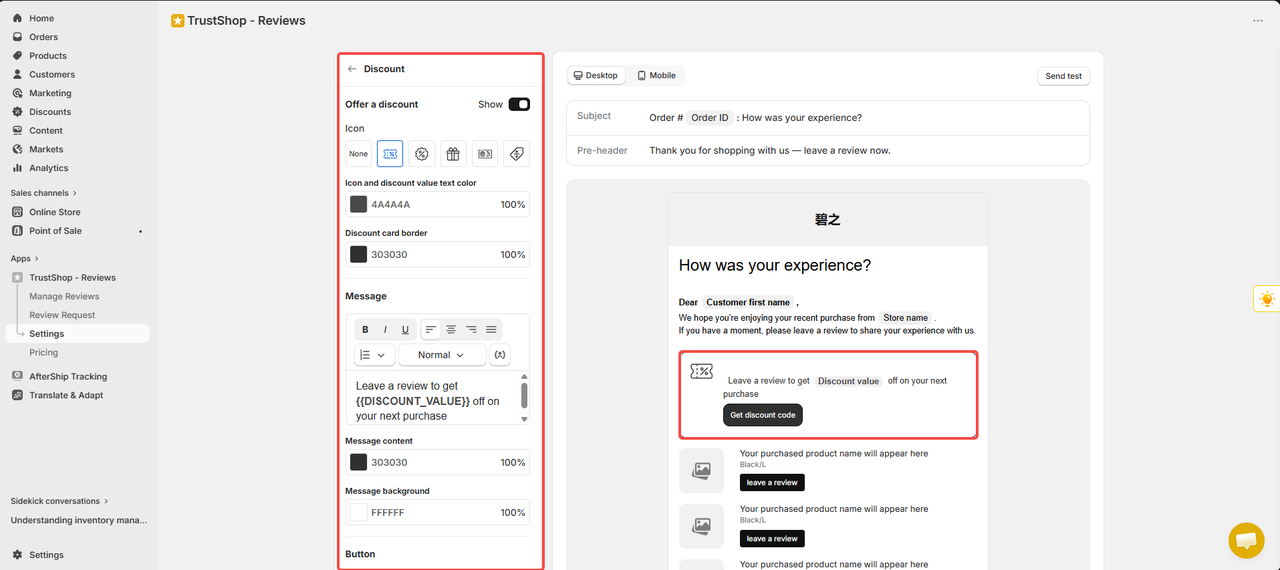
Discount:
You want to enable/ disable the display of the discount in the email automatically after the customer opens the email and leaves a review.
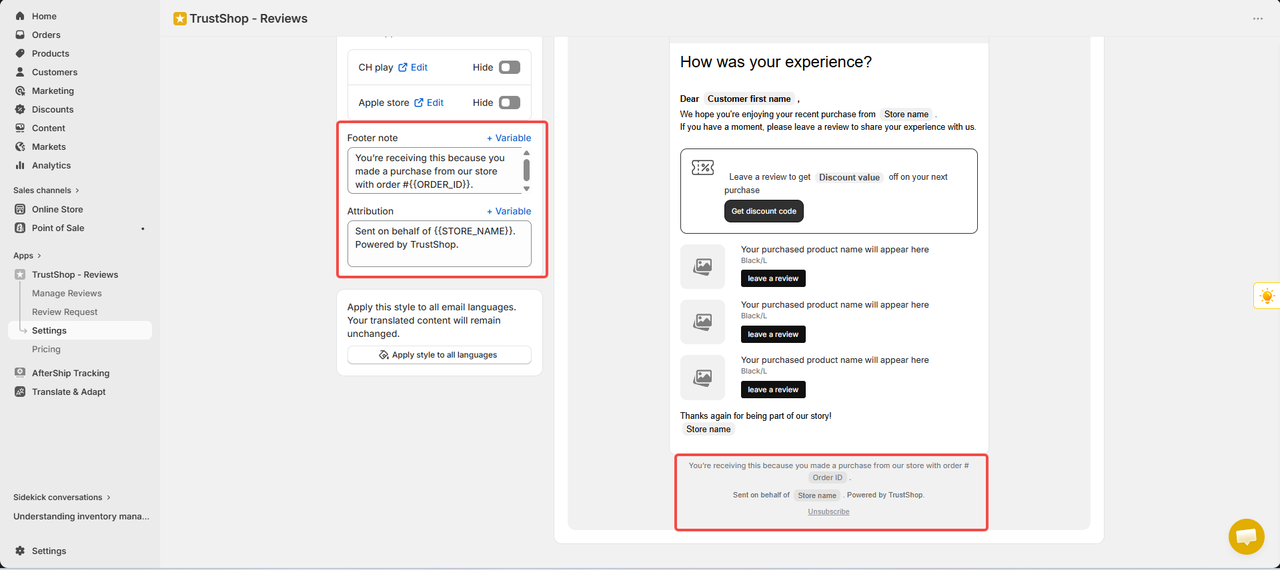
Footer:
Footer note: where to enter the reason the customer received the email (for example, you received this email because you made a purchase with the single code # {{order _ id}}). There is a "+ variable" button to insert the variables automatically.
Attribution: where attribution is given to the entity sending the email (e.g. sent on behalf of {{store _ name}} by TrustShop.
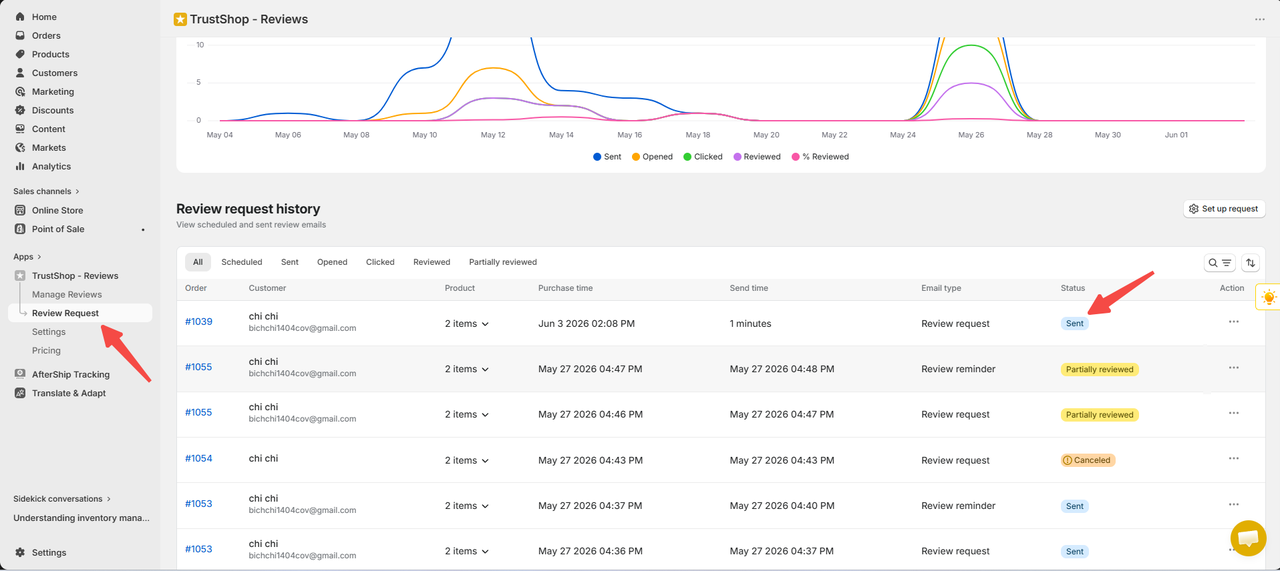
Create a new order, and an evaluation request email will be automatically scheduled and sent to the customer's email address.
Open the email to check that your previous configuration is correct and displayed as expected or you can go to the email request to check the status of the email automatically.
Request review reminder
After a long time, if your customers have not responded to your first email, another reminder email can be sent to encourage them to leave a review.
Thank-you email
To thank your customers for their reviews, an email will be sent and can be attached with a discount code.
Updated on: 04/06/2026