
Tracking Review Request Performance
How to Track Review Request Performance
Tracking review request performance involves monitoring a few essential metrics and parameters. Many businesses use tracking systems with a user-friendly interface that includes several key features. Here's a breakdown of the tracking options available:
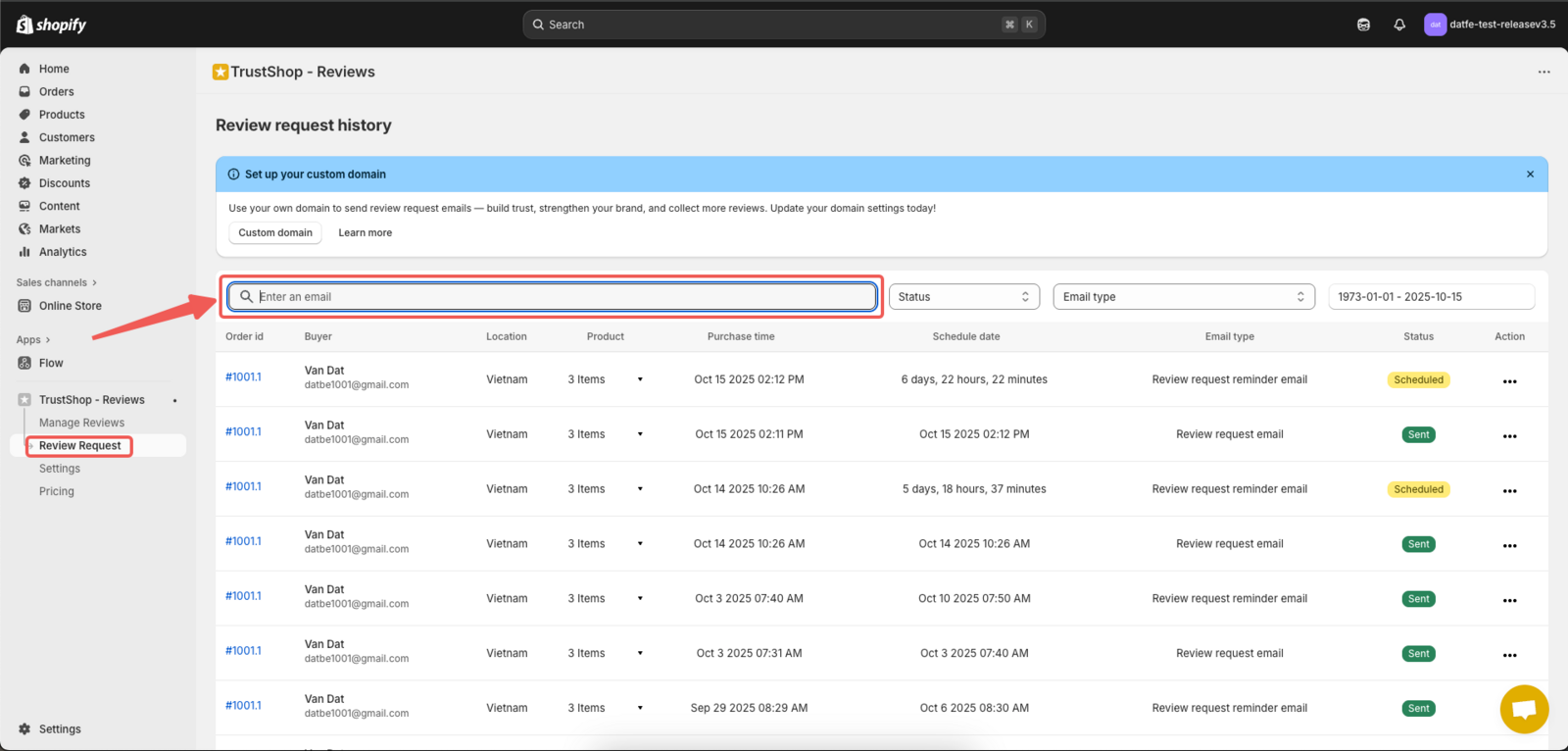
1. Search Box: Track a Specific Customer Email
In the email requests page, you’ll find a search box that allows you to enter a customer’s email address. This feature helps you track a specific review request sent to a particular customer. By searching for an email address, you can easily pinpoint the review request sent to that individual and track its progress in real time. This is particularly useful for following up on a specific customer or understanding the response to a personalized request.
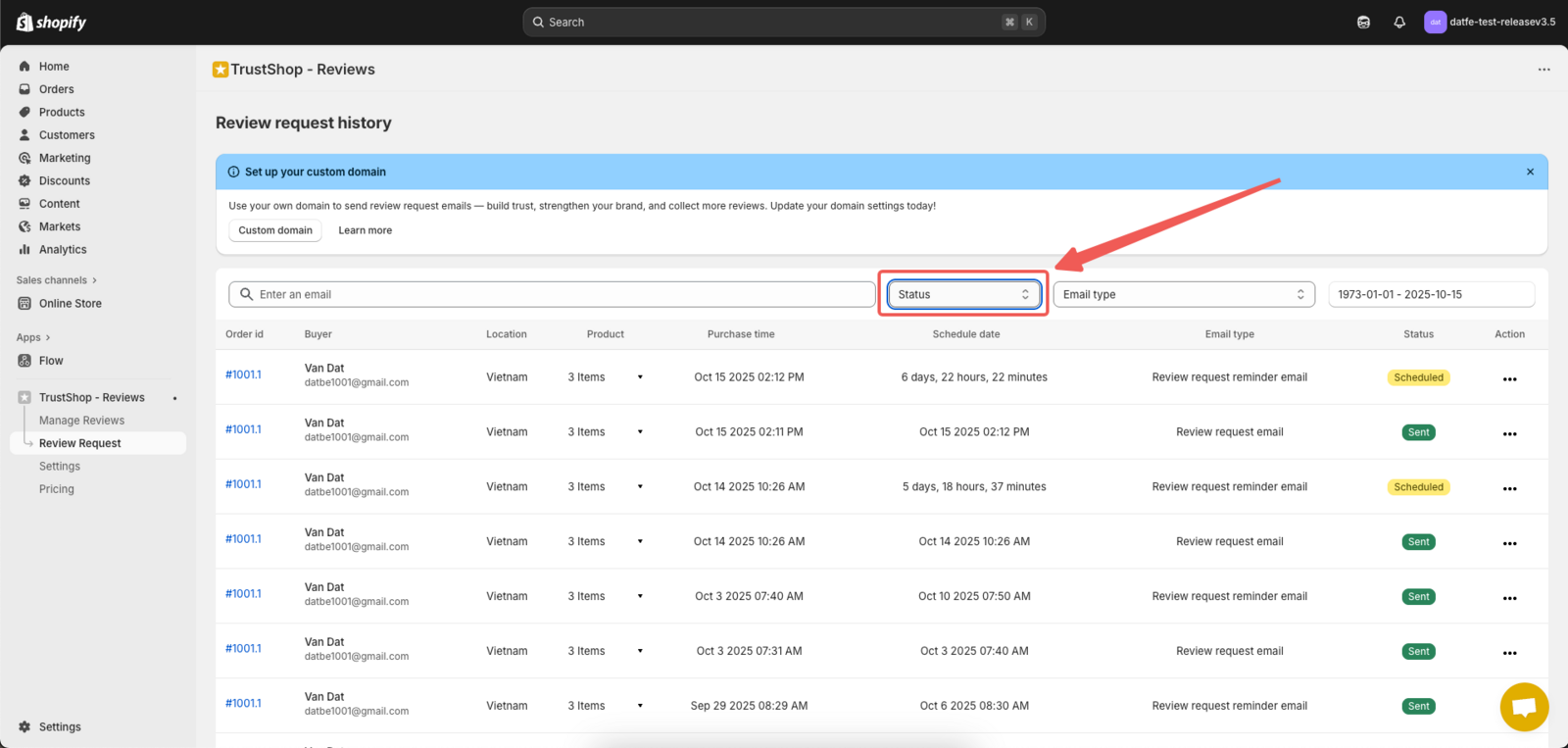
2. Status Box: Monitor the Status of Your Emails
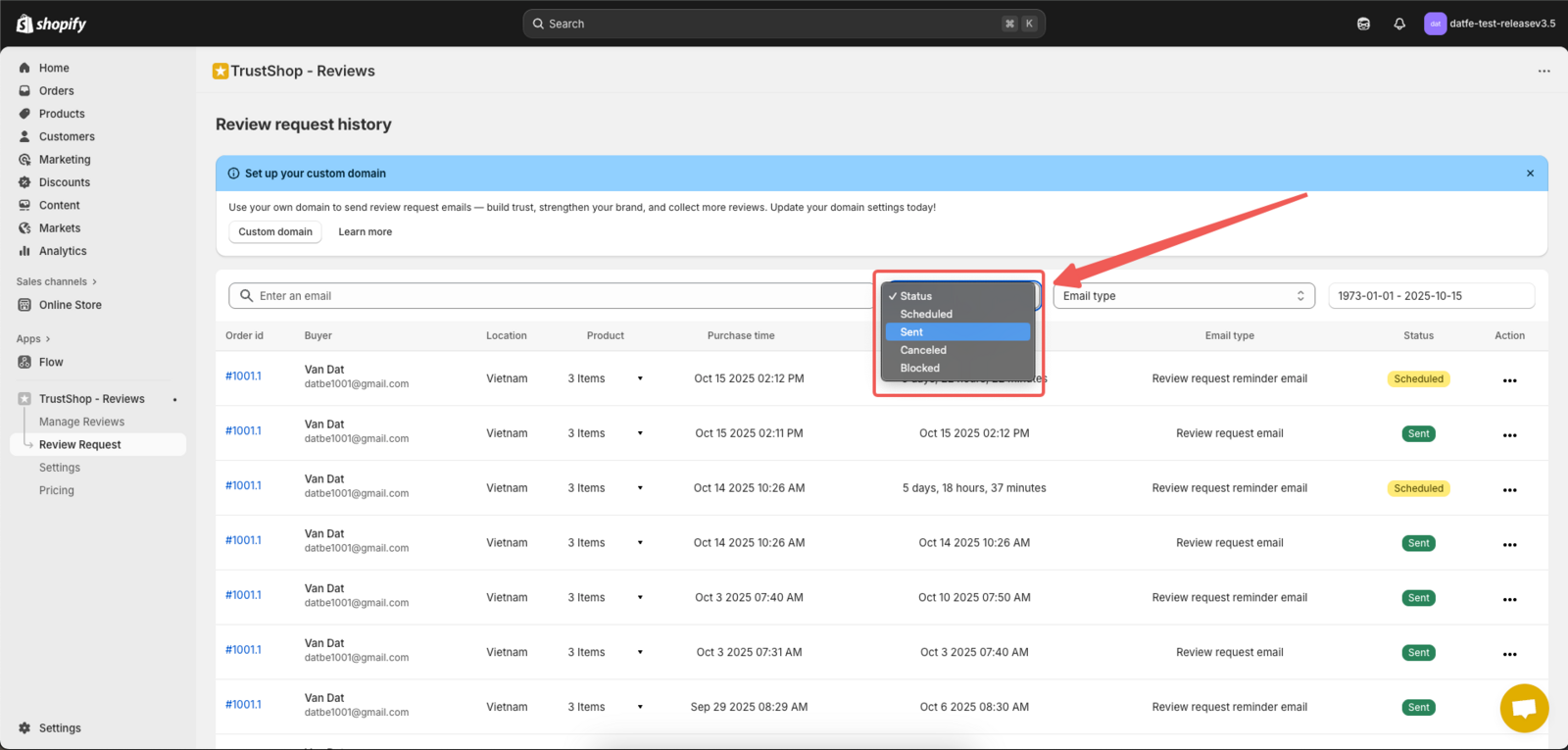
The status box is another critical tool in tracking review request performance. This box shows the current status of your emails, which can include one of the following:
- Scheduled: Indicates that the email is scheduled to be sent at a later time.
- Sent: This status confirms that the email has been successfully sent to the customer.
- Opened – The customer has opened the email.
- Clicked – The customer clicked at least one link in the email.
- Reviewed – The customer submitted a review after receiving this email.
- Partially reviewed – The customer left a review for some, but not all, products included in the email.
- Canceled: Shows that the email was canceled before being sent.
- Blocked: Indicates that the email was blocked from being sent. Here is the instruction: Blocking Specific Email Addresses and Products from Review Requests.
- Error – The system failed to send the email due to a technical or delivery error.
The status box allows you to filter and view review requests in various stages of the process, making it easier to track the entire lifecycle of your emails. You can review emails that are in progress, see how many have been successfully delivered, and identify any issues that need to be addressed.
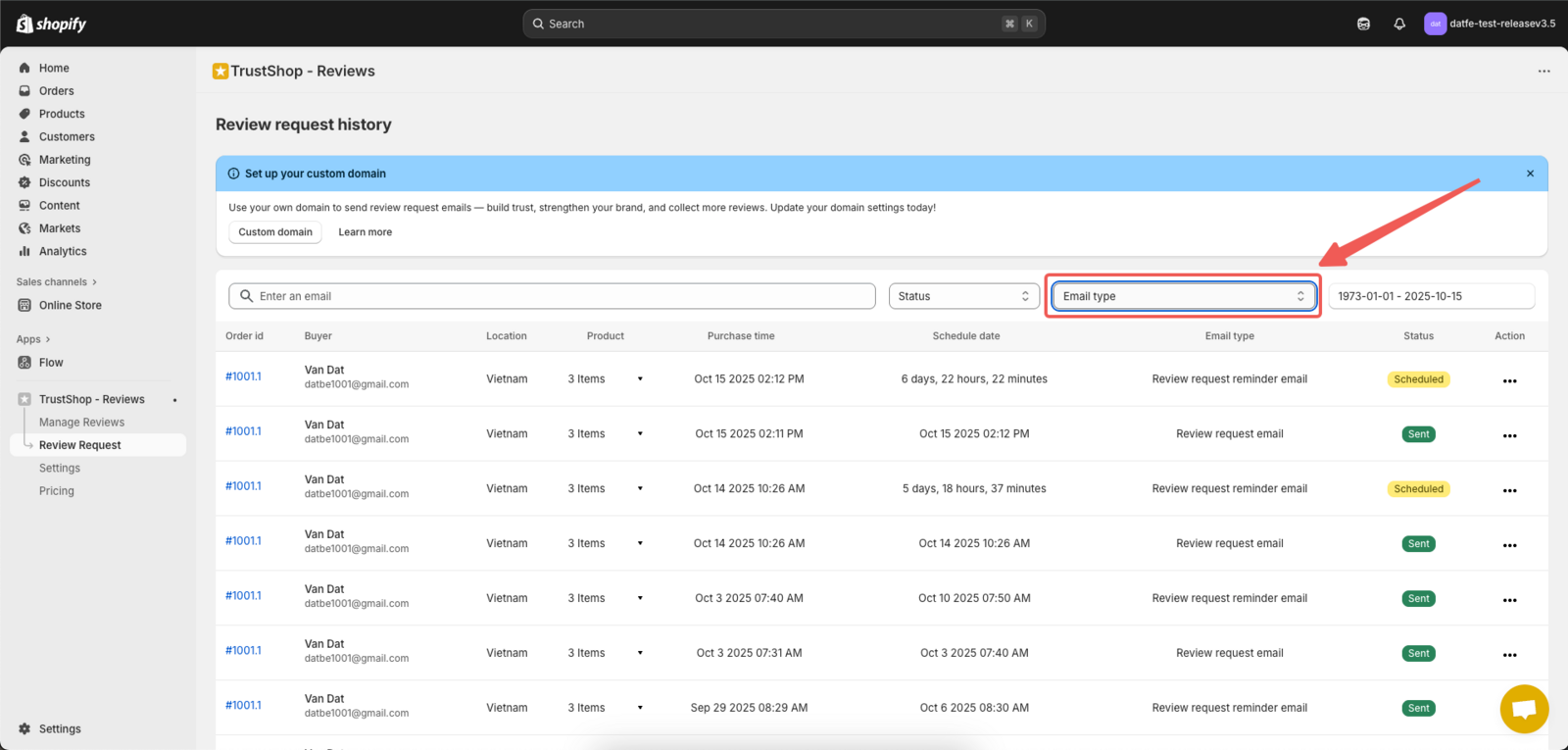
3. Email Type Box: Identify the Type of Email Sent
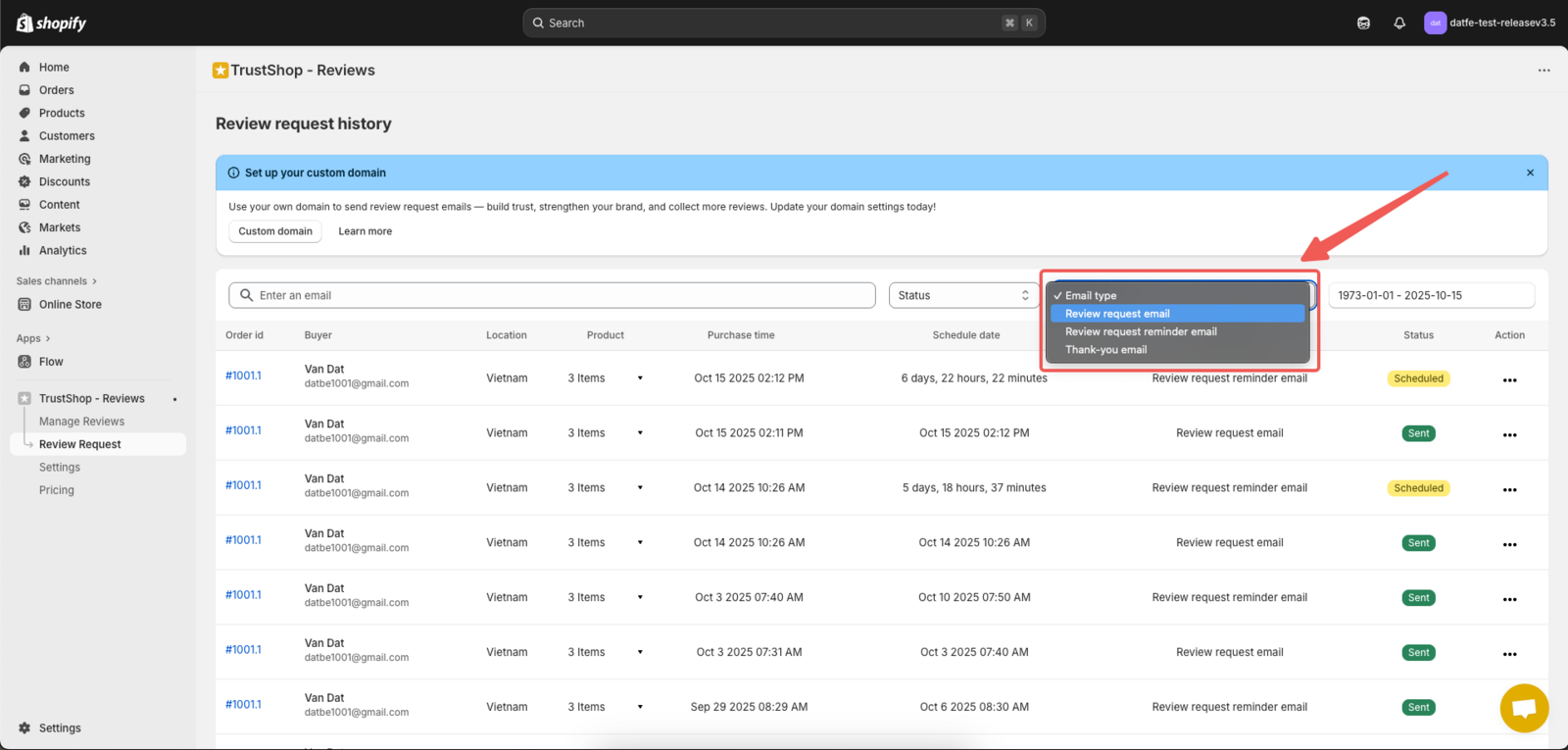
The email type box helps you differentiate between various types of review request emails. This feature allows you to filter and track the performance of different kinds of messages, including:
- Review Request Email: This is the initial request asking customers to leave a review.
- Thank You Email: After a customer leaves a review, this email expresses gratitude for their feedback.
- Review Request Reminder Email: If a customer hasn’t responded to the initial review request, this reminder email nudges them to take action.
By tracking these different types of emails, you can gain insights into how each one performs in terms of response rates, open rates, and overall engagement. This helps you determine which email types resonate best with your customers, and which may need adjustments.
4. Time Duration Box: Track Emails Over Specific Periods
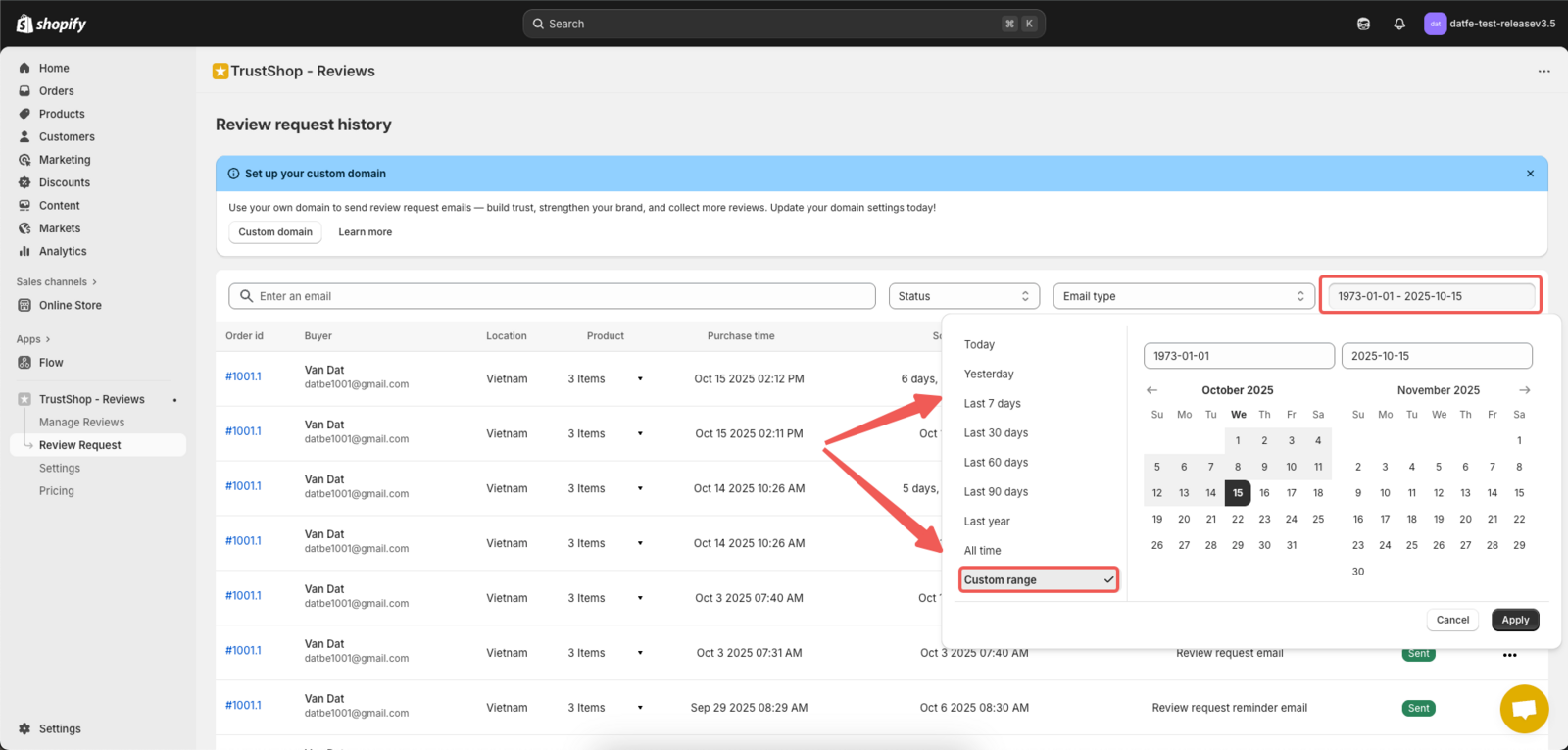
The time duration box gives you the ability to select a time range to track review requests. You can view emails that were sent out during a specific timeframe, whether it’s a particular day, week, or month. This feature is useful for tracking the performance of your review requests over time and assessing whether certain periods (such as holidays or special promotions) result in more engagement.
By adjusting the time duration, you can identify patterns in customer behavior, such as the best days or times to send review requests. It also allows you to evaluate the effectiveness of your campaigns in different periods and adjust your strategy accordingly.
Updated on: 21/03/2026