
How to Increase the Rate of Customers Leaving Reviews from Email Requests
Customer reviews are one of the most powerful tools for driving trust, improving sale, and ultimately boosting sales. However, simply asking for reviews isn't always enough. If you're looking to increase the likelihood of customers leaving reviews after receiving your email request, you'll need to implement effective strategies that incentivize, engage, and motivate them to take action.
In this article, we'll show you several ways to help you increase the rate of customers leaving reviews from email requests.
1. Incentivize Reviews with Discount Codes
Offering a reward in exchange for reviews can significantly increase participation. Discounts are one of the most effective incentives because they directly benefit the customer on their next purchase.
Here is how to add Discount Codes: Creating Discount Incentives for Reviews
2. Use a Custom Domain for Your Emails
One of the most effective ways to boost your customer review rate is by ensuring your review request emails actually reach your customers' inboxes. If you’re currently using a third-party domain (like [email protected]) for your review requests, there's a likely chance your customers cannot see the email. With many businesses sending emails from the same domain, email providers like Gmail may flag your emails as spam, reducing their chances of reaching your customers.
Therefore, using your own custom domain (like yourcompany.com) helps ensure your emails look professional and are more likely to get delivered. It not only builds trust with your customers but also increases the chances they’ll see and respond to your review requests.
Here is how to set up a Custom Domain: Custom Domain
3. Send a Friendly Reminder Email
Sometimes, customers need a gentle nudge to take action. If you haven’t received a review after your initial request, a friendly reminder email can go a long way.
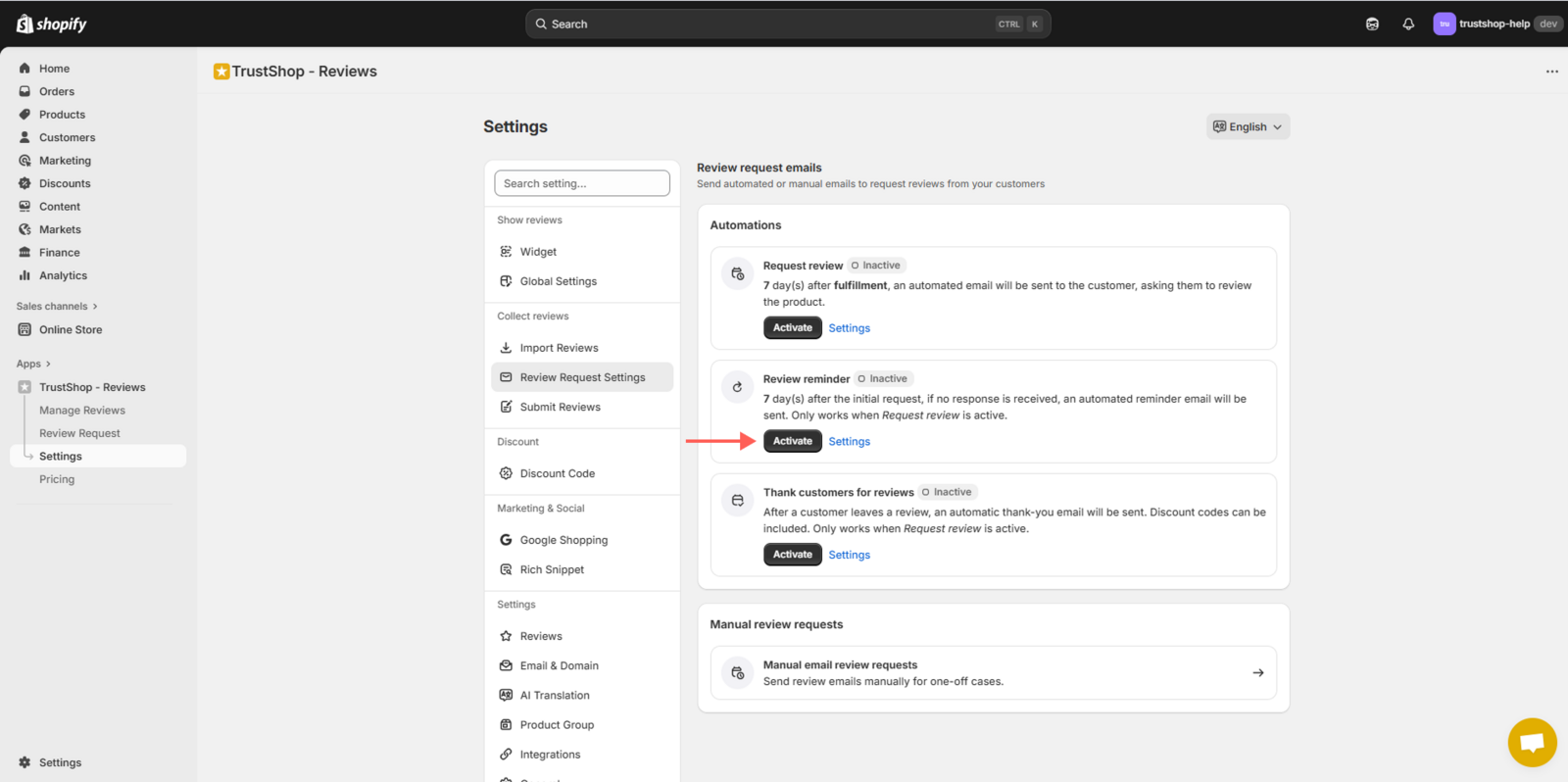
Here is how to activate the automation for review reminder email:
Go to the **Review request emails **page. In the Automations, activate Review reminder. To set it up, click Settings.
4. Send a Grateful Thank You Email
One of the best ways to encourage repeat reviews and strengthen customer loyalty is by showing appreciation. After a customer leaves a review, send a thank you email to express your gratitude. This not only makes your customers feel valued but also reinforces their positive experience with your brand.
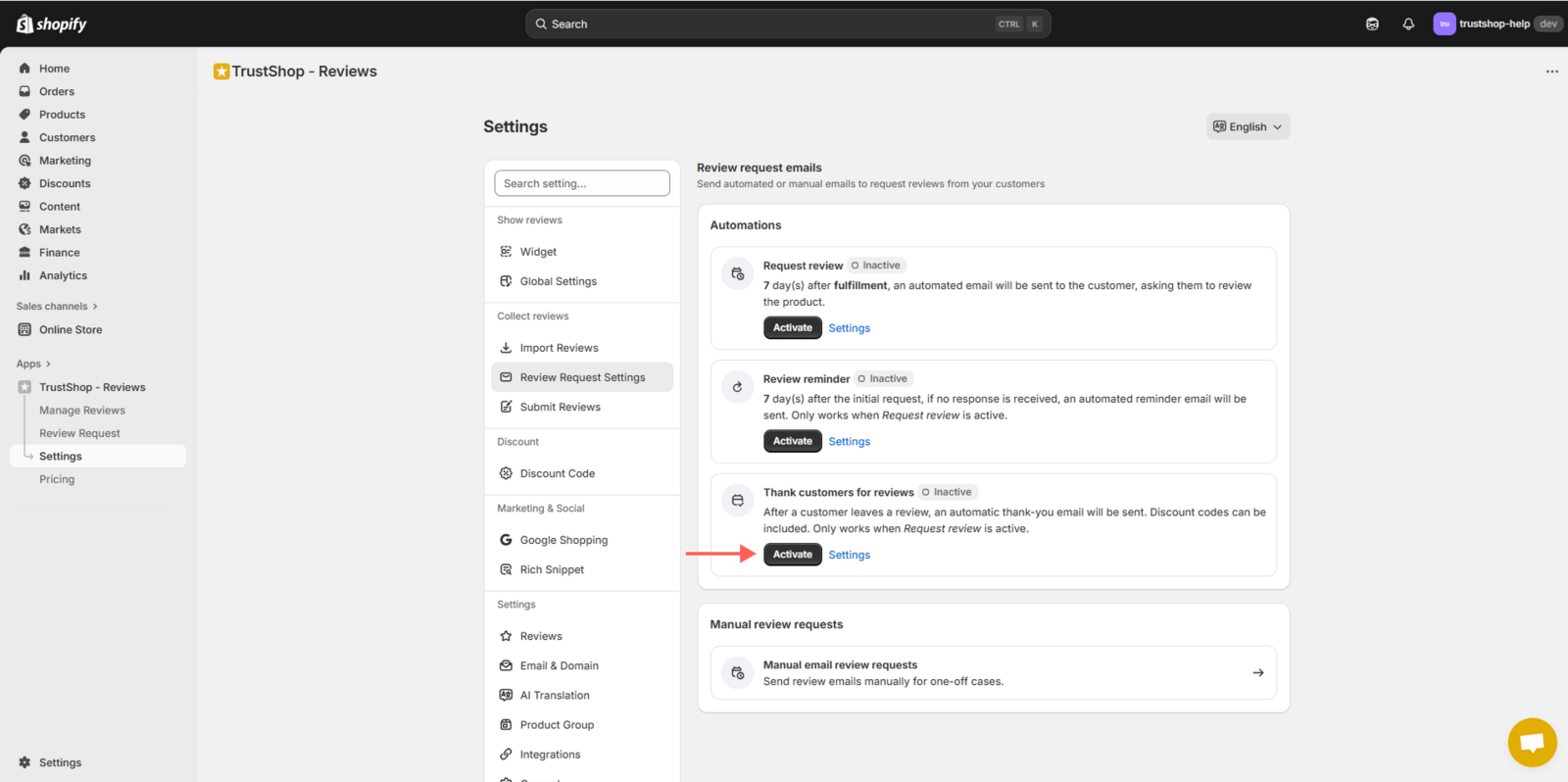
Here is how to activate the automation for Thank you for review email:
Go to the **Review request emails **page. In the Automations, activate Thank-you email. To set it up, click Settings.
5. Add Your Logo and Social Media Links to the Email
Adding your logo and social media links to your review request emails not only makes them look more professional, but it also reinforces your brand identity. Customers are more likely to trust and engage with emails that look like they come from a legitimate, established business.
Make sure your logo is visible at the top of the email and include links to your social media profiles at the bottom to encourage further interaction. You can easily set this up in your setting.
Here’s how to add your logo and social media links:
With logo
Step 1:
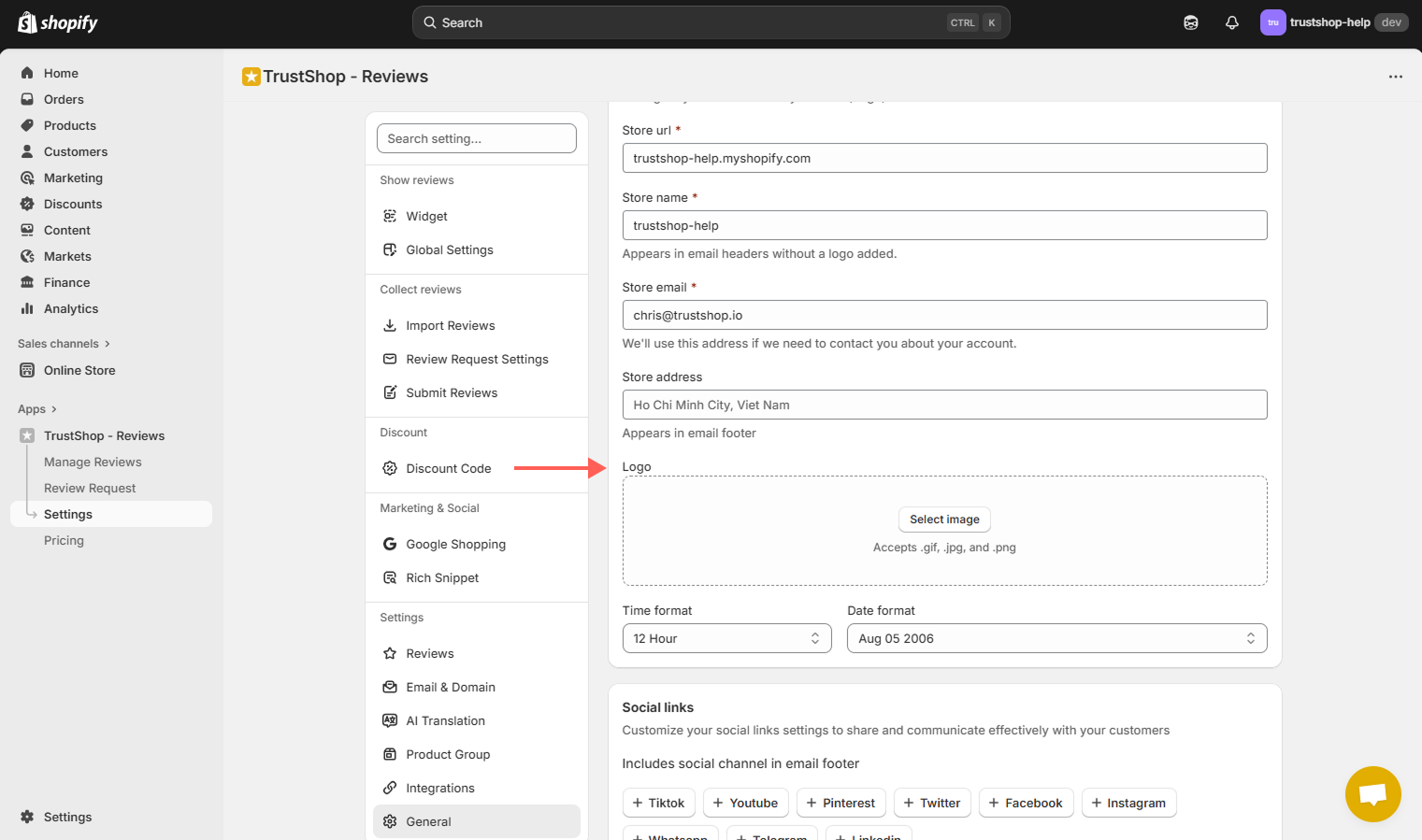
Navigate to the Settings page. In the General tab, under the Profile section, you’ll find an option to upload your logo.
**Step 2: **
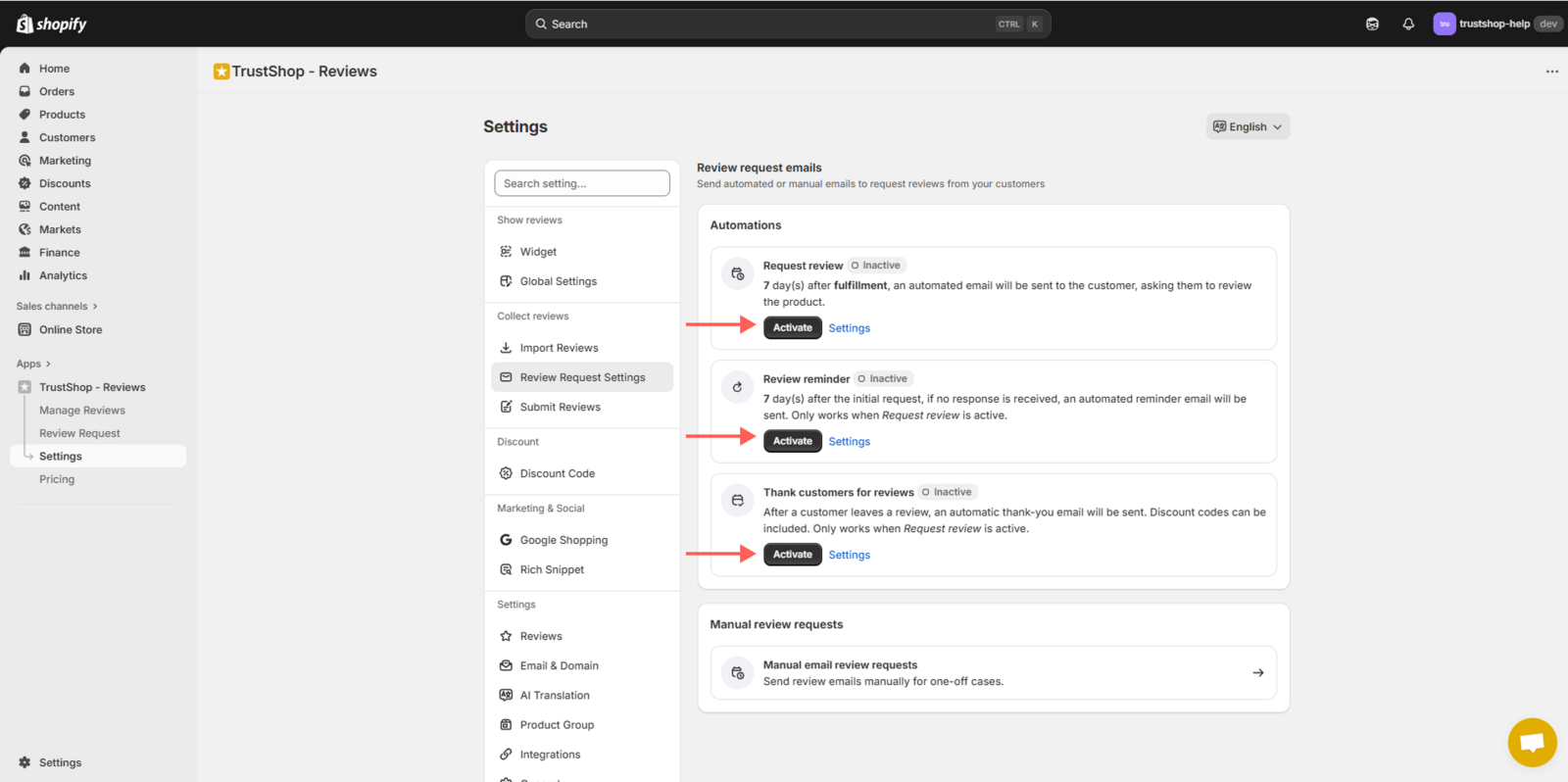
Go to the **Review request emails **page. In the Automations, click to edit your email settings. Make sure the email is activated.
Step 3:
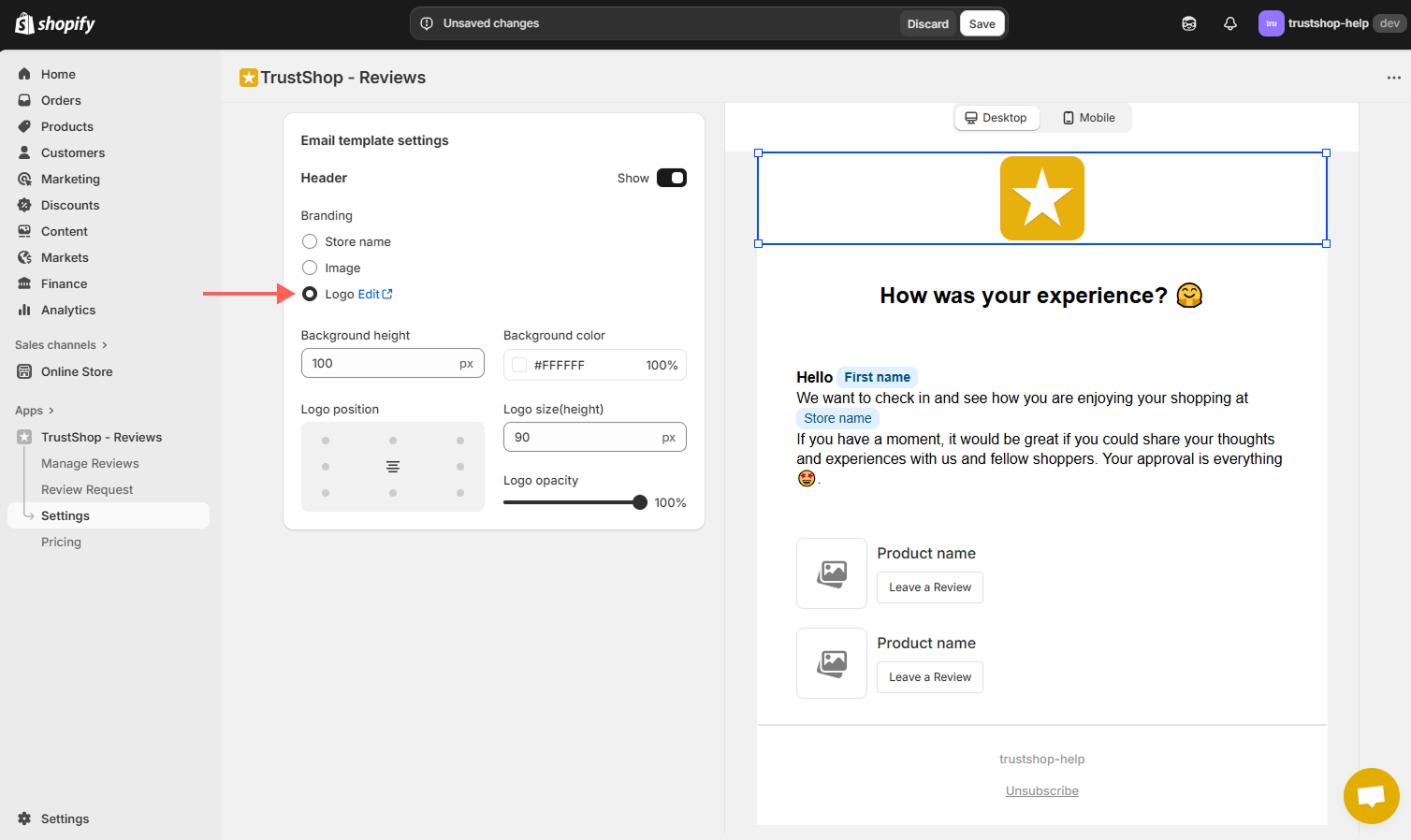
Click on the header of the email, and then click on the “Logo” option to display it in the email.
With social media links
Step 1:
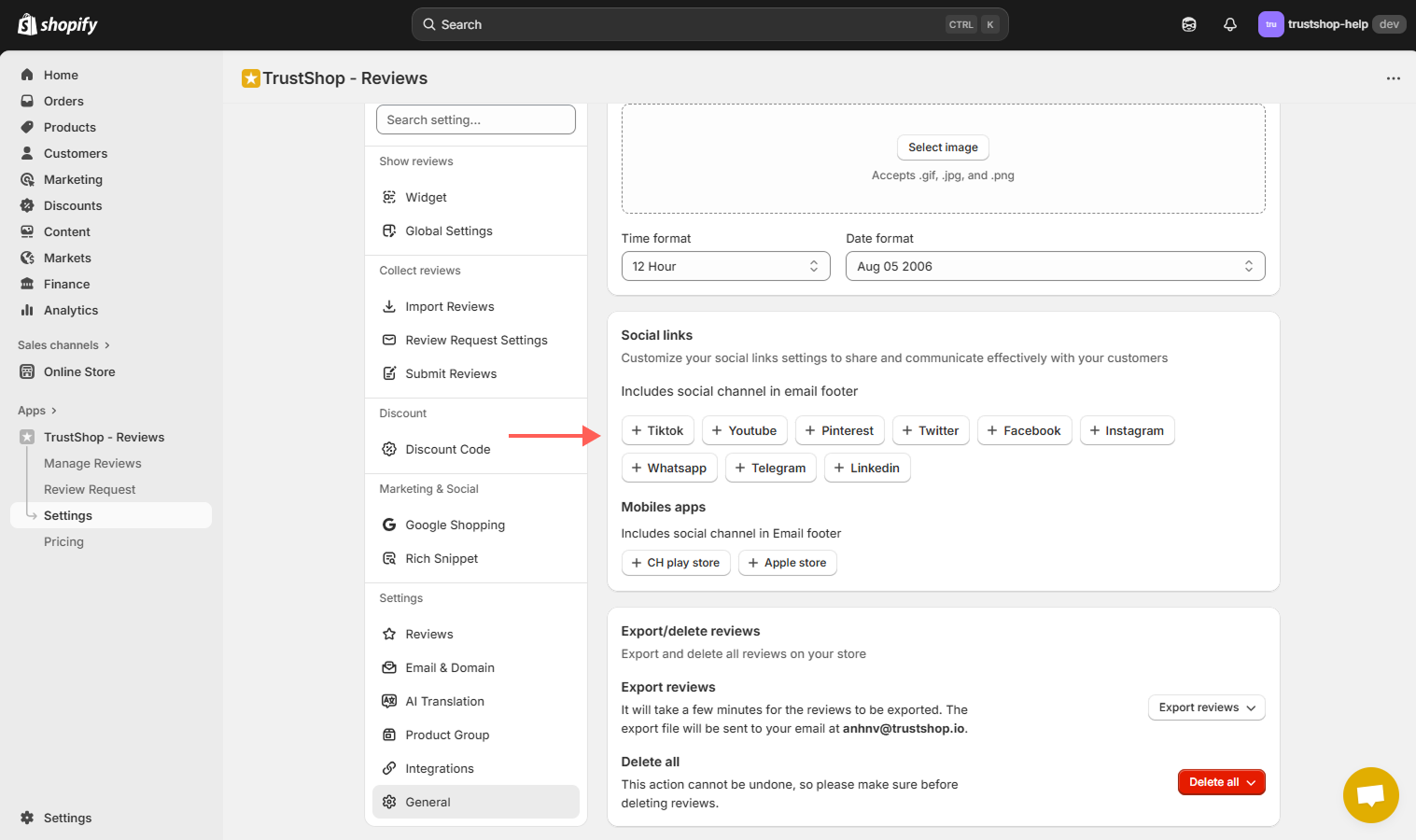
On the Settings page, locate the Social Links section.
Step 2:
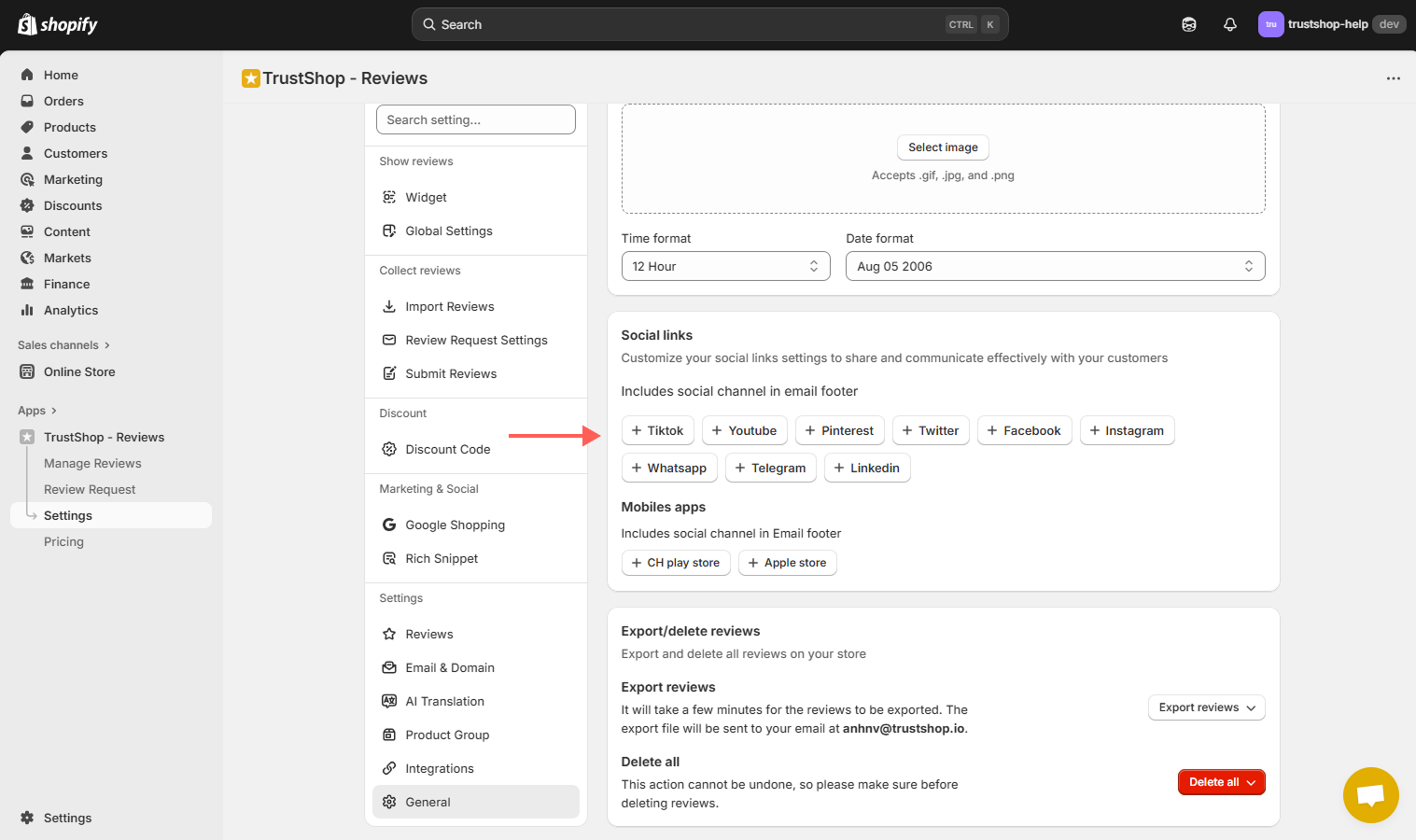
Add the URLs for your social media profiles (Facebook, Instagram, Twitter, LinkedIn, etc.) in the box.
At TrustShop, we’re committed to helping you grow your business through customer reviews. By implementing these simple strategies, you can significantly increase the number of reviews you receive.
Try them today and watch your review rate and your business flourish!
Updated on: 21/03/2026