
Creating Discount Incentives for Reviews
Collecting customer reviews is essential for building trust and improving your business, but getting customers to leave feedback can be challenging. Offering a discount incentive for reviews is a simple way to motivate customers to share their experiences while rewarding their loyalty. It’s a great way to strengthen your store’s credibility and attract new buyers!
Step 1:
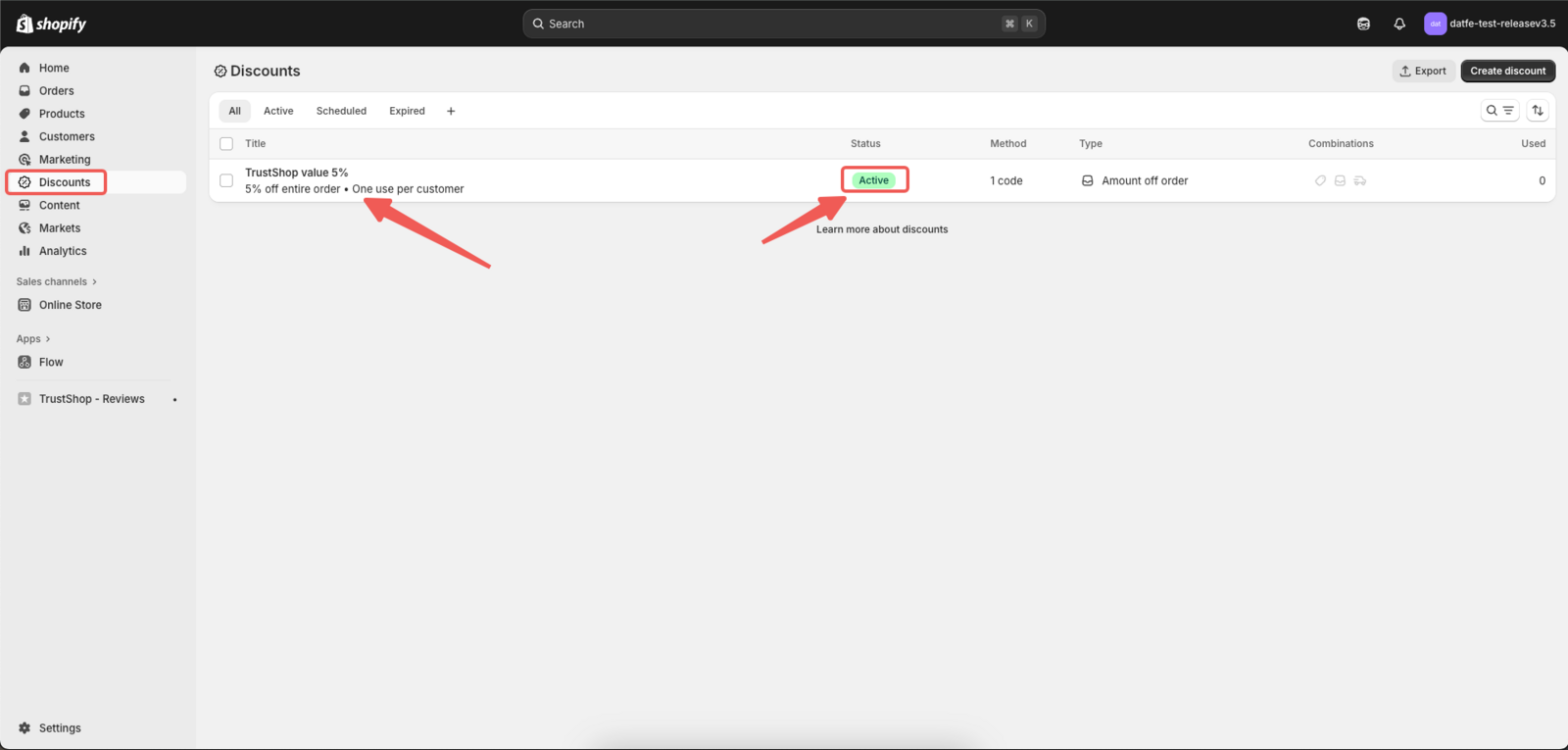
Navigate to the Discounts page in your Shopify admin to check whether your discount code has been created.
Step 2:
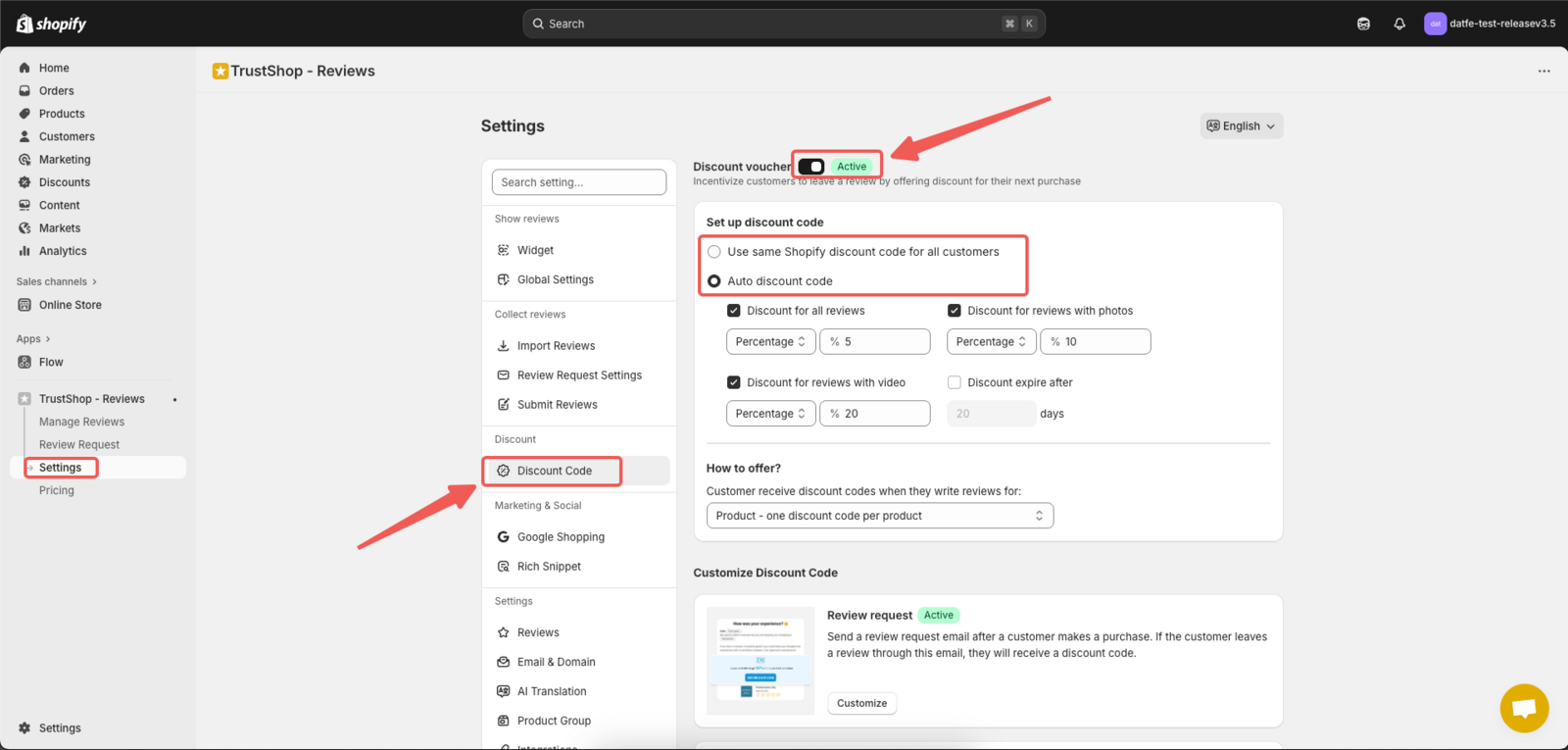
In the TrustShop app, go to the Settings page, scroll down the left sidebar, and select Discount Code.
Check whether it has been activated — if not, click Activate.
Then, choose the type of discount you want to offer and customize it to fit your business strategy.
1. Shopify Coupon
The Shopify Coupon is a discount code that is already available and active in your Shopify account. This type of coupon works well if you want to offer a predefined discount that is linked to a specific promotion you are running on your store.
The coupon is sourced directly from your Shopify discount page. It must be in the form of a discount code, which customers will need to manually enter at checkout.
Step 1:
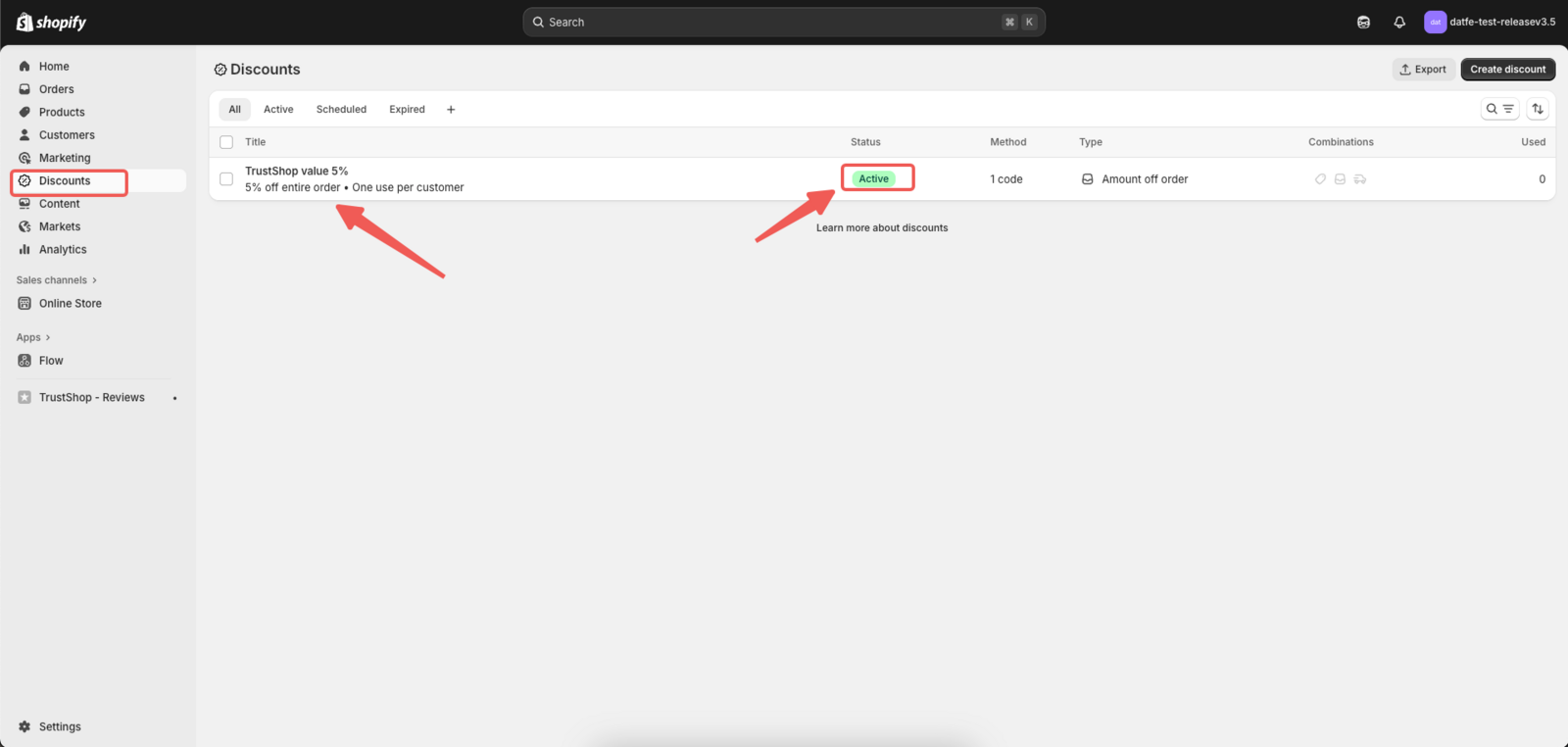
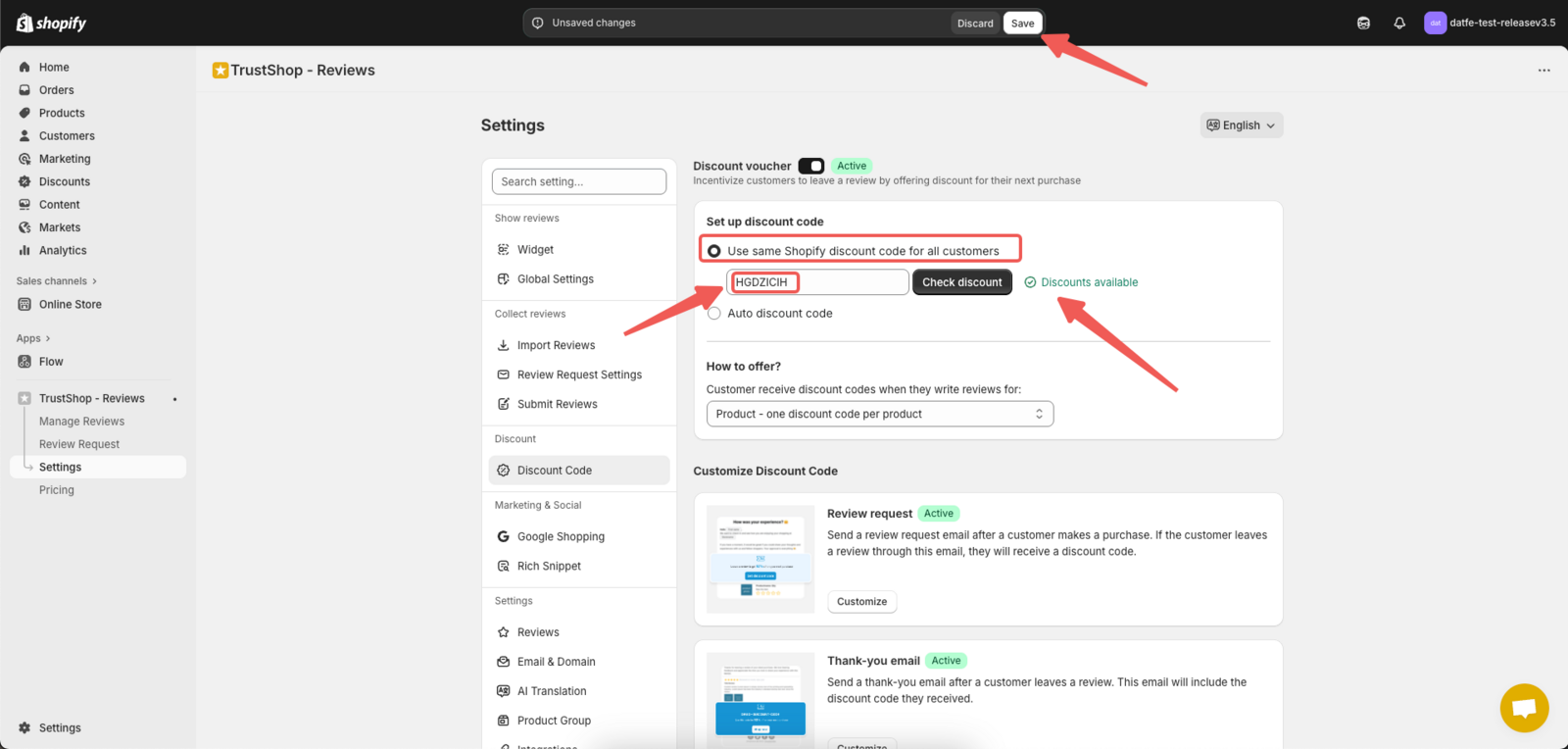
Go to the Discounts page in your Shopify admin. Choose a discount code you want to add to the email. Make sure that the discount is active and currently running.
**Step 2: **
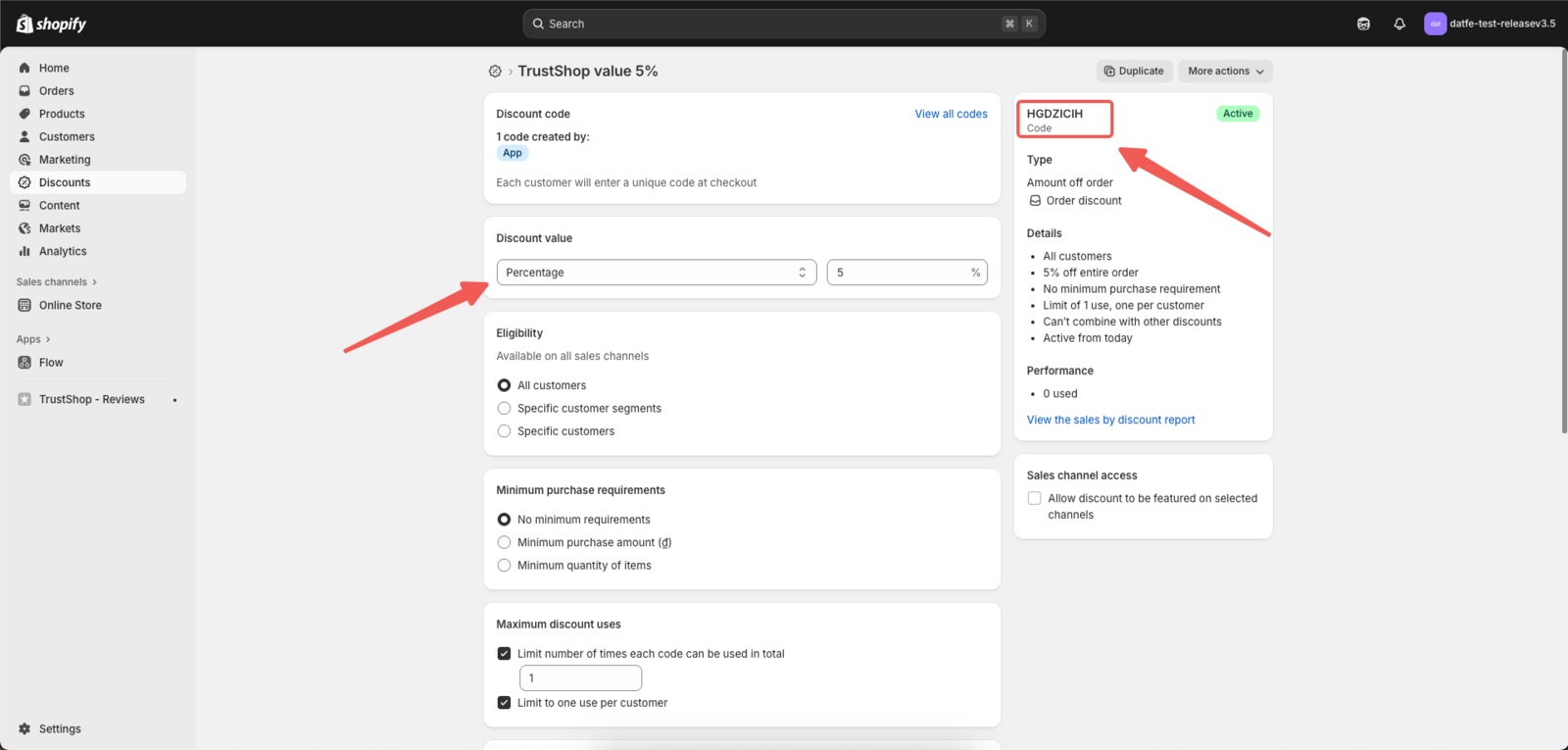
Copy the discount code and fill in the blank box. Click Check discount to see whether the discount code is available.
How to Create a Shopify Discount Code
**Step 1: **
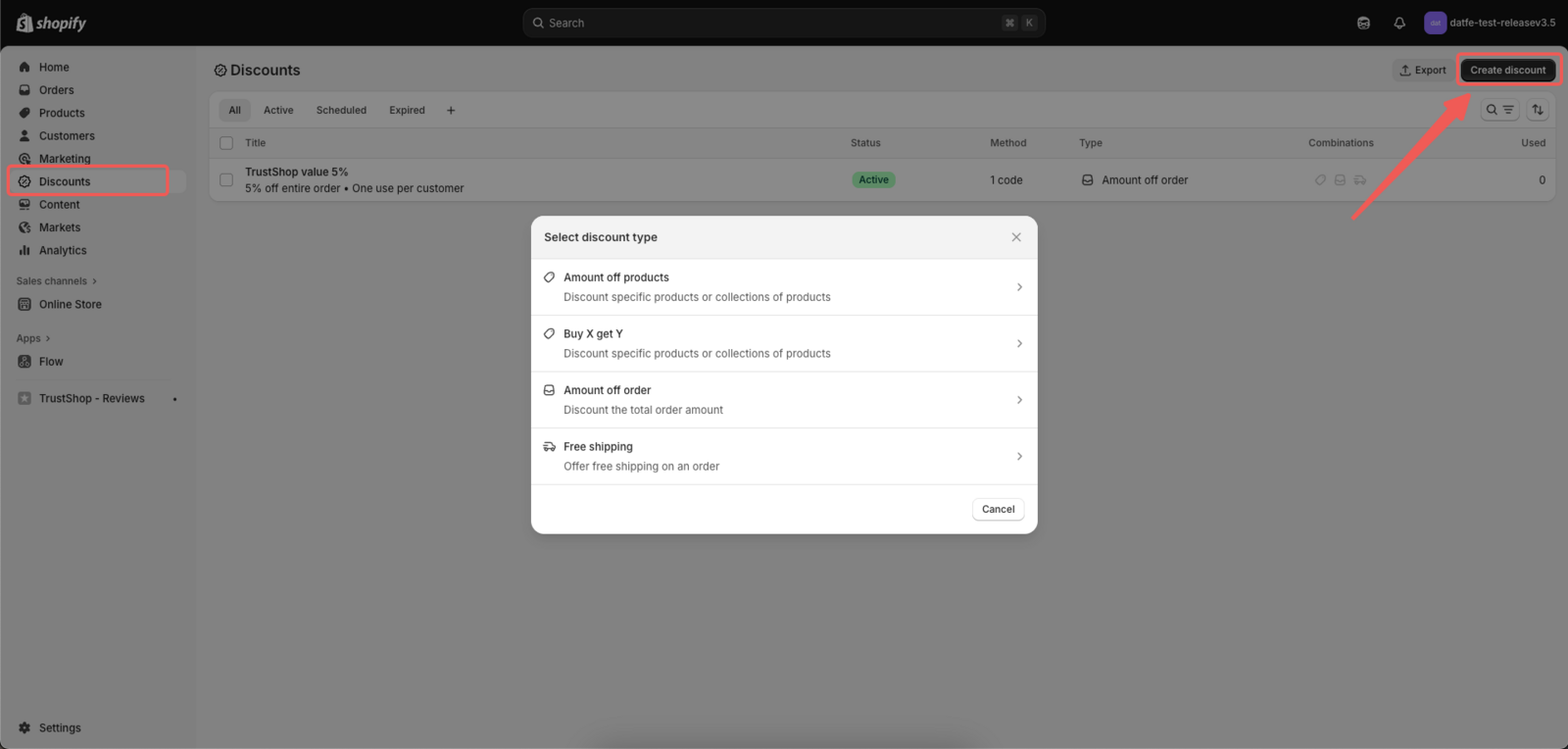
In your Shopify admin, navigate to the Discounts page. Click the button Add discount and choose the type of discount you want to create
Step 2:
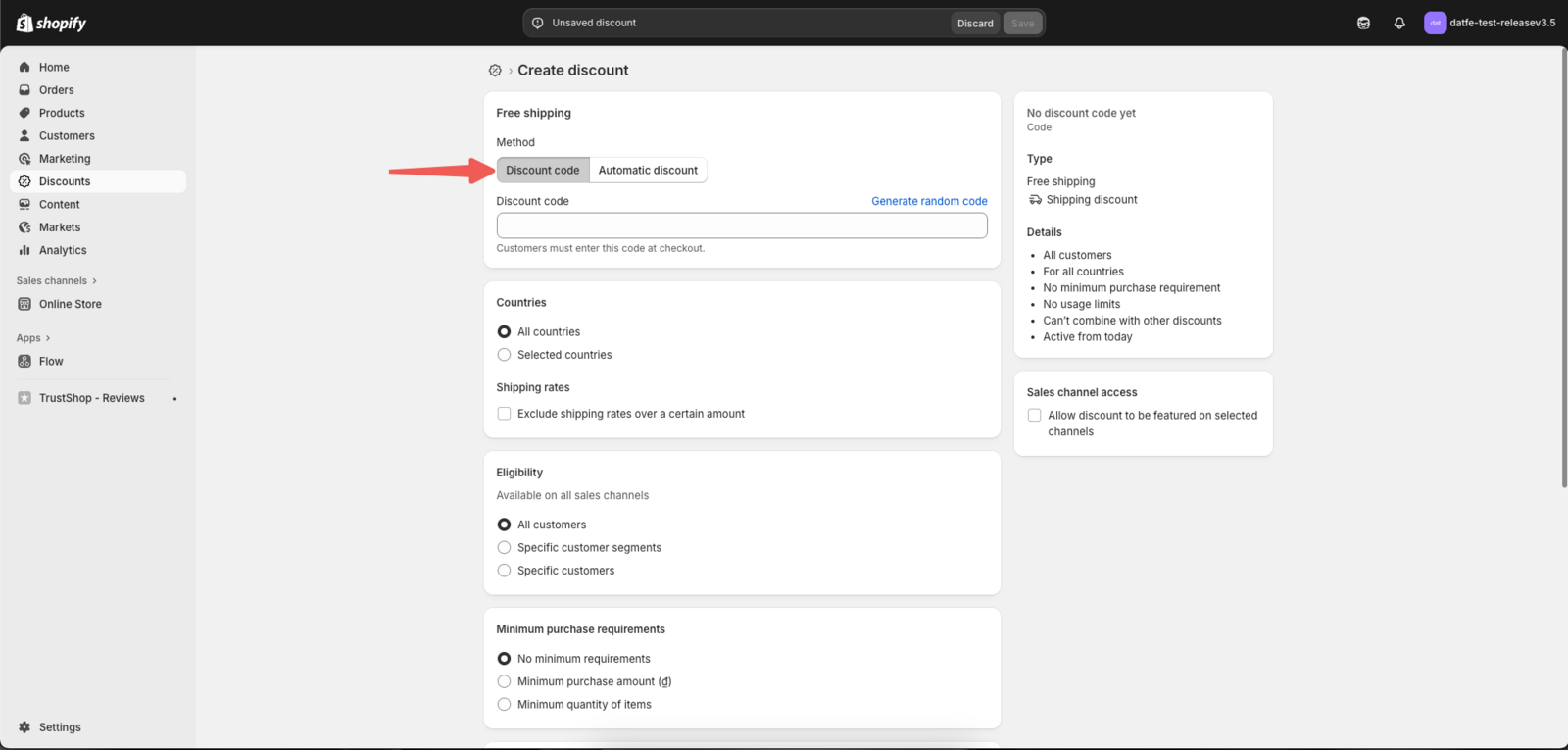
Choose the method of code you want to create.
With Discount code, customers must enter the code at checkout.
With Automatic discount, the discount will be available at checkout. This applies automatically when the customer meets the conditions.
2. Auto Discount Code
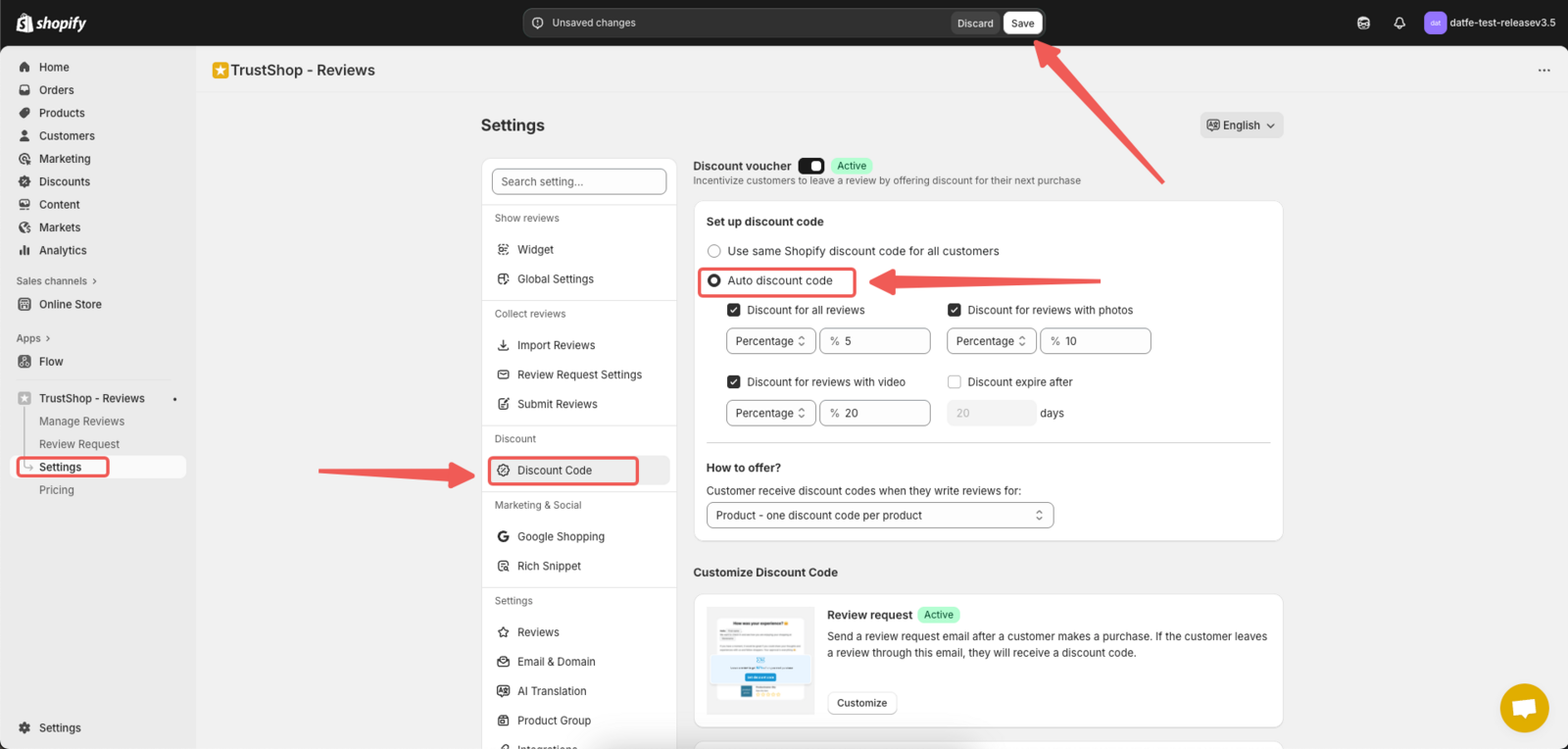
The Auto Discount Code **is a more dynamic approach to offering discounts. It allows you to set up a specific discount for customers based on the type of review they leave.
Go to the Settings page, scroll down the left sidebar, and select Discount Code. In this section, you can create different discounts based on criteria such as:
- All reviews: Offer a standard discount for any review left, whether it includes a photo, video, or is simply a written review.
- Reviews with photos: You may offer a higher discount if the customer adds a photo with their review.
- Reviews with videos: Even more incentive can be given if the customer includes a video along with their review.
Updated on: 15/10/2025